Skip to content

24.6.1 Voyager released

Changes compared to 24.6.0

Enhancements

  • Added a new option in the admin account policies that allows top-level admins to grant tenant admins permission to configure Software Build Role settings
  • Significantly improved the performance of measuring Storage Vault sizes before a backup job starts

Bug Fixes

  • Fixed an issue causing Comet to occasionally crash when performing a granular restore from an NTFS file system
  • Fixed an issue with the impersonating user banner showing incorrectly for direct user SSO logins
  • Fixed an issue with Windows Server 2008 fallback upgrades where the upgrade fails due to support for TLS 1.2 being dropped
  • Fixed a cosmetic issue where the Tenant name and “Online” status in the User’s page were not distinguishable in the Comet Server web interface

About Version 2 Digital

Version 2 Digital is one of the most dynamic IT companies in Asia. The company distributes a wide range of IT products across various areas including cyber security, cloud, data protection, end points, infrastructures, system monitoring, storage, networking, business productivity and communication products.

Through an extensive network of channels, point of sales, resellers, and partnership companies, Version 2 offers quality products and services which are highly acclaimed in the market. Its customers cover a wide spectrum which include Global 1000 enterprises, regional listed companies, different vertical industries, public utilities, Government, a vast number of successful SMEs, and consumers in various Asian cities.

About Comet
We are a team of dedicated professionals committed to developing reliable and secure backup solutions for MSP’s, Businesses and IT professionals. With over 10 years of experience in the industry, we understand the importance of having a reliable backup solution in place to protect your valuable data. That’s why we’ve developed a comprehensive suite of backup solutions that are easy to use, scalable and highly secure.

How to Force Quit Unresponsive Apps on Your Mac

Few things are as frustrating as the spinning beach ball of death.

You’re busy working, studying, or maybe just browsing your favorite websites, and then — the dreaded spinning pinwheel cursor pops up on your screen, and your clicks do nothing. Nada.

While unresponsive apps can be frustrating, the Mac “force quit” feature resolves that issue.

Like using Ctrl>Alt>Delete to access the task manager on Windows devices, force quit allows Mac users to force an unresponsive app to close so they can get back to work quickly.

In this post, I’ll explore several different ways to use force quit to close unresponsive apps, explain why this happens, and provide tips on how to prevent it.

Want to make the most of your Mac? Parallels Toolbox  unlocks a world of productivity on your computer. 

How to force quit on a Mac using the Apple menu

One way to force quit unresponsive apps is by using the Apple menu. While this isn’t the simplest method, it is straightforward.

1. Click the Apple logo in the upper-left corner of your Mac screen

2. Click “Force Quit Finder” from the drop-down menu

3. A window will pop up displaying currently open apps. Select the app you want to force quit.

4. Click the “Force Quit” button at the bottom of the window.

The unresponsive app will be forced to close. If you still need to use it, you can reopen the app, which will likely solve any issues.

If this doesn’t work for some reason (or if your entire screen is frozen), you can use a few other tricks to force quit.

How to force quit on a Mac using keyboard shortcuts

If you were a Windows user in another life, this is like the Ctrl>Alt>Delete shortcut.

The force quit shortcut is especially useful if several apps are not responding or if you’re not sure which app is causing the issue.

1. Press the Option + Command + Escape buttons at the same time

2. Choose the unresponsive app

3. Tap the “Force Quit” button

That’s it! This shortcut is quick and satisfying (especially when you’re frustrated by apps not responding!), but if Apple has you covered if need another option.

How to force quit on a Mac using the Activity Monitor

The Activity Monitor on your Mac provides detailed info about your computer’s hardware and software.

It’s very similar to the Task Manager on a Windows device — and it’s another way you can access force quit. Here’s how:

1. Open Finder (generally located on your toolbar.)

2. Look for the Activity Monitor app icon or use the search function. Click to open.

3. Under the Process Name list, locate the app that is not responding. Click to highlight the app.

4. At the top of the Activity Bar window, tap Stop, then Force Quit.

This action will force the app to close immediately. Remember that you might lose some data if you have files open or fields within the app filled out.

While the Activity Monitor is useful for forcing unresponsive apps to close, it does a lot more. You can also monitor system performance, see how much memory is available, and troubleshoot by seeing which apps are hogging resources.

Why do apps freeze on my Mac?

There are multiple reasons why an app might freeze.

Sometimes, you must give your computer the old “turn it off and turn it back on again” treatment.

However, if apps are constantly freezing, there’s a good chance your computer is running out of memory.

If your Mac is running low on RAM or has a high CPU usage, you might need more resources to run certain apps. Deleting apps and files you no longer need will solve this issue.

We recommend using the Parallels Toolbox to clean up junk files, delete temporary files, and eliminate applications you aren’t using. These actions will free up RAM (memory), which will get rid of that pesky spinning beach ball of death.

Unfreeze your Mac with force quit

While force quit is a valuable tool for closing unresponsive apps, use it with caution. Closing an app that is frozen can cause you to lose some data.

For example, if you’re using Word, you may lose some of your work. If you were filling out a form, you may need to start over.

To prevent apps from freezing, restart your Mac regularly and ensure your OS is up to date. Use the Activity Monitor to keep an eye on your RAM and delete old files regularly.

The Parallels Toolbox (included in the Pro Edition of Parallels Desktop) makes it easy to keep your Mac clutter-free and prevent unresponsive apps from derailing your day. 


About Version 2 Digital

Version 2 Digital is one of the most dynamic IT companies in Asia. The company distributes a wide range of IT products across various areas including cyber security, cloud, data protection, end points, infrastructures, system monitoring, storage, networking, business productivity and communication products.

Through an extensive network of channels, point of sales, resellers, and partnership companies, Version 2 offers quality products and services which are highly acclaimed in the market. Its customers cover a wide spectrum which include Global 1000 enterprises, regional listed companies, different vertical industries, public utilities, Government, a vast number of successful SMEs, and consumers in various Asian cities.

About Parallels 
Parallels® is a global leader in cross-platform solutions, enabling businesses and individuals to access and use the applications and files they need on any device or operating system. Parallels helps customers leverage the best technology available, whether it’s Windows, Linux, macOS, iOS, Android or the cloud.

The critical role of cybersecurity monitoring in business

The digital transformation of businesses has brought about significant changes in how organizations operate, communicate, and store data. With this transformation comes an increased risk of cyber threats, making cybersecurity a top priority for businesses of all sizes.

In fact, according to Statista, the global cost of cybercrime is expected to surge in the next four years, rising from $9.22 trillion in 2024 to $13.82 trillion by 2028. This means that if you own a digital business, your chances of experiencing a security incident are high.

One critical aspect of cybersecurity is continuous network surveillance, which involves actively monitoring and analyzing network traffic and system activity to detect and respond to security incidents. In this blog post, we’ll explore the importance of cybersecurity monitoring in business and provide tips for implementing an effective monitoring strategy.

Key takeaways

  • Cybersecurity monitoring is essential for businesses to safeguard against cyber threats and protect their digital assets.

  • Effective network security monitoring provides benefits such as early detection of security incidents, improved security posture, and compliance with regulations.

  • Ignoring cybersecurity monitoring can result in severe consequences, including financial loss, reputation damage, and legal implications.

  • Cybersecurity monitoring involves continuous monitoring of network traffic and system activity to detect and respond to security incidents.

  • Implementing an effective cybersecurity monitoring strategy involves several steps, including conducting a risk assessment, choosing the right tools, establishing baselines, implementing continuous monitoring, and regularly reviewing and updating the strategy.

What is cybersecurity monitoring?

Cybersecurity monitoring is the process of continuously analyzing network traffic and system activity to detect and respond to security incidents. Unlike traditional security measures that focus on preventing attacks, digital security monitoring is about detecting and responding to threats that have already passed a system’s defenses.

However, while prevention is essential, preventing all attacks is not always possible. That’s where cybersecurity monitoring comes in: detecting and responding to threats that have already breached a system’s defenses. Continuous cybersecurity monitoring is an essential component of any organization’s security strategy.

By actively identifying and mitigating potential security risks, organizations can protect their data and minimize the impact of breaches and other cybersecurity risks.

How does cybersecurity monitoring work?

Cybersecurity monitoring involves a combination of network and endpoint monitoring, as well as other tools and strategies.

Network monitoring

Network monitoring means analyzing network traffic to detect suspicious activity, such as unusual data transfers or login attempts from unauthorized devices. Network monitoring tools can also help identify vulnerabilities in a network’s infrastructure and provide real-time alerts when security incidents occur.

Endpoint monitoring

Endpoint monitoring includes analyzing activity on individual devices, such as laptops and smartphones, to detect suspicious behavior. Endpoint detection tools can help detect malware, ransomware, and other cyber threats that may have bypassed network security measures.

Continuous cybersecurity monitoring allows the detection of cyber threats and a proper response. This allows businesses to improve their security posture, comply with regulations, and keep security incidents to a minimum.

Now, let’s discuss the monitoring tools that go hand in hand with these two strategies.

Cybersecurity monitoring tools & strategies

In addition to these two monitoring processes, businesses can use several other cybersecurity monitoring tools and strategies to improve their security posture. Let’s analyze them in detail:

Security Information and Event Management (SIEM)

Security Information and Event Management (SIEM) tools are powerful solutions that gather and connect security data from various sources, including network devices, servers, and applications. SIEM tools use advanced algorithms and machine learning to analyze security alerts in real time, helping security teams identify and respond to potential threats quickly.

SIEM tools can also generate reports and dashboards to provide insights into security trends and compliance status.

Intrusion Detection Systems (IDS)

Intrusion Detection Systems (IDS) are designed to monitor network traffic for signs of intrusion or unauthorized access. IDS tools can detect various malicious activities, including network scans, brute force attacks, and malware infections. Depending on the organization’s specific needs, IDS tools can be deployed as network-based or host-based solutions.

IDS tools can also generate alerts and reports to help security teams investigate and respond to security incidents.

Threat intelligence

Threat intelligence is all about gathering and analyzing data on potential threats. This helps businesses identify and respond to emerging threats. It can come from various sources, including open-source feeds, commercial risk intelligence providers, and internal security data.

Threat intelligence can help security teams understand the tactics, techniques, and procedures (TTPs) used by attackers, enabling them to defend against potential attacks. Threat intelligence can also aid security teams in prioritizing their response efforts and allocating resources more effectively.

By combining these tools and strategies, businesses can continuously monitor their networks and endpoints for suspicious activity, detect and respond to security incidents, and improve their overall security posture.

Data speaks volumes web cover 1400x800

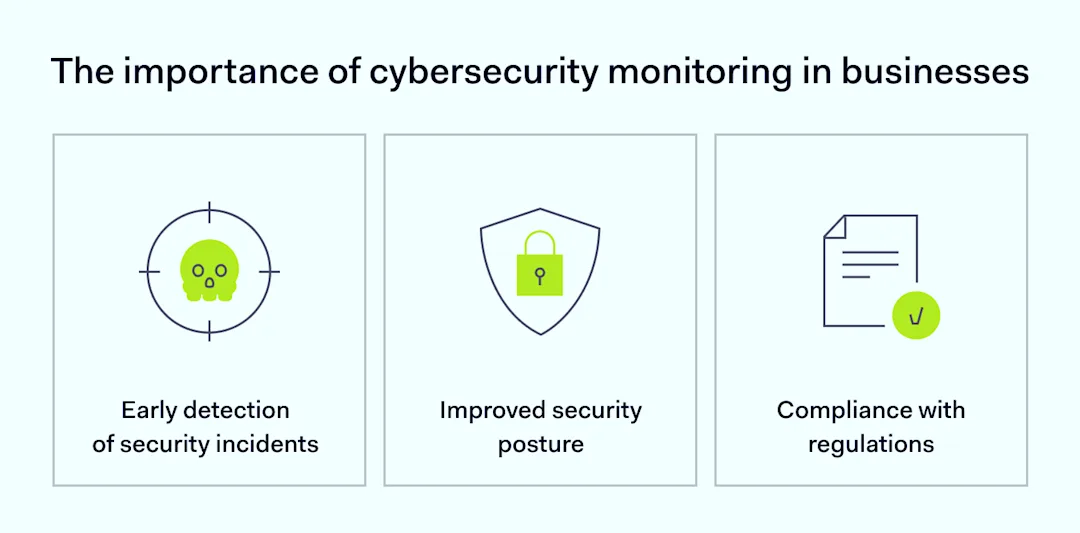
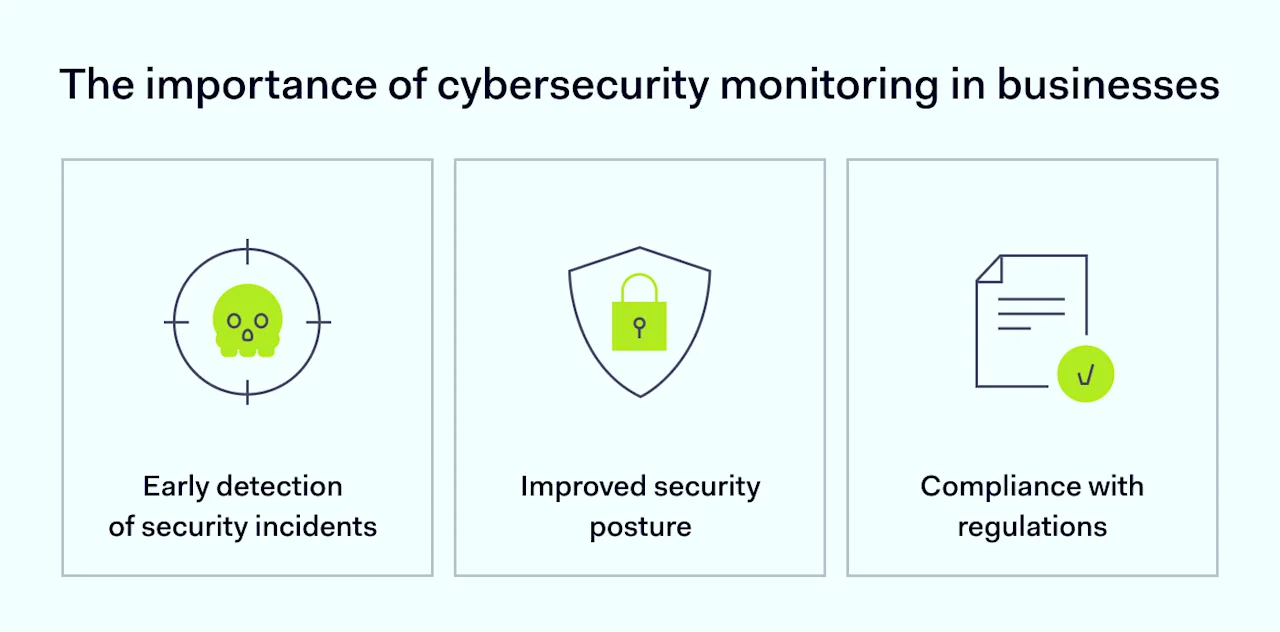
The importance of cybersecurity monitoring in business

Effective cybersecurity monitoring is critical for businesses of all sizes.
The-importance-of-cybersecurity-monitoring-in-businesses

Let’s find out why by having a look at some of the benefits of implementing a continuous monitoring strategy:

Early detection of security incidents

Continuous monitoring enables early detection of a security incident in its early stages, allowing businesses to respond quickly and minimize the impact of a breach.

Improved security posture

Continuous security monitoring can help businesses identify and address vulnerabilities in their network infrastructure, improving their overall security posture.

Compliance with regulations

Many industries are subject to regulations that require businesses to implement cybersecurity monitoring measures. Continuous monitoring can help businesses meet these requirements and avoid costly fines.

Effective cybersecurity monitoring is critical for businesses to protect their assets and reputation. While the benefits of implementing a continuous monitoring strategy are numerous, ignoring digital security monitoring can have serious consequences, which we will explore in the following section.

The risks of ignoring cybersecurity monitoring

Ignoring cybersecurity monitoring can leave businesses vulnerable to various cyber threats, from data breaches to malware attacks. Without continuous monitoring, organizations may not detect a security incident until too late, resulting in significant financial and reputational damage.

Here’s some statistics on the frequency and impact of cyber threats in the business sector:

  • According to a report by Cybersecurity Ventures, cybercrime is projected to cause $10.5 trillion in damages by 2025

  • In 2023, the average cost of a data breach was $4.45 million, according to a report by IBM

  • 66% of SMBs have experienced a cyber attack in the past 12 months

  • 55% of Americans state that they wouldn’t continue doing business with a company that experienced a data breach

  • The long-term consequences of inadequate cybersecurity can include financial loss, reputation damage, downtime costs, and legal implications

Continuously monitoring network traffic and system activity is crucial for businesses to detect and respond to cyber threats on time. Effective threat detection and incident response can significantly reduce the impact of a security incident, preventing both financial and reputational damage.

Businesses that ignore cybersecurity monitoring risk falling victim to cyber-attacks, which can result in significant financial and reputational losses. That’s why businesses need to prioritize security monitoring as part of their overall security strategy.

Steps for implementing cybersecurity monitoring
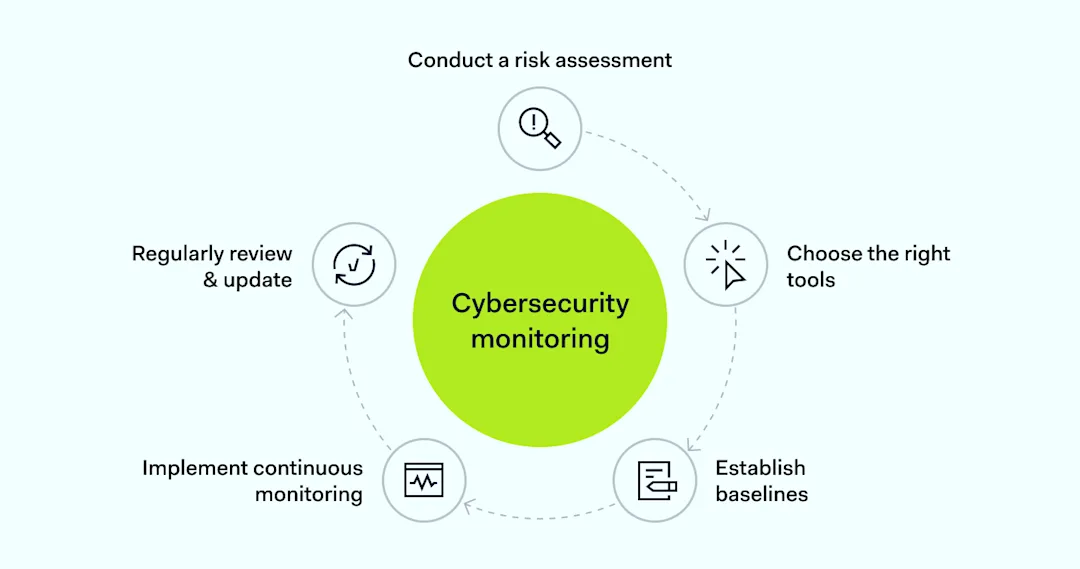
Implementing an effective cybersecurity monitoring strategy involves several steps, including:

Step 1: Conduct a risk assessment

The first step in implementing an effective cybersecurity monitoring strategy is to identify the assets that need to be protected, the potential threats to those assets, and the vulnerabilities in your network infrastructure. A risk assessment helps you understand the specific risks your organization faces and enables you to prioritize your security efforts accordingly.

This process should involve analyzing your network traffic, identifying potential weak points, and evaluating the potential impact of a data breach.

Step 2: Choose the right tools for security monitoring

Selecting the right tools for security monitoring is critical to the success of your cybersecurity strategy. Look for tools that align with your business needs and provide real-time alerts and analysis. These tools should be capable of detecting and responding to security incidents, providing threat identification and incident response capabilities.

They should also be able to analyze network traffic to identify suspicious activity and potential threats before they cause damage.

Step 3: Establish baselines

Establishing baselines for normal network activity is essential for detecting anomalies and potential security incidents. By understanding what normal network activity looks like, you can quickly identify when something is wrong. This step involves analyzing network traffic patterns, recognizing typical user behavior, and setting up alerts for any deviations from the norm.

Step 4: Implement continuous monitoring

Implementing continuous monitoring is critical to spotting and responding to security incidents on time. It means actively monitoring network traffic and system activity to detect and respond to security incidents. This process should include real-time threat detection and incident response, as well as analyzing network traffic to identify potential threats.

Step 5: Regularly review & update your strategy

Regularly reviewing and updating your cybersecurity monitoring strategy is essential to ensure it remains effective despite evolving threats. It involves evaluating the effectiveness of your current security measures, identifying areas for improvement, and implementing changes as needed.

Additionally, it should include ongoing employee training to ensure that everyone in your organization is aware of the latest security threats and best practices for protecting against them.

By continuously monitoring your network traffic and updating your security strategy, you can minimize downtime, prevent data breaches, and ensure the ongoing security of your organization.

How NordLayer can help

In conclusion, cybersecurity monitoring is a critical aspect of business security in today’s digitalized environment. By actively monitoring network traffic and system activity, businesses can quickly detect and respond to security incidents, improve their security posture, and avoid the long-term consequences of inadequate cybersecurity.

NordLayer offers a range of cybersecurity monitoring tools and services to help businesses improve their network visibility and security posture. With the right tools and strategies in place, businesses can protect themselves against the growing threat of cyber-attacks and safeguard their assets and reputation.

NordLayer’s network visibility solution provides real-time insights into network traffic and activity, helping businesses detect and respond to security incidents quickly and effectively. It allows you to closely monitor who is accessing your network, what devices they use, when connections occur, and how network resources are used.

Key capabilities include comprehensive activity information tracking, visual server usage analytics dashboards, and device posture monitoring to enforce compliance rules and maintain a consistent security posture. By fusing these robust monitoring features, NordLayer empowers businesses to understand and manage everything happening within their network environment.

About Version 2 Digital

Version 2 Digital is one of the most dynamic IT companies in Asia. The company distributes a wide range of IT products across various areas including cyber security, cloud, data protection, end points, infrastructures, system monitoring, storage, networking, business productivity and communication products.

Through an extensive network of channels, point of sales, resellers, and partnership companies, Version 2 offers quality products and services which are highly acclaimed in the market. Its customers cover a wide spectrum which include Global 1000 enterprises, regional listed companies, different vertical industries, public utilities, Government, a vast number of successful SMEs, and consumers in various Asian cities.

About NordLayer
NordLayer is an adaptive network access security solution for modern businesses – from the world’s most trusted cybersecurity brand, Nord Security.

The web has become a chaotic space where safety and trust have been compromised by cybercrime and data protection issues. Therefore, our team has a global mission to shape a more trusted and peaceful online future for people everywhere.

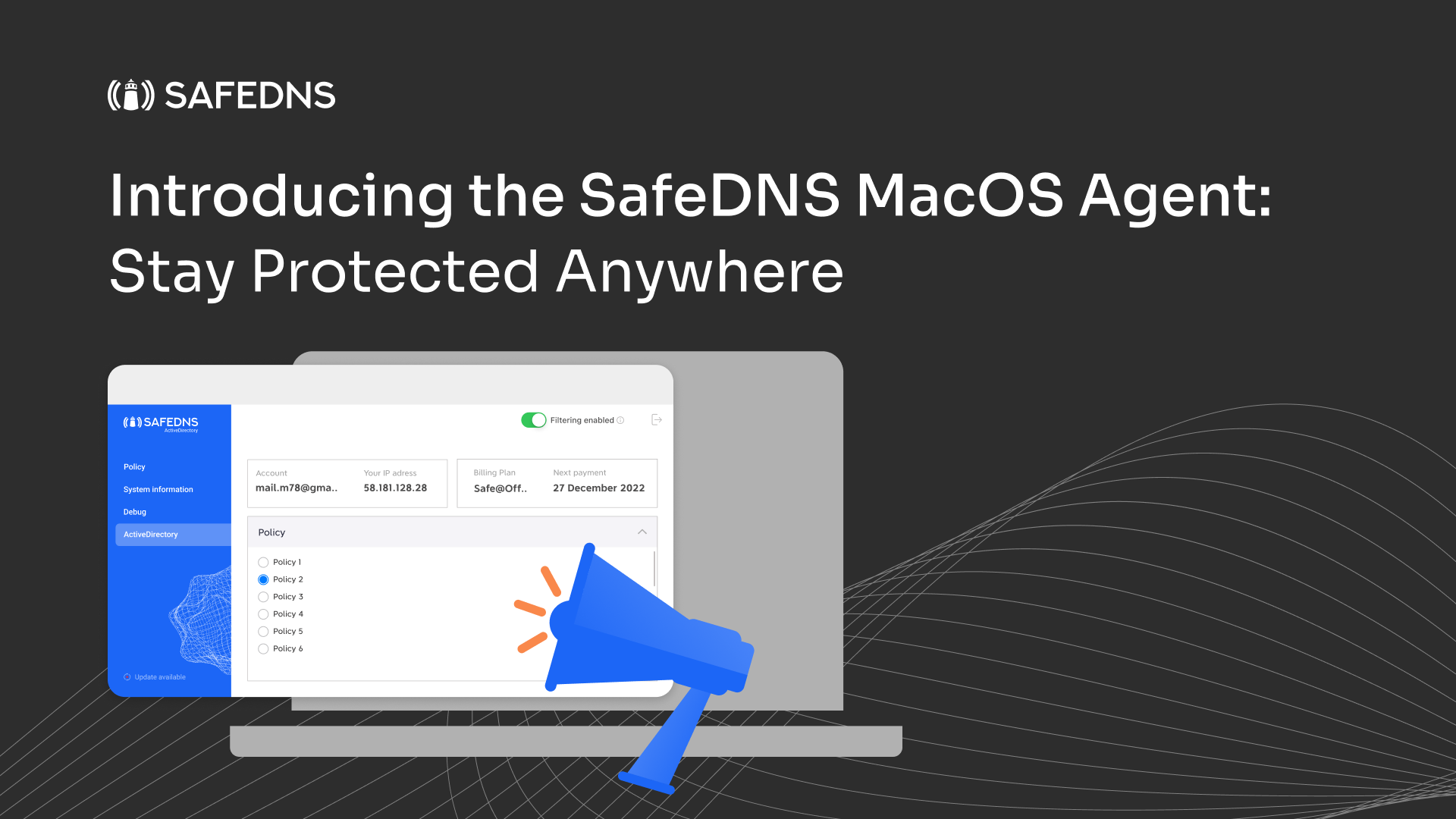
Introducing the SafeDNS MacOS Agent: Stay Protected Anywhere

We’re excited to announce our latest feature, the SafeDNS Agent for MacOS. Get ready to supercharge your online security and browsing experience like never before. 

Say goodbye to worries about phishing scams, malware attacks, or ransomware nightmares. With our seamless installation process, you’ll be up and running in no time, ready to browse the web with confidence.

Take a look at this: the SafeDNS Agent not only does basic filtering stuff, but it’s packed with great security upgrades too. Think of it like your own personal bodyguard, even when you’re surfing on those dodgy Wi-Fi networks. With our user-friendly dashboard, administrators can create personalized filtering policies that can be adjusted based on the needs of different user groups within an organization. This becomes very handy when setting the various Internet usage scenarios in different departments or roles. All you have to do is install the app and customize your filtering settings from the dashboard.


Let’s break down the SafeDNS Agent’s killer features

  • Easy Installation and Setup: Setting up the SafeDNS Agent on any MacOS device is a breeze. With a simple setup process, you’ll have it installed and protecting your device in no time. The installation guide walks you through every step, ensuring that even users with minimal technical knowledge can get started quickly and effortlessly.
  • Advanced Security Features: Our agent goes beyond basic filtering. It includes advanced security features that protect against phishing, malware, and ransomware sites by analyzing website content in real-time. This extra layer of security is crucial for people who frequently connect to insecure Wi-Fi networks. Our sophisticated algorithms ensure that harmful sites are blocked before they can pose a threat, giving you peace of mind every time you go online.
  • Custom Policies: You can create custom filtering policies tailored to individual users or user groups. This is extremely useful for organizations with departments or groups that have varied internet use requirements. Plus, the intuitive dashboard means you can adjust these policies with ease to ensure that management and optimization are seamless. Whether you need strict controls for sensitive departments or more relaxed policies for creative teams, our agent adapts to your needs.
  • Insightful Reporting and Analytics: Get valuable insights into internet usage patterns and potential security threats with detailed per-device reports and analytics. This data helps you make informed decisions about your internet policies and security measures. Our analytics provide a comprehensive view of your network’s activity, highlighting areas where security can be tightened and efficiency improved.
  • Advanced Web Filtering: Thanks to our cloud-based servers, our agent offers powerful web filtering capabilities. You can block unwanted or unsafe websites based on categories or specific domains, enhancing productivity and protection against web-based threats. Our dynamic categorization system ensures that new and emerging threats are swiftly identified and neutralized.
  • AppBlocker: Our AppBlocker feature allows you to block access to all domains connected to a specific service. For example, if you block the Zoom app, access to the Zoom official website will also be blocked. More than 100 apps are under your control, all combined into 11 global groups—Cybersecurity, File Sharing, Ecosystem Applications—making control easier than ever. This granular level of control ensures that non-essential applications do not distract or pose security risks.
  • Full Query Logs: In our latest update, we now roll up minute-by-minute statistics based on these network events. What this means for you: a breakdown of user requests, domains, categories, and status in more detail, giving you a peek into activity on the internet. It’s like having a magnifying glass into your online behavior. These detailed logs provide transparency and accountability, crucial for maintaining security and compliance.


App Closure Prevention:

Our application includes a robust “App Closure Prevention” feature to ensure uninterrupted security and filtering. Even if users try to close the application window or force quit the program, the essential filtering process continues in the background. This functionality is vital for environments requiring stringent internet controls, such as schools, workplaces, and public access computers. It guarantees continuous protection and compliance with established internet policies, maintaining a safe and controlled browsing environment.

MDM Integration Made Easy:

SafeDNS Agent smoothly integrates into most Mobile Device Management (MDM) systems, making it easy to install on various devices with minimal time and effort. This capability empowers organizations to effortlessly manage and configure the app across their fleet. Control over IT administration becomes easy by centralized control of application deployment and authorization, ensuring uniform security protocols across all the devices enrolled. It is just perfect for large fleets or BYOD environments, streamlining operations and ensuring unified security standards across the organization.

The SafeDNS Agent for MacOS is your go-to solution for ensuring high levels of internet security and filtering, especially for users who frequently connect to various networks. With easy installation, advanced security features, customizable policies, and comprehensive analytics, it offers a robust defense against web-based threats. Whether you’re managing a corporate fleet, a school, or simply looking to secure your personal device, SafeDNS has got you covered. Get the SafeDNS Agent installed today and experience unmatched protection no matter where you are.

About Version 2 Digital

Version 2 Digital is one of the most dynamic IT companies in Asia. The company distributes a wide range of IT products across various areas including cyber security, cloud, data protection, end points, infrastructures, system monitoring, storage, networking, business productivity and communication products.

Through an extensive network of channels, point of sales, resellers, and partnership companies, Version 2 offers quality products and services which are highly acclaimed in the market. Its customers cover a wide spectrum which include Global 1000 enterprises, regional listed companies, different vertical industries, public utilities, Government, a vast number of successful SMEs, and consumers in various Asian cities.

About SafeDNS
SafeDNS breathes to make the internet safer for people all over the world with solutions ranging from AI & ML-powered web filtering, cybersecurity to threat intelligence. Moreover, we strive to create the next generation of safer and more affordable web filtering products. Endlessly working to improve our users’ online protection, SafeDNS has also launched an innovative system powered by continuous machine learning and user behavior analytics to detect botnets and malicious websites.

Preview macOS Sequoia 15 with Parallels Desktop – The Ultimate Convenience for Tech Enthusiasts and Developers!

Following Apple’s WWDC ’24 conference, excitement is in the air, where the spotlight shone brightly on macOS Sequoia 15.

As tech enthusiasts and developers, we’re all eager to get our hands on the latest features and innovations. 

However, upgrading your entire Mac to the beta version might not be the most practical approach, especially when you want to stabilize your primary environment.

Thankfully, Parallels Desktop offers the most convenient way to preview macOS Sequoia 15 in a virtual machine.

You can explore the latest macOS in a safe, isolated environment without altering your primary system.

Plus, we’re thrilled to offer a free 14-day trial of Parallels Desktop, with no commitment required.

Here’s a step-by-step guide to help you get started with macOS Sequoia 15 on Parallels Desktop.

Install macOS Sequoia 15 in a Virtual Machine

Note: your Apple ID must be a member of the Apple Developer Program to proceed.

1. Download, unzip, and install the latest Xcode beta tools

– Head over to the Apple Developer Downloads page to get the latest Xcode beta tools.

2. Download the macOS 15 beta restore image

– Visit the Operating Systems Downloads page and download the macOS 15 beta restore image.

3. Create a new macOS VM in Parallels Desktop

– Open Parallels Desktop.

– Click File > New.

– Select Install Windows, Linux, or macOS from an image file, then click Continue.

– Choose the downloaded macOS 15 beta image file and click Continue.

– Set your desired name for the VM and click Create.

4. Wait for the installation to complete

– Parallels Desktop will guide you through the macOS installation process. This may take some time, so be patient as your new virtual machine is set up.

5. Complete the macOS setup

– Once the installation is complete, follow the on-screen instructions to set up a new user account in macOS Sequoia 15.

6. Install Parallels Tools

– On the menu bar, click on the virtual machine name > Install Parallels Tools.

– When the installation is complete, restart macOS 15. Parallels Tools bring clipboard synchronization and file sharing between your primary macOS and the virtual machine.

Important limitations to note

– Signing into an Apple ID in a virtual machine is not supported: you won’t be able to sign into your Apple ID within the VM.

– If you have an active VPN connection on the primary macOS, the virtual machine may lose network access. If this happens, shutdown the VM > open the VM configuration > Hardware > Network > Source: > switch to the Bridged network mode.

– Snapshots are not available yet for macOS virtual machines on Apple silicon.

Discover the latest innovations in macOS Sequoia 15

With Parallels Desktop, you can seamlessly explore macOS Sequoia 15 and stay ahead of the curve.

Our virtual machine software provides the flexibility and power you need to test new features without compromising your main operating system.

Don’t wait—download your free 14-day trial of Parallels Desktop today and dive into the future of macOS!

Happy exploring!

The Parallels Desktop Team

Try Parallels Desktop Free for 14 Days

Disclaimer: Features and steps mentioned are subject to updates and changes as software evolves. 

About Version 2 Digital

Version 2 Digital is one of the most dynamic IT companies in Asia. The company distributes a wide range of IT products across various areas including cyber security, cloud, data protection, end points, infrastructures, system monitoring, storage, networking, business productivity and communication products.

Through an extensive network of channels, point of sales, resellers, and partnership companies, Version 2 offers quality products and services which are highly acclaimed in the market. Its customers cover a wide spectrum which include Global 1000 enterprises, regional listed companies, different vertical industries, public utilities, Government, a vast number of successful SMEs, and consumers in various Asian cities.

About Parallels 
Parallels® is a global leader in cross-platform solutions, enabling businesses and individuals to access and use the applications and files they need on any device or operating system. Parallels helps customers leverage the best technology available, whether it’s Windows, Linux, macOS, iOS, Android or the cloud.

×

Hello!

Click one of our contacts below to chat on WhatsApp

×