Supremo
Remote desktop control
made easy, quick and secure
Access any device at any time, wherever you are.
Find out why 1.4 million users
choose Supremo every day

Simple and light
Its intuitive interface is easy to use. Supremo is constituted by a small executable file that does not require the installation and configuration of routers or firewalls.

Safe
Connect to a remote device and transfer your files in total security thanks to AES 256-bit algorithm and UAC compatibility. Access to the client requires entering the ID and a dynamic password (or a static one if set manually).

Ready for company use
No human intervention is required to start a remote session: you can automatically activate Supremo when the remote PC starts Windows. All subscribers to a plan can also customize the support software interface with their own brand or logo and distribute it to their customers.

Affordable
Subscribe to one of our affordable plans to use Supremo without restrictions and take advantage of all its potential. However, for non-professional and/or non-continuous use, you can use and upgrade to new versions for free.
Download Supremo for any platform or device
The complete remote desktop solution
- Unattended access
- Remote printing
- Customizable
- File transfer
- Online address book
- Chat
- Online reports
- Contacts sharing
- Automatic-Updates
Real stories, real satisfaction
See what our customers are saying
Supremo Professional
Use our IT RMM Console to provide the best service to your customers
- Support queue
- Licence usage control
- Connections monitoring
- Automatic & mass deployment
- Remote device management
- Advanced custom configuration
- Device health check
Compare subscriptions and included features
Solo | Business | Professional | |
|---|---|---|---|
Access and control | |||
Unlimited enabled devices and users | |||
Unlimited Remote Endpoints / PCs (also unattended) | |||
Unattended Access | |||
Multiplatform | |||
Automatic Updates | |||
Multimonitor Support | |||
Remote Printing
| |||
Shortcut Functionality | |||
Command Line Configuration | |||
Mobile Support
| |||
Reports | |||
Chat | |||
File Transfer | |||
Unlimited Address Book | |||
Integration (API) |
Solo | Business | Professional | |
|---|---|---|---|
Security and privacy | |||
Two Factor Authentication | |||
Anti brute force system | |||
Access Password Customization
| |||
Access Policy Setting
|
Solo | Business | Professional | |
|---|---|---|---|
Assistance and customization | |||
Technical Support | |||
Support Queue | |||
Support Team | |||
Advanced Reports | |||
Automatic and Massive Installation | |||
License Usage Check | |||
Device Health Monitoring | |||
Supremo Custom | |||
Supremo Custom PRO | |||
Remote Management | |||
Patch Management
| |||
Processes, Services and Events management | |||
Network Scan | |||
Users Management
| |||
Remote Support Invoicing
| |||
License Sharing
|
Solo | Business | Professional | |
|---|---|---|---|
IT Security (available as add-on) | |||
Activity Log | |||
Suspicious Activities | |||
Connection Overview | |||
Malicious IPs | |||
Sensitive Connections
| |||
Network Monitoring
| |||
International Threat Intelligence feed | |||
Privacy & Social Engineering monitoring | |||
Advanced Browser Monitoring |
Any doubts about what to buy?
A subscription to a Supremo plan is required for professional purposes and/or for a continuous use.
There are three plans – Solo, Business and Professional – which differ in the number of remote control sessions that can run at the same time (for more information on simultaneous connections, click here) and in some advanced features.
You can subscribe to a plan directly from our e-commerce page . After purchasing, you can activate your licence in your reserved area and obtain the activation code to enter in the Supremo Licence section (click here to check the tutorial about the activation of Supremo).
Use it to activate all your Supremo clients, from which you will provide remote support.
An unlimited number of clients can be activated.
All of our plans include support and updates at no additional cost.
See the Pricing and Plans page for more information about the plans.
A remote connection indicates the connection between two PCs/servers that are located in different places.
Simultaneous connections therefore indicate connections between distant PCs/servers that occur at the same time. Simultaneous connections can be initiated either by different users (each operating on their own PC) or by a single user who initiates more than one connection with several remote machines from their PC.
In case of smart working, simultaneous connections represent the number of people who have to work from home by connecting to their PC in the office.
When it comes to technical assistance, they represent the total number of remote PCs that the technical team needs to reach at the same time.
To subscribe to a Business or Professional plan, you will need to indicate the number of simultaneous connections to be managed. To check some examples, click here.
You can activate an infinite number of fixed and mobile devices with a single licence by entering the activation code on as many Supremo installations as you wish. Our servers will control the number of control sessions that you are using and will not allow you to exceed the limits established by your subscription plan.
Yes, the first 21 days of use are free even for professional and continuous use, and no registration or subscription is required to use them!
After the first 21 days of free trial, which doesn’t require any registration or subscription, Supremo can be used for free for non-professional and/or non-continuous use.
This means that the sessions started have a limited duration and frequency and/or are not linked in any way to the performance of professional functions or to the provision of services to third parties, whether they are individuals or companies, even if they are unpaid. In practice, free use is not allowed in the case of control of/from PCs belonging to business/professional systems or in the case of frequent and/or long-lasting connections between devices recognised as private.
Time limits are not disclosed as they are variable and automatically calculated by our control algorithms, which also detect if the controller PC and/or the controlled PC belong to a business/professional system.
The detected professional and/or continuous use doesn’t prevent the user from taking advantage of a 21-day trial period, which they have access to from the moment they first use Supremo. This allows them to explore the programme first before deciding whether to purchase a subscription plan.
To use Supremo for for professional purposes and/or without time limits, you will need to subscribe to a plan. For more information, we recommend you visit this page.
Yes. It is possible to purchase Extra Connections from the Reserved Area at any time.
Important: Extra Connections expire with the Supremo Business or Professional plan, regardless of the purchase date.
Multiple users can connect to a remote machine at the same time, and everyone can take control of it. However, connected users can act at different times on the remote PC, to avoid overlapping operations.
Unlike Remote Desktop, all users connected to Supremo use the same Windows session.
Yes. The function is free of charge for all Supremo subscribers. This page thoroughly and clearly illustrates the procedure. It is necessary to have at least one active Supremo plan in order to use the function.
Supremo is available for Windows, macOS, iOS and Android. You can download all the clients from this page.
Yes. Also in the case, whereby a normal user (local, without administration rights) executes SupRemo on a remote machine. Consult this tutorial dedicated to the specific case.
No, you can’t. In order to control remote PCs/Servers for professional purposes and/or for a continuous use, it is necessary to subscribe to one of our subscription plans. The controlled machine – physical or virtual – does not require a subscription plan.
Starting with version 4.10 Supremo supports two-factor authentication. An authentication app is required that supports time-based one-time passwords (OTP).
For more information click here.
With the Advanced Reports feature, available with Supremo Professional, you can monitor all incoming and outgoing connections of whoever you want ,simply by associating the device with your Console account and activating the feature, without having to share the contacts in your Address Book.
With the Advanced Reports feature, available with Supremo Professional, you monitor both incoming and outgoing connections of whoever you want, simply by associating the device with your Console account and activating the feature, without having to share contacts from your Address Book.
You can also use this feature to speed up billing times to your customers.
For more information click here.
Of course, you can check in real time who is using your licence with the Supremo Professional plan. Just enter your licence activation code into the Supremo software on the PCs you want to check.
For more information click here.
Yes, you can deploy Supremo via Group Policy Object using the Automatic Installation feature of Supremo Professional.
To learn how to generate the .mst file to deploy Supremo with the .msi, click here.
Yes, thanks to the Automatic Installation feature available with Supremo Professional, it is possible to install Supremo massively via command line and/or .mst file generation.
Yes, you can configure Supremo centrally and generate the command line to be used for the automatic installation of Supremo with the .exe, .msi or .mst file. The functionality is available with Supremo Professional.
For more details click here.
Yes, with Supremo Custom Pro you can configure a number of options centrally, including the request for confirmation to connect, automatic updates, the list of allowed IDs and the password to access the Tools panel. For more information click here.
Yes, the Monitoring functionality included in RMM allows you to get error or warning notifications in case of problems with your devices.
Notifications are generated based on the policies you configure in your Console account and assign to your devices.
For more information click here.
Yes, with RMM, available with Supremo Professional, you can remotely consult, at any time and in real time, all the information related to your devices or those of your customers (hardware, software, networks, etc.), check their health status through special indicators and get personalized notifications when problems arise.
For more information click here.
Yes, the Support Queue is one of the features included in the Supremo Professional plan. Activate your team and distribute the Supremo Custom Pro version to your customers by enabling support requests. You can assign requests to your employees or configure the Support Queue so that your operators can handle the received support requests themselves.
For more details click here.
The number of operators you can add to your Support Team corresponds to the number of simultaneous connections available in your Supremo Professional plan.
The operators in your Team can manage the support requests sent by your customers via Supremo directly in the Console.
The Supremo Console IT Security add-on is an advanced cyber protection solution based on dynamic, continuously self-learning artificial intelligence (AI). It functions as a virtual SOC analyst, analysing user, device and network behaviour to identify suspicious activities and cyber threats in real time. It is ideal for companies seeking effective protection without the complexity of traditional EDR systems.
For more information on the IT Security add-on, click here.
The artificial intelligence of the IT Security add-on can detect anomalies in system behaviour, brute force attacks, unauthorised access, use of TOR or VPN, phishing and much more. Thanks to continuous behavioural AI learning, its ability to identify new and unknown threats improves over time.
The IT Security add-on does not replace antivirus software, but complements it by offering behavioural protection. It analyses system, user and network activity to detect threats that antivirus software misses, such as evasive techniques, VPN use, incognito browsing and much more. This complementary approach improves defence against cybercrime.
Yes, installation is simple and does not require complex configurations. The Console is intuitive and provides clear panels with indicators of suspicious activities, making the tool accessible even to users with basic IT skills.
Yes, the IT Security add-on is designed for MSPs, MSSPs, and IT professionals, but thanks to its ease of use also for SMEs and SOHOs, offering advanced anomaly detection technologies at affordable prices and without complex configuration.
Access, support and RMM features of Supremo
Access and control
Robust remote control and fast, secure data transfer between devices

Unattended access
Just a few clicks to install and gain smooth access to unattended computers or servers.

File transfer
Secure and reliable remote file transfer to share files and folders between computers during remote sessions.

Online reports
Collect, view, filter and export information related to outgoing connections: it’s crucial to manage and improve billing accuracy.

Remote printing
Work on a document stored on a remote device and easily print it to your local printer. All you have to do is enable this feature on the remote device.
Support and customization
Endless customization options suited to the needs of any IT administrator

Online address book
Instantly see if contacts are online or offline without having to connect and get access to their device.

Contacts sharing
Share contacts with your partners to collaborate online and improve remote support services.

Customizable
You can configure a custom interface with your brand or logo to distribute to your customers.

Chat
Live chat tool that runs while the remote desktop connection. Initiate a chat with your customers to optimize assistance and improve workflow.

Auto-update
To make sure you always have the latest features, enable automatic updates for clients running on your devices.

API integration
Configure automatic exchange of the Console data with third-party software.
RMM, Support Queue & advanced features
Use our professional remote control solutions to provide the best service to your customers

Support queue
Activate the Support Queue and receive support requests from your customers.

Automatic & mass deployment
Configure and remotely install Supremo automatically and/or en masse on all devices in your network.

Advanced custom configuration
Create one or more customized Supremo clients with advanced features and with your preferred settings.

Licence usage control
Monitor your license usage in real time by viewing the ID of devices using your license.

Remote device management
View remotely all the information related to your devices at any time and in real time, and check their health status.

Device health check
Define the monitoring policies for your devices and set the health status assessment parameters to receive personalized notifications.

Connections monitoring
Review all incoming and outgoing connections from devices associated with your account.

Patch Management
Automate critical updates to secure your systems and enhance performance with streamlined patch management across all your Windows devices.

Processes, Services and Events management
Monitor Windows processes, services, and events in real-time to ensure optimal system performance and proactive issue resolution.

License sharing
Enable your employees or collaborators to use your subscription plan, without giving them the license activation code.

Remote support invoicing
Calculate the cost of support sessions performed by you or your operators

User management
Create and control every single user and operator that is part of your team. Share functionalities with your collaborators.
Download Supremo for any platform or device
產品註冊
註冊你的產品
* 必填欄位
註冊有問題?
如在軟件升級或設定期間需要技術支援,歡迎隨時與我們的專家聯絡:
技術支援熱線
(852) 2893 8186
辦公時間
星期一至五:9:30am-1:00pm, 2:00pm-6:30pm
(星期六及公眾假期除外)
(Please scroll down for English Version)
如何安裝Supremo:
- 請到以下網址下載Supremo:
https://version-2.com/supremo/download - 執行程式並按「接受」/ Accept

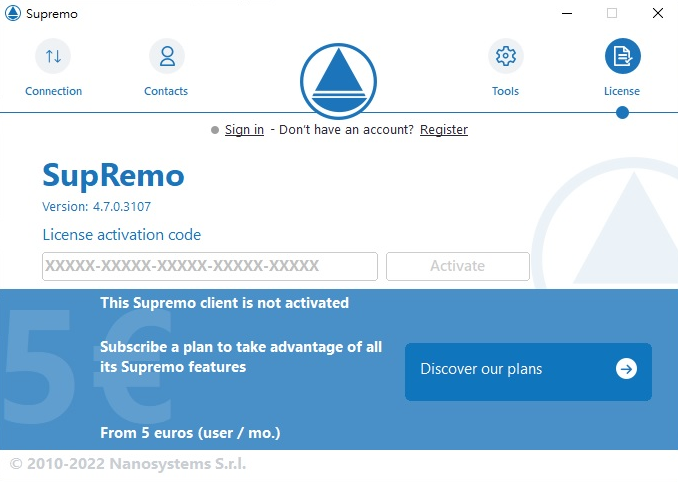
- 點擊右上角的「憑證」 / License

於中間位置輸入授權證然後按「啟動」 / Activate
*請輸入登記產品後所獲取的授權證
授權證格式為:XXXXX-XXXXX-XXXXX-XXXXX-XXXXX

- 安裝及啟動已完成
How to Install Supremo:
- Please download Supremo from the below link:
https://version-2.com/supremo/download - Execute Supremo.exe and click “Accept”
- Click “License” from the top right hand corner

Enter the license code and click “Activate”
*Please enter the license activation code obtained after registering the product
License format : XXXXX-XXXXX-XXXXX-XXXXX-XXXXX

- Installation and startup are complete
Supremo
Remote desktop control
made easy, quick and secure
Access any device at any time, wherever you are.
Find out why 1.4 million users
choose Supremo every day

Simple and light
Its intuitive interface is easy to use. Supremo is constituted by a small executable file that does not require the installation and configuration of routers or firewalls.

Safe
Connect to a remote device and transfer your files in total security thanks to AES 256-bit algorithm and UAC compatibility. Access to the client requires entering the ID and a dynamic password (or a static one if set manually).

Ready for company use
No human intervention is required to start a remote session: you can automatically activate Supremo when the remote PC starts Windows. All subscribers to a plan can also customize the support software interface with their own brand or logo and distribute it to their customers.

Affordable
Subscribe to one of our affordable plans to use Supremo without restrictions and take advantage of all its potential. However, for non-professional and/or non-continuous use, you can use and upgrade to new versions for free.
Download Supremo for any platform or device
The complete remote desktop solution
- Unattended access
- Remote printing
- Customizable
- File transfer
- Online address book
- Chat
- Online reports
- Contacts sharing
- Automatic-Updates
Real stories, real satisfaction
See what our customers are saying
Supremo Professional
Use our IT RMM Console to provide the best service to your customers
- Support queue
- Licence usage control
- Connections monitoring
- Automatic & mass deployment
- Remote device management
- Advanced custom configuration
- Device health check
Compare subscriptions and included features
Solo | Business | Professional | |
|---|---|---|---|
Access and control | |||
Unlimited enabled devices and users | |||
Unlimited Remote Endpoints / PCs (also unattended) | |||
Unattended Access | |||
Multiplatform | |||
Automatic Updates | |||
Multimonitor Support | |||
Remote Printing
| |||
Shortcut Functionality | |||
Command Line Configuration | |||
Mobile Support
| |||
Reports | |||
Chat | |||
File Transfer | |||
Unlimited Address Book | |||
Integration (API) |
Solo | Business | Professional | |
|---|---|---|---|
Security and privacy | |||
Two Factor Authentication | |||
Anti brute force system | |||
Access Password Customization
| |||
Access Policy Setting
|
Solo | Business | Professional | |
|---|---|---|---|
Assistance and customization | |||
Technical Support | |||
Support Queue | |||
Support Team | |||
Advanced Reports | |||
Automatic and Massive Installation | |||
License Usage Check | |||
Device Health Monitoring | |||
Supremo Custom | |||
Supremo Custom PRO | |||
Remote Management | |||
Patch Management
| |||
Processes, Services and Events management | |||
Network Scan | |||
Users Management
| |||
Remote Support Invoicing
| |||
License Sharing
|
Solo | Business | Professional | |
|---|---|---|---|
IT Security (available as add-on) | |||
Activity Log | |||
Suspicious Activities | |||
Connection Overview | |||
Malicious IPs | |||
Sensitive Connections
| |||
Network Monitoring
| |||
International Threat Intelligence feed | |||
Privacy & Social Engineering monitoring | |||
Advanced Browser Monitoring |
Any doubts about what to buy?
A subscription to a Supremo plan is required for professional purposes and/or for a continuous use.
There are three plans – Solo, Business and Professional – which differ in the number of remote control sessions that can run at the same time (for more information on simultaneous connections, click here) and in some advanced features.
You can subscribe to a plan directly from our e-commerce page . After purchasing, you can activate your licence in your reserved area and obtain the activation code to enter in the Supremo Licence section (click here to check the tutorial about the activation of Supremo).
Use it to activate all your Supremo clients, from which you will provide remote support.
An unlimited number of clients can be activated.
All of our plans include support and updates at no additional cost.
See the Pricing and Plans page for more information about the plans.
A remote connection indicates the connection between two PCs/servers that are located in different places.
Simultaneous connections therefore indicate connections between distant PCs/servers that occur at the same time. Simultaneous connections can be initiated either by different users (each operating on their own PC) or by a single user who initiates more than one connection with several remote machines from their PC.
In case of smart working, simultaneous connections represent the number of people who have to work from home by connecting to their PC in the office.
When it comes to technical assistance, they represent the total number of remote PCs that the technical team needs to reach at the same time.
To subscribe to a Business or Professional plan, you will need to indicate the number of simultaneous connections to be managed. To check some examples, click here.
You can activate an infinite number of fixed and mobile devices with a single licence by entering the activation code on as many Supremo installations as you wish. Our servers will control the number of control sessions that you are using and will not allow you to exceed the limits established by your subscription plan.
Yes, the first 21 days of use are free even for professional and continuous use, and no registration or subscription is required to use them!
After the first 21 days of free trial, which doesn’t require any registration or subscription, Supremo can be used for free for non-professional and/or non-continuous use.
This means that the sessions started have a limited duration and frequency and/or are not linked in any way to the performance of professional functions or to the provision of services to third parties, whether they are individuals or companies, even if they are unpaid. In practice, free use is not allowed in the case of control of/from PCs belonging to business/professional systems or in the case of frequent and/or long-lasting connections between devices recognised as private.
Time limits are not disclosed as they are variable and automatically calculated by our control algorithms, which also detect if the controller PC and/or the controlled PC belong to a business/professional system.
The detected professional and/or continuous use doesn’t prevent the user from taking advantage of a 21-day trial period, which they have access to from the moment they first use Supremo. This allows them to explore the programme first before deciding whether to purchase a subscription plan.
To use Supremo for for professional purposes and/or without time limits, you will need to subscribe to a plan. For more information, we recommend you visit this page.
Yes. It is possible to purchase Extra Connections from the Reserved Area at any time.
Important: Extra Connections expire with the Supremo Business or Professional plan, regardless of the purchase date.
Multiple users can connect to a remote machine at the same time, and everyone can take control of it. However, connected users can act at different times on the remote PC, to avoid overlapping operations.
Unlike Remote Desktop, all users connected to Supremo use the same Windows session.
Yes. The function is free of charge for all Supremo subscribers. This page thoroughly and clearly illustrates the procedure. It is necessary to have at least one active Supremo plan in order to use the function.
Supremo is available for Windows, macOS, iOS and Android. You can download all the clients from this page.
Yes. Also in the case, whereby a normal user (local, without administration rights) executes SupRemo on a remote machine. Consult this tutorial dedicated to the specific case.
No, you can’t. In order to control remote PCs/Servers for professional purposes and/or for a continuous use, it is necessary to subscribe to one of our subscription plans. The controlled machine – physical or virtual – does not require a subscription plan.
Starting with version 4.10 Supremo supports two-factor authentication. An authentication app is required that supports time-based one-time passwords (OTP).
For more information click here.
With the Advanced Reports feature, available with Supremo Professional, you can monitor all incoming and outgoing connections of whoever you want ,simply by associating the device with your Console account and activating the feature, without having to share the contacts in your Address Book.
With the Advanced Reports feature, available with Supremo Professional, you monitor both incoming and outgoing connections of whoever you want, simply by associating the device with your Console account and activating the feature, without having to share contacts from your Address Book.
You can also use this feature to speed up billing times to your customers.
For more information click here.
Of course, you can check in real time who is using your licence with the Supremo Professional plan. Just enter your licence activation code into the Supremo software on the PCs you want to check.
For more information click here.
Yes, you can deploy Supremo via Group Policy Object using the Automatic Installation feature of Supremo Professional.
To learn how to generate the .mst file to deploy Supremo with the .msi, click here.
Yes, thanks to the Automatic Installation feature available with Supremo Professional, it is possible to install Supremo massively via command line and/or .mst file generation.
Yes, you can configure Supremo centrally and generate the command line to be used for the automatic installation of Supremo with the .exe, .msi or .mst file. The functionality is available with Supremo Professional.
For more details click here.
Yes, with Supremo Custom Pro you can configure a number of options centrally, including the request for confirmation to connect, automatic updates, the list of allowed IDs and the password to access the Tools panel. For more information click here.
Yes, the Monitoring functionality included in RMM allows you to get error or warning notifications in case of problems with your devices.
Notifications are generated based on the policies you configure in your Console account and assign to your devices.
For more information click here.
Yes, with RMM, available with Supremo Professional, you can remotely consult, at any time and in real time, all the information related to your devices or those of your customers (hardware, software, networks, etc.), check their health status through special indicators and get personalized notifications when problems arise.
For more information click here.
Yes, the Support Queue is one of the features included in the Supremo Professional plan. Activate your team and distribute the Supremo Custom Pro version to your customers by enabling support requests. You can assign requests to your employees or configure the Support Queue so that your operators can handle the received support requests themselves.
For more details click here.
The number of operators you can add to your Support Team corresponds to the number of simultaneous connections available in your Supremo Professional plan.
The operators in your Team can manage the support requests sent by your customers via Supremo directly in the Console.
The Supremo Console IT Security add-on is an advanced cyber protection solution based on dynamic, continuously self-learning artificial intelligence (AI). It functions as a virtual SOC analyst, analysing user, device and network behaviour to identify suspicious activities and cyber threats in real time. It is ideal for companies seeking effective protection without the complexity of traditional EDR systems.
For more information on the IT Security add-on, click here.
The artificial intelligence of the IT Security add-on can detect anomalies in system behaviour, brute force attacks, unauthorised access, use of TOR or VPN, phishing and much more. Thanks to continuous behavioural AI learning, its ability to identify new and unknown threats improves over time.
The IT Security add-on does not replace antivirus software, but complements it by offering behavioural protection. It analyses system, user and network activity to detect threats that antivirus software misses, such as evasive techniques, VPN use, incognito browsing and much more. This complementary approach improves defence against cybercrime.
Yes, installation is simple and does not require complex configurations. The Console is intuitive and provides clear panels with indicators of suspicious activities, making the tool accessible even to users with basic IT skills.
Yes, the IT Security add-on is designed for MSPs, MSSPs, and IT professionals, but thanks to its ease of use also for SMEs and SOHOs, offering advanced anomaly detection technologies at affordable prices and without complex configuration.
Access, support and RMM features of Supremo
Access and control
Robust remote control and fast, secure data transfer between devices

Unattended access
Just a few clicks to install and gain smooth access to unattended computers or servers.

File transfer
Secure and reliable remote file transfer to share files and folders between computers during remote sessions.

Online reports
Collect, view, filter and export information related to outgoing connections: it’s crucial to manage and improve billing accuracy.

Remote printing
Work on a document stored on a remote device and easily print it to your local printer. All you have to do is enable this feature on the remote device.
Support and customization
Endless customization options suited to the needs of any IT administrator

Online address book
Instantly see if contacts are online or offline without having to connect and get access to their device.

Contacts sharing
Share contacts with your partners to collaborate online and improve remote support services.

Customizable
You can configure a custom interface with your brand or logo to distribute to your customers.

Chat
Live chat tool that runs while the remote desktop connection. Initiate a chat with your customers to optimize assistance and improve workflow.

Auto-update
To make sure you always have the latest features, enable automatic updates for clients running on your devices.

API integration
Configure automatic exchange of the Console data with third-party software.
RMM, Support Queue & advanced features
Use our professional remote control solutions to provide the best service to your customers

Support queue
Activate the Support Queue and receive support requests from your customers.

Automatic & mass deployment
Configure and remotely install Supremo automatically and/or en masse on all devices in your network.

Advanced custom configuration
Create one or more customized Supremo clients with advanced features and with your preferred settings.

Licence usage control
Monitor your license usage in real time by viewing the ID of devices using your license.

Remote device management
View remotely all the information related to your devices at any time and in real time, and check their health status.

Device health check
Define the monitoring policies for your devices and set the health status assessment parameters to receive personalized notifications.

Connections monitoring
Review all incoming and outgoing connections from devices associated with your account.

Patch Management
Automate critical updates to secure your systems and enhance performance with streamlined patch management across all your Windows devices.

Processes, Services and Events management
Monitor Windows processes, services, and events in real-time to ensure optimal system performance and proactive issue resolution.

License sharing
Enable your employees or collaborators to use your subscription plan, without giving them the license activation code.

Remote support invoicing
Calculate the cost of support sessions performed by you or your operators

User management
Create and control every single user and operator that is part of your team. Share functionalities with your collaborators.
Download Supremo for any platform or device
產品註冊
註冊你的產品
* 必填欄位
註冊有問題?
如在軟件升級或設定期間需要技術支援,歡迎隨時與我們的專家聯絡:
技術支援熱線
(852) 2893 8186
辦公時間
星期一至五:9:30am-1:00pm, 2:00pm-6:30pm
(星期六及公眾假期除外)
(Please scroll down for English Version)
如何安裝Supremo:
- 請到以下網址下載Supremo:
https://version-2.com/supremo/download - 執行程式並按「接受」/ Accept

- 點擊右上角的「憑證」 / License

於中間位置輸入授權證然後按「啟動」 / Activate
*請輸入登記產品後所獲取的授權證
授權證格式為:XXXXX-XXXXX-XXXXX-XXXXX-XXXXX
- 安裝及啟動已完成
How to Install Supremo:
- Please download Supremo from the below link:
https://version-2.com/supremo/download - Execute Supremo.exe and click “Accept”
- Click “License” from the top right hand corner

Enter the license code and click “Activate”
*Please enter the license activation code obtained after registering the product
License format : XXXXX-XXXXX-XXXXX-XXXXX-XXXXX

- Installation and startup are complete
產品查詢
電話:(852) 2893 8860
電郵:sales@version-2.com.hk
產品查詢
電話:(852) 2893 8860
電郵:sales@version-2.com.hk