Skip to content

How to change or reset your PayPal password

It goes without saying that you should protect all your online accounts with strong passwords. Data breaches, phishing attacks, and misplaced Post-it notes could all lead to stolen accounts. But when it comes to financial services, it’s particularly important to be careful.

How to change your PayPal password

PayPal is a quick and easy way to send and receive money. But since it is usually linked to your credit card, it’s important to change your password regularly and always use a strong one.

Please note that you can’t change the password through the PayPal app — you’ll have to log in through a browser.

Here’s how to change your PayPal password in four easy steps:

  1. Log into your PayPal account and click the little gear icon in the upper right corner.

  2. Click on “Security” in the top banner.

  3. Click “Update” in the “Password” field.

  4. Enter your current and new passwords and click “Change password.” All done!

How to reset your PayPal password

If you forgot your PayPal password, you can reset it through the browser and the PayPal app.

  1. Go to PayPal, click “Log in,” and select “Forgot password?”

  2. Enter the email address you used to create your account and click “Next.”

  3. Follow the instructions in the email you receive.

How to change your PayPal security questions

Please note that you can’t change the security questions through the PayPal app — you’ll have to log in through a browser.

Here’s how to change your security questions on PayPal:

  1. Log into your PayPal account and click the little gear icon in the upper right corner.

  2. Click on “Security” in the top banner.

  3. Click “Update” in the “Security questions” field.

  4. Select new security questions and write your answers. Click “Save” and you’re done!

How to set up a passkey for your PayPal account

Passkeys are a new and secure authentication standard introduced by the FIDO Alliance. Think of passkeys as a replacement for passwords that use your fingerprint, face, or a device PIN to sign in to apps and websites across the internet. Designed for supreme security and convenience, passkeys facilitate a seamless login process.

If you are interested in setting up a passkey for your PayPal account, here’s a quick rundown of how to do it:

  • Access your PayPal account using your existing username and passwords.

  • Once you access your account you will see an option “Create a passkey.”

  • Now you will need to authenticate via biometrics.

  • Once you’re authenticated, the passkey will be automatically created, and the next time you log in to your PayPal account, you will not need your username or passwords. The passkey will do the trick.

How to use PayPal safely

Using financial services online is convenient, but it can also be risky — there are many malicious actors lurking on the internet, trying to steal your money. Follow these simple tips to increase your security while making payments online:

Avoid making transactions when connected to public Wi-Fi. Hackers can set up fake hotspots and then monitor your actions online. Using a VPN will encrypt your connection, making it impossible for anyone to see the data you send and receive. You only need to be aware of snoopers looking over your shoulder as you type in your passwords!

Keep the PayPal app up to date. Apps can have vulnerabilities and bugs that are not discovered for months. But once they are brought to light, your account could be in danger. Set up automatic updates on your PayPal app to make sure you have the latest security patch installed.

Be cautious with links and attachments in emails. If you get an alarming email from PayPal claiming that your account is in danger and you must change your password immediately, don’t click any links. Open a new tab, enter the address manually, and check to see if your account is really in danger.

Enable two-factor authentication. Passwords are your first line of defense, but using 2FA will take your account security to another level. You can choose to receive a code via text or use an authenticator app or a security key for your PayPal account’s 2FA.

Set up passkeys. Passkeys are a new, passwordless authentication method that offer a more secure and convenient way to access websites and apps using only your fingerprint, face scan, or a device PIN. Because passkeys leverage public key cryptography, they are resistant to phishing attacks, making them even more secure than most multi-factor authentication methods.

Use a unique and strong password. When you change your password, pick one that is impossible to guess. That means using at least 12 characters that include upper- and lowercase letters, numbers, and special symbols. Need help? Try our password generator.

Keep your PayPal password safe with NordPass. Let’s be frank. All of us have way too many passwords on our hands. Remembering each one — well, that’s just an illusion. But with the NordPass password manager you can have all of your passwords securely stored in a single place, and you can autofill them with just a click. The same goes for passkeys — the NordPass Passkey Holder is designed as a secure storage for all of your passkeys. Tidy mess of online life with NordPass today.

Make using financial services online stress free with NordPass!
About Version 2 Digital

Version 2 Digital is one of the most dynamic IT companies in Asia. The company distributes a wide range of IT products across various areas including cyber security, cloud, data protection, end points, infrastructures, system monitoring, storage, networking, business productivity and communication products.

Through an extensive network of channels, point of sales, resellers, and partnership companies, Version 2 offers quality products and services which are highly acclaimed in the market. Its customers cover a wide spectrum which include Global 1000 enterprises, regional listed companies, different vertical industries, public utilities, Government, a vast number of successful SMEs, and consumers in various Asian cities.

About NordPass
NordPass is developed by Nord Security, a company leading the global market of cybersecurity products.

The web has become a chaotic space where safety and trust have been compromised by cybercrime and data protection issues. Therefore, our team has a global mission to shape a more trusted and peaceful online future for people everywhere.

Single Sign-On: What it is and how it works

Nowadays, single sign-on (SSO) authentication is required more than ever. Many websites offer users the option to sign up with Google, Apple, or any other service. Chances are you have logged in to something via single sign-on today or at least this week. But do you know what it is, how it works, and why it’s used? Take a deep dive into the world of single sign-on and all things related to it.

What is SSO?

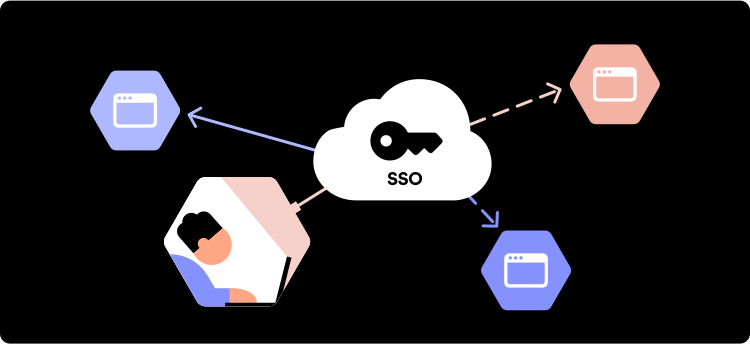
Single sign-on is a session and user authentication service that allows the user to use a single set of login credentials – namely, a username and password – to access multiple websites or applications. Put plainly, SSO allows users to sign up and access a variety of online accounts with a single username and password, thus making things a lot easier for the everyday user. SSO’s primary use is as an identification system that permits websites and apps to use the data of other trusted sites to verify a user upon login or sign-up.

Essentially, SSO puts an end to the days of remembering and entering multiple passwords. An added bonus is that SSO gets users out of the vicious password reset loops.

Additionally, SSO can be great for business, as it improves productivity, security control, and management. With a single security token (a username and password), IT professionals can enable or disable a user’s access to multiple systems, which in some cases mitigates cybersecurity risks.

So, how does the magical service work?

How does SSO work?

Single sign-on is a component of a centralized electronic identity known as federated identity management (FIM). FIM, or Identity Federation, is a system that enables users to use the same verification method to access multiple applications and other resources on the web. FIM is responsible for a few essential processes:

  • Authentication

  • Authorization

  • User attributes exchange

  • User management

When we talk about SSO, it is important to understand that it is primarily related to the authentication part of the FIM system. It’s concerned with establishing the user’s identity and then sharing that information with each platform that requires that data.

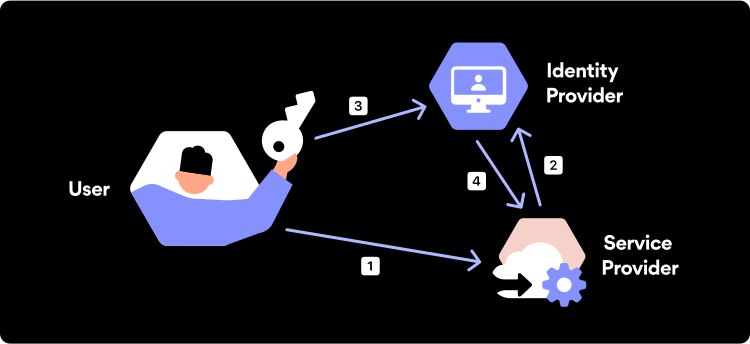
Fancy jargon aside, here are the basic operational processes of single sign-on:

  • You enter a website.

  • You click “Sign In with Apple” or any other service.

  • The site opens Apple’s account login page.

  • If you’re already logged in, then it gives the site your data.

  • You are logged in to your Apple account.

  • Apple’s site verifies that you are authorized to access the site.

  • If you’re authorized, the site creates a session for you and logs you in.

In technical terms, when the user first signs in via an SSO service, the service creates an authentication cookie that remembers that the user is verified. An authentication cookie is a piece of code stored in the user’s browser or the SSO service’s servers. Next time the user logs in to that same app or website using SSO, the service then transfers the user’s authentication cookie to that platform, and the user is allowed to access it. It’s important to highlight that an SSO service doesn’t identify the exact user since it does not store user identities.

What is an SSO Token?

An SSO token is a digital unit that contains data about a particular user such as their email address. The token is used to transfer user information from one system to another during the single sign-on process. For the recipient to verify that the token comes from a trusted source, it has to be signed digitally.

The SSO service creates a token whenever a user signs in to it. The token works like a temporary ID card which helps identify an already verified user. This means that when the user tries to access a given app, the SSO service will need to pass the user’s authentication token to that app so they can be allowed in.

Password security for your business

Store, manage and share passwords.

30-day money-back guarantee

Single-Sign-On Costs

Because many of the SSO solutions currently available on the market are cloud-based, most of them are offered in a monthly subscription model. The price of a cloud-driven SSO solution designed for small and mid-sized businesses can range from $1 to $10 per user per month.

However, those that want to get an SSO solution designed for a big enterprise will need to either pay more each month or make an entry fee. Enterprise-grade solutions are usually more wide-ranging and require vendors to customize them to each of their client’s needs and requirements. Hence, the price difference.

Is single sign-on secure?

Yes. An SSO protocol is secure when implemented and managed properly and used alongside other cybersecurity tools.

The main benefit introduced by single-sign on with regard to cybersecurity is that, because it allows using a single set of credentials for multiple services, there are fewer login details to be lost or stolen. As long as the server is secure and an organization’s access control policies are established, a malicious user or an attacker will have little to no chance to do any damage.

However, this benefit could also pose a certain kind of risk. Since SSO provides instant access to multiple accounts via a single endpoint, if a hacker gains access to an authenticated SSO account, they will also gain access to all the linked applications, websites, platforms, and other online environments.

This issue can be easily mitigated by implementing an additional layer of security known as Multi-Factor Authentication. Combining SSO with MFA allows service providers to verify users’ identity while giving them easy access to applications or online platforms.

The benefits of SSO

Reduced password fatigue

With SSO in place, users only have to remember one password, making life a lot easier. Password fatigue is real and dangerous. SSO encourages users to come up with a single strong password rather than using a simple one for each account separately. It also helps users escape the vicious cycle of password reset loops.

Increased employee and IT productivity

When deployed in a business setting, SSO can be a real time saver. According to a recent report, people waste 16.3 billion hours a year trying to remember, type, or reset passwords. In a business environment, every minute counts. Thanks to SSO, users don’t need to hop between multiple login URLs or reset passwords and can focus on the tasks at hand.

Enhanced user experience

One of the most valuable benefits of SSO is an improved user experience. Because repeated logins are not required, users can enjoy a digital experience with less hassle. This means that users will be less hesitant to use the service. For any commercial web-based service, SSO is an essential part of their user experience.

Centralized control of user access

SSO offers organizations centralized control over who has access to their systems. In a business setting, you can use SSO to grant new employees specific levels of access to different systems. You can also provide employees with a single set of credentials (username and passwords) to access all company systems.

Top single sign-on solutions

Microsoft Azure AD

Microsoft Azure AD includes Active Directory Federation Services (AD FS) as an option to support SSO. Azure AD also offers reporting, security analytics, and multi-factor authentication services. It’s perfectly suited for any company that uses the Microsoft Azure cloud platform, no matter its size.

Okta Identity Cloud

Okta is well-established in the world of SSO solutions. They are open-source SSO leaders because of their flexibility and ease of use. Okta offers customizable open identity management in real time according to business needs, as well as two-factor authentication and a password reset functionality. Okta can serve the needs of multiple industries, from education and nonprofits to financial services and the government.

OneLogin Unified Access Management Platform

OneLogin is an open-source SSO provider that is often used for employee access to the company’s cloud-based applications. OneLogin is suited for a variety of IT administrator needs since it is designed to enforce IT policy in real time. It can also be updated according to specific needs if any changes occur, such as an employee leaving.

Idaptive Application Services

Idaptive is primarily suited for small to medium-sized businesses. Idaptive is capable of providing support to many users at once, thanks to their new cloud architecture. The company also offers adaptive MFA, enterprise mobility management (EMM), and user behavior analytics (UBA) all in a single solution.

Ping Intelligent Identity Platform

Ping offers services to large enterprises. The solution can serve anywhere between a few hundred to a few million users. Ping provides both on-premises and cloud options for deploying their solution. Additionally, the service comes with multi-factor authentication.

Does NordPass provide SSO?

Yes, NordPass does provide a single sign-on authentication! It can be set up via NordPass Admin Panel for users who want to log in to the NordPass app with their Microsoft Azure, Google Workspace, or Okta credentials.

This means that if you turn on Microsoft Azure Active Directory (AD), Google Single Sign-On, or Okta Single Sign-On, and invite new members who use one of these SSOs, they will be allowed to login in using their Azure AD, Google, or Okta SSO credentials — it’s as simple as that.

About Version 2 Digital

Version 2 Digital is one of the most dynamic IT companies in Asia. The company distributes a wide range of IT products across various areas including cyber security, cloud, data protection, end points, infrastructures, system monitoring, storage, networking, business productivity and communication products.

Through an extensive network of channels, point of sales, resellers, and partnership companies, Version 2 offers quality products and services which are highly acclaimed in the market. Its customers cover a wide spectrum which include Global 1000 enterprises, regional listed companies, different vertical industries, public utilities, Government, a vast number of successful SMEs, and consumers in various Asian cities.

About NordPass
NordPass is developed by Nord Security, a company leading the global market of cybersecurity products.

The web has become a chaotic space where safety and trust have been compromised by cybercrime and data protection issues. Therefore, our team has a global mission to shape a more trusted and peaceful online future for people everywhere.

Storage Beyond Passwords: Securely Save Files in NordPass

Ever been in that awful situation where you’re going through old emails or disorganized folders trying to find that one crucial document? The insurance form, an e-copy of your ID, or even a video detailing how to get into your new office? Wouldn’t it be a game-changer if you had all your important files right next to your passwords, credit card information, or secure notes?

Good news! Today, we are excited to introduce File Attachments — a new and improved way to manage important files with NordPass.

Best for large file attachments

Here’s a quick rundown of how it works. As a NordPass Premium user, you now have the ability to attach files to your saved items in NordPass. It’s not just about enhancing organization. This feature also provides an unmatched level of security. Forget the hassle of disorganized unsafe file storage. Any attached files or documents will be as secure as your passwords thanks to our encrypted storage.

But we didn’t stop at mere functionality. NordPass Premium now provides a whopping 3GB of encrypted storage per account, a giant leap forward. That’s not just more — it’s three times more than any other password manager out there! We’re offering you unrivaled storage and advanced security — and that’s certainly what we call more bang for your buck!

NordPass — The best password manager for large file attachments.

– Attila Tomaschek

CNET

No strings attached (except your files)

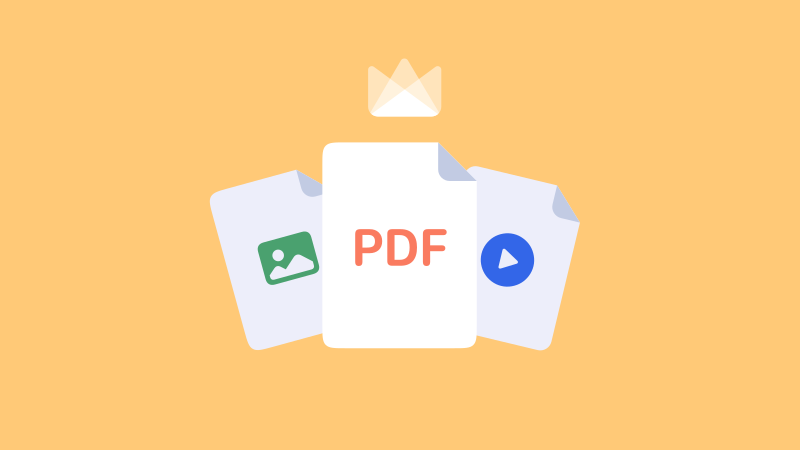
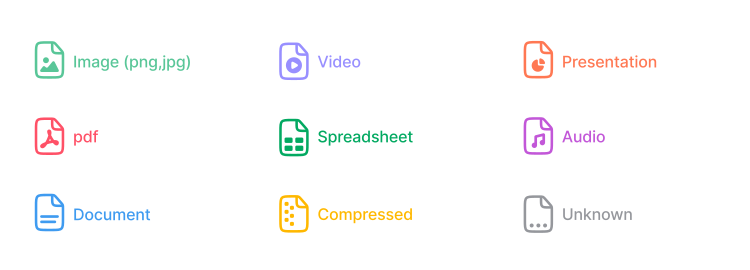
With NordPass Premium’s File Attachments, you have the freedom to store documents of any type to one of your existing items. Whether it’s a simple JPEG, PDF, MP4, or DOC file — NordPass supports them all.

Supported file types

The new feature allows for files up to 50MB in size and up to 50 attachments per single item. The only limit is your 3GB storage per user — and that’s a whole lot of space for your files.

While we aim at maximizing convenience, your security is always our top priority. To ensure maximum protection, we currently do not support attaching files to shared items or sharing items with files attached.

You can learn more about how to attach files to your NordPass items in our handy help center article.

Streamline your digital life with NordPass

In the digital age, we often juggle tons of files, documents, and data, and that can lead to a disorganized and chaotic personal digital space. With our new File Attachments feature, we look to help you take back control and streamline your digital life by allowing you to save documents in a quick and efficient way

With NordPass Premium, you can now attach important files to all your saved items. Store any file in one secure place with 3GB encrypted storage.

Instant access

When you’re in a hurry, having quick access to your important documents can make all the difference. That’s where File Attachments shine. Need to view a copy of your ID or an important receipt? No problem! With File Attachments, all your vital images or documents are just a few clicks away.

Effortless downloads

It’s not just about attaching and storing your files along with your passwords. It’s also about being able to retrieve them whenever necessary. Suppose you’ve stored financial documents that you need to share with your spouse. With File Attachments, you can quickly and effortlessly download these files directly from NordPass.

Unprecedented control

The File Attachments feature isn’t just about adding another functionality to NordPass. It’s about giving you greater control over your digital life. You get to decide what files to attach, what items those files are attached to, and when to download or delete them. You can also organize your vault in a way that best suits your personal or professional needs.

A single secure place for files and passwords

Take your password manager experience to the next level with NordPass Premium. Don’t just manage your passwords, manage your life. No more scrambling for documents, no more disorganized files, and certainly no more compromised security.

Your life. Your files. One secure place. Start your NordPass Premium journey today and make the most of our File Attachments feature.

About Version 2 Digital

Version 2 Digital is one of the most dynamic IT companies in Asia. The company distributes a wide range of IT products across various areas including cyber security, cloud, data protection, end points, infrastructures, system monitoring, storage, networking, business productivity and communication products.

Through an extensive network of channels, point of sales, resellers, and partnership companies, Version 2 offers quality products and services which are highly acclaimed in the market. Its customers cover a wide spectrum which include Global 1000 enterprises, regional listed companies, different vertical industries, public utilities, Government, a vast number of successful SMEs, and consumers in various Asian cities.

About NordPass
NordPass is developed by Nord Security, a company leading the global market of cybersecurity products.

The web has become a chaotic space where safety and trust have been compromised by cybercrime and data protection issues. Therefore, our team has a global mission to shape a more trusted and peaceful online future for people everywhere.

What is the CCPA?

The California Consumer Privacy Act (CCPA) is a data protection law that came into effect on January 1, 2020. The CCPA is designed to give California consumers greater control over their personal information that is collected, received, used, shared, and/or sold (i.e. ‘processed’) by businesses. The CCPA is often compared to the European Union’s General Data Protection Regulation (GDPR) as it provides similar rights and protections to consumers.

The CCPA requires businesses to be transparent about their data collection and sharing practices, as well as to provide individuals with certain rights over their personal information, and to implement reasonable security measures to protect that information.

Today, we’re exploring CCPA. Let’s jump in right away.

Who must comply with the California Consumer Privacy Act?

The CCPA applies to businesses that operate in California and collect, and store with personal consumer data of California’s residents, and meet one or more of the following criteria:

  1. Have an annual gross revenue of over $25 million.

  2. Buy, receive, share or sell the personal information of 50,000 or more California consumers, households, or devices.

  3. Derive 50% or more of their annual revenue from selling California consumers’ personal data.

The CCPA also applies to businesses that control or are controlled by a business that meets the above criteria and share common branding.

What is the definition of personal information?

The CCPA defines personal information as any information that identifies, relates to, describes, is reasonably capable of being associated with, or could reasonably be linked, directly or indirectly, with a particular consumer or household.

The definition of personal information by the CCPA may also include but is not limited to names, aliases, postal addresses,, email addresses, social security numbers, IP addresses, biometric information and other information that helps to directly or indirectly identify a person.

Data Covered by the CCPA

CCPA is designed to ensure that individuals are the ones in control of their data, and because of that the act defines the way business should process individuals’ personal information.

This includes information obtained from the consumer directly or indirectly, such as through a third party. The CCPA also covers information about a consumer’s household, such as their family members’ names and ages.

However, the CCPA excludes certain data, such as publicly available information, deidentified or aggregated consumer information, and data covered by other laws, such as the Health Insurance Portability and Accountability Act (HIPAA).

What are the CCPA Requirements?

  1. Right to know what personal information is being collected, used, shared and sold

  2. Right to request deletion of personal information

  3. Right to opt-out of the sale or sharing of personal information

  4. Right to access personal information in a portable and easily understandable format

  5. Right to non-discrimination for exercising their CCPA rights

  6. Right to correct Inaccurate Personal Information

  7. Right to Limit Use and Disclosure of Sensitive Personal Information

Businesses must also provide notice to consumers at or before the time of collection of their personal information. The notice must inform consumers of the categories of personal information that will be collected, the purposes for which the personal information will be used, and the categories of third parties with whom the information may be shared.

Furthermore, businesses must implement robust security measures to protect consumers’ personal information from unauthorized access, destruction, modification, or disclosure. On top of that companies are also expected to establish and maintain reasonable practices and procedures for responding and honoring to consumer requests.

H2: CCPA Compliance Checklist

Organizations subject to the CCPA should take several steps to comply with the law.

  • Conduct a data inventory to identify personal information collected, used, and sold.

    To meet CCPA requirements, organizations should conduct a thorough review of their data practices to identify the personal information collected, used, and sold. This inventory should include a comprehensive assessment of data sources, purposes for which the information is collected, categories of third parties with whom information is shared, and security measures implemented to protect information.

  • Update privacy policies to include CCPA-required notices.

    Organizations must ensure that their privacy policies are updated to include CCPA-required notices, which should be clear, concise, and written in plain language. The privacy policy must inform consumers of their CCPA rights, such as the right to access personal information, the right to request deletion of personal information, and the right to opt-out of the sale of their personal information.

  • Implement processes for receiving and responding to consumers’ requests.

    To comply with the CCPA, organizations must have effective processes in place for receiving and responding to consumers’ requests. These requests may include access to personal information, deletion of personal information, or opting-out of the sale of personal information. Organizations should establish procedures to verify requesters’ identities and respond to requests within the CCPA’s required timeframe.

  • Provide an opt-out mechanism for the sale of personal information.

    Organizations wishing to comply with the CCPA must provide a mechanism for consumers to opt-out of the sale of their personal information. This mechanism should be easy to use and prominently displayed on the organization’s website.

  • Train employees on CCPA compliance.

    To comply with the CCPA, organizations must train their employees on CCPA compliance, including a review of CCPA requirements and guidance on handling consumer requests. Employees who handle personal information must also receive training on security policies and procedures.

  • Implement reasonable security measures to protect personal information.

    Organizations must implement reasonable security measures to protect personal information. This includes physical, technical, and administrative safeguards to prevent unauthorized access, use, and disclosure of personal information.

  • Monitor and update compliance measures as necessary.

    To maintain CCPA compliance, organizations must continuously monitor and update their compliance measures as necessary. Among other things, this includes regular review and updating of privacy policies, employee training on new requirements, and ensuring that their processes for receiving and responding to consumer requests are effective.

What new law goes into effect beginning January 1, 2023?

In November 2020, California voters passed Proposition 24, the California Privacy Rights Act (CPRA). The CPRA is designed to amend and extend the original CCPA.

Not only does the CPRA expand consumer rights, but it also brings fresh rules to the table. The right to correction allows consumers to have incorrect information rectified while the right to limit sensitive personal information will give them greater control over their data in general.

Consumers can also request information on automated decision-making and opt-out of the use of such technologies.

The CPRA went into effect on 1st of January, 2023 and is now state-wide law.

Are there any penalties for violating CCPA?

Penalties for violating CCPA are very real. Businesses that fail to comply with the CCPA may face fines of up to $7,500 per violation. Consumers also have the right to bring a private action against a business that violates their CCPA rights.

What is the difference between GDPR and CCPA?

While the CCPA and GDPR share similarities, there are some key differences between the two laws. The GDPR applies to businesses that collect and process the personal data of individuals in the European Union, while the CCPA applies to businesses that collect and process the personal data of California residents only.

The GDPR also gives individuals more rights, such as the right to object to the processing of their personal data and the right to restrict processing in certain circumstances. The CCPA, on the other hand, gives consumers the right to opt-out of the sale of their personal information.

Another difference between the two laws is that the GDPR applies to all businesses, regardless of their size or revenue, while the CCPA only applies to larger businesses that meet certain criteria.

What does CCPA mean for cybersecurity?

In terms of cybersecurity, the CCPA has significant implications. Companies that collect and store personal information are required to implement reasonable security measures to protect that data from unauthorized access or theft.

Under the CCPA, companies can be held liable for breaches that occur due to their failure to implement reasonable security measures. This means that companies must ensure that they have robust cybersecurity policies, procedures and tools in place to protect consumer data. The CCPA also requires companies to conduct regular risk assessments and to update their security measures as needed.

Overall, the CCPA represents a significant shift in the way that companies collect, store, and use personal information and at the same time provides Californian consumers with greater control over their data. On top of that the CCPA holds companies accountable for protecting that data from unauthorized access or theft. As such, the CCPA is likely to have a positive impact on cybersecurity by encouraging companies to take their data privacy and security obligations seriously.

CCPA and NordPass Business

Organizations can ensure the security of personal information through the security measures that the legal act encourages to implement in order to comply with CCPA. One of effective security measures is a password manager such as NordPass Business. Password management is a crucial aspect of data security, and NordPass Business provides organizations with an easy-to-use, yet robust solution that can help them implement security measures needed to comply with the CCPA.

Firstly, NordPass Business can help you ensure that passwords across the organization are unique and complex. With the option to generate strong and unique passwords for each account, organizations can rest assured that their users’ accounts are secure.

NordPass Business allows organizations to securely share passwords. Sharing passwords can be a security risk, but in some cases, it is necessary for business operations. NordPass Business provides a secure way for organizations to share passwords, ensuring that only authorized users can access personal information. This feature is especially important for organizations that have employees working remotely or have multiple team members who need access to certain accounts.

By using NordPass Business to store passwords, organizations can demonstrate that they are taking measures to protect their users’ personal information.

About Version 2 Digital

Version 2 Digital is one of the most dynamic IT companies in Asia. The company distributes a wide range of IT products across various areas including cyber security, cloud, data protection, end points, infrastructures, system monitoring, storage, networking, business productivity and communication products.

Through an extensive network of channels, point of sales, resellers, and partnership companies, Version 2 offers quality products and services which are highly acclaimed in the market. Its customers cover a wide spectrum which include Global 1000 enterprises, regional listed companies, different vertical industries, public utilities, Government, a vast number of successful SMEs, and consumers in various Asian cities.

About NordPass
NordPass is developed by Nord Security, a company leading the global market of cybersecurity products.

The web has become a chaotic space where safety and trust have been compromised by cybercrime and data protection issues. Therefore, our team has a global mission to shape a more trusted and peaceful online future for people everywhere.

How to reset your forgotten Zoom password

In today’s world, Zoom has become an essential tool for both personal and professional communication. Whether you’re conducting a virtual meeting with colleagues or catching up with friends and family, Zoom is the go-to platform. However, with so many passwords to remember, it’s not uncommon to forget your Zoom password. If you’re in this situation right now, don’t worry – resetting your forgotten Zoom password is a straightforward process.

In this article, we’ll guide you through the steps to reset your Zoom password, answer frequently asked questions, and provide tips to keep your passwords secure.

How do I change my Zoom password?

Before we dive into resetting a forgotten Zoom password, let’s look at how to change the password. Changing your Zoom password regularly is an essential security measure, especially if you use Zoom for confidential meetings. To change your password, simply follow these steps:

  1. Log in to your Zoom account on the web portal.

  2. Click “Profile” in the left-hand menu.

  3. Scroll down to “Password” and select “Edit.”

  4. Enter your current password, followed by a new password.

  5. Click “Save changes.”

You’re all set now.

How do I reset my Zoom Password?

Resetting your Zoom password is not that much different from changing it. Here are the steps to reset your forgotten Zoom password:

  1. Open your browser and go to zoom.us/forgot_password.

  2. Enter the email address associated with your Zoom account.

  3. Verify the reCAPTCHA.

  4. Click “Send” and wait for the reset password link to arrive in your email inbox.

  5. Check your email inbox for an email from Zoom with a link to reset your password. If you can’t find the email in your inbox, check your Spam folder.

  6. Click on the link in the email.

  7. Enter your new password.

  8. Enter it again for confirmation.

  9. Click “Save.”

  10. You have successfully reset your password and can now log in to the Zoom web portal.

Can I get into a Zoom meeting without a password?

It is possible to set up a Zoom meeting without a password, and it’s also possible to join a meeting without a password.

However, if you’re hosting a Zoom cloud meeting, it’s essential to set up a password to protect your meeting from unwanted guests. Without a password, anyone with the meeting ID can join your Zoom conference, which can lead to unwanted interruptions or something far worse — actual security breaches.

You can set up a Zoom meeting password by navigating to the Zoom website and logging into your account. From there, you can schedule a new meeting and enable the “Require meeting password” option. This will generate a unique password that you can share with your participants to ensure secure access to your meeting.

FAQ regarding a forgotten Zoom password

How to reset a password for a user in your account

If you are a Zoom account administrator and need to reset a password for a Zoom client user in your account, follow these steps:

  1. Log in to the Zoom website.

  2. Click on “User management” in the left-hand menu.

  3. Click on the user’s name.

  4. Scroll down to “Password,” and click “Edit.”

  5. Enter the new password.

  6. Click “Save changes.”

The user will receive an email with the new password.

I can’t reset my password on Zoom

If you are having trouble resetting your Zoom password, there are a few things you can try. First, make sure you are entering the correct email associated with your account. If you are still having trouble, try clearing your browser cache and cookies, and then try resetting your password again.

I didn’t receive a confirmation email

Sometimes, you may not receive the confirmation email from Zoom. This could happen for a variety of reasons, including issues with your email provider, spam filters, or incorrect email address. If you don’t receive the confirmation email within a few minutes, check your spam folder to see if it was mistakenly marked as spam. If it’s not in your spam folder, try requesting another email by clicking on the “Resend confirmation email” button on the Zoom website.

If you clicked on the reset password link in the email and it has expired, you will need to request a new one. Go to the Zoom website and click on the “Forgot password” button. Enter your email address, and then click on the “Send” button. Zoom will send you a new password reset link via email, and you can click on it to create a new password. Make sure to reset your password as soon as possible after receiving the link to avoid it expiring again.

Keep your Zoom password safe with NordPass

In today’s digital age, passwords are an integral part of our daily lives. From online shopping to social media and beyond, we rely on passwords to keep our personal information secure. However, with so many different accounts to manage, it can be challenging to remember every login detail. That’s where a password manager such as NordPass comes in handy. NordPass is a secure and user-friendly password manager that can help you store and manage all of your passwords safely in one place.

With NordPass, you don’t have to worry about forgetting your Zoom password ever again. NordPass securely stores passwords, credit card details, personal information and secure notes in a single place. What’s great about this is that you can easily access your Zoom or any other password from any device using the NordPass app. Everything you store in NordPass is secure thanks to advanced encryption technology.

On top of all that NordPass makes the online experience much more enjoyable. Thanks to autosave and autofill, you will no longer need to worry about coming up with passwords or manually typing them whenever you want to access one of your online accounts. Give NordPass a try and get peace of mind online.

About Version 2 Digital

Version 2 Digital is one of the most dynamic IT companies in Asia. The company distributes a wide range of IT products across various areas including cyber security, cloud, data protection, end points, infrastructures, system monitoring, storage, networking, business productivity and communication products.

Through an extensive network of channels, point of sales, resellers, and partnership companies, Version 2 offers quality products and services which are highly acclaimed in the market. Its customers cover a wide spectrum which include Global 1000 enterprises, regional listed companies, different vertical industries, public utilities, Government, a vast number of successful SMEs, and consumers in various Asian cities.

About NordPass
NordPass is developed by Nord Security, a company leading the global market of cybersecurity products.

The web has become a chaotic space where safety and trust have been compromised by cybercrime and data protection issues. Therefore, our team has a global mission to shape a more trusted and peaceful online future for people everywhere.