Have you ever bought a new gadget, only to find it packed with lengthy setup steps? Now suppose the same happening with every device in your company. That’s where zero-touch deployment steps in—removing the bother for IT admins and employees.
What is Zero-touch Deployment for Mac?
Zero-touch deployment allows new Mac devices to be shipped directly to employees, fully configured and ready to go right out of the box. IT admins no longer need to spend hours configuring security settings, installing apps, or personalizing devices. Zero-touch deployment is a smarter way for businesses to manage their growing fleets of devices while keeping things simple for everyone involved.
The result? Happy employees, smoother operations, and an easier life for IT.
What is Zero-touch Deployment for Mac?
Zero-touch deployment on Mac is a method that enables IT teams to remotely configure and deploy Mac devices without the need for physical handling. When a MacBook is unboxed by an employee, it is already fully set up with the necessary applications, configurations, and security protocols in place.
This approach eliminates the need for IT to manually set up each device, as the entire process is automated. As a result, new hires or remote workers can start using their Mac devices immediately, enhancing productivity from day one. Zero-touch deployment is an efficient solution for businesses looking to streamline Mac device management while ensuring robust security and compliance measures are maintained.
The Key Benefits of Zero-touch: Simplifying Mac Deployments
1. Faster Deployments
Zero-touch deployment eliminates manual setup, allowing IT teams to configure and ship devices like Macs directly to users. For large-scale deployments, this drastically reduces time spent on device setup, enabling quick rollouts for new hires or department-wide refreshes.
2. Simplified Mac Enterprise Deployment
With Apple zero-touch deployment, devices are pre-configured with apps, settings, and security protocols, making it ideal for Mac enterprise deployment. IT teams can focus on other tasks instead of repetitive configurations.
3. Improved Security
Since all devices are set up with predetermined security policies, there’s no risk of users misconfiguring or skipping vital security steps. This ensures company-wide compliance and peace of mind.
4. Cost Efficiency
By automating the deployment process, companies can save significantly on labor and resources. IT teams can manage devices remotely, reducing the need for on-site staff, especially in remote work scenarios.
5. Consistency Across Devices
For businesses wondering, “How does IT benefit organizations with large-scale deployments?” Zero-touch ensures every device follows the same standard setup, resulting in uniformity across all Macs, regardless of location.
How to Implement Zero-touch Deployment for Mac with Scalefusion UEM
Step-by-Step Guide
Step 1: Log in to Scalefusion
Access your Scalefusion Dashboard.
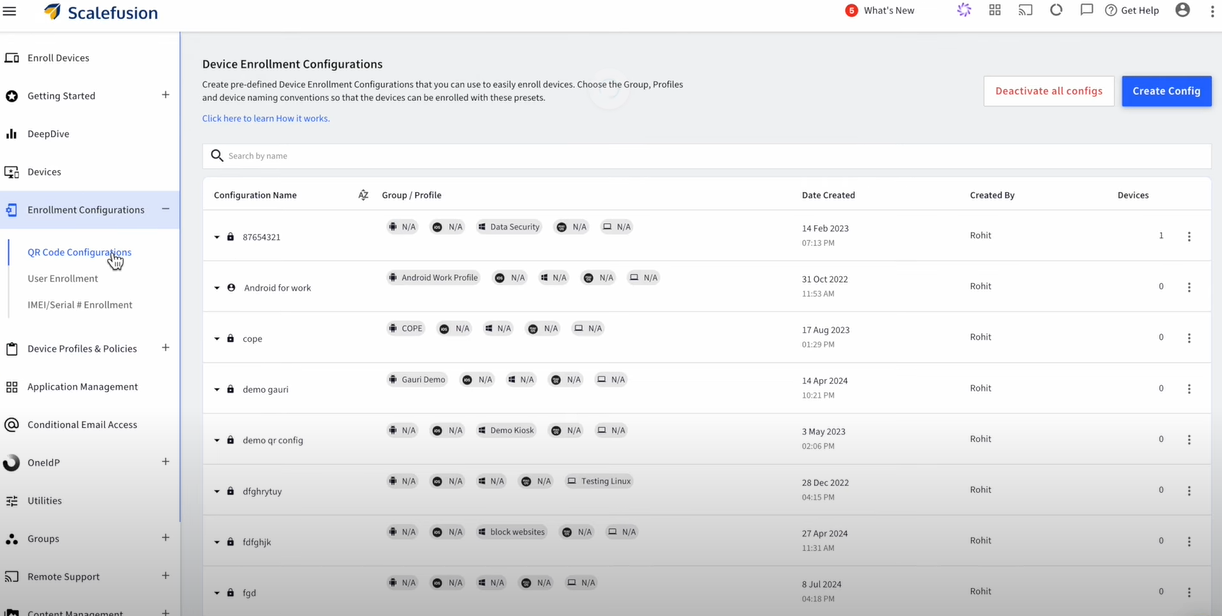
Go to Getting Started > Apple Setup > ADE/DEP.
Step 2: Download ADE Public Key
Click the Download Public Key button and save the ADETokenKey.pem file.
For new devices, go through the initial setup (language, Wi-Fi).
For existing iOS devices, navigate to Settings > General > Reset > Reset All Content & Settings.
For macOS, use CMD + R to reinstall macOS.
Step 8: Complete Enrollment
After initial setup, the devices will show a Remote Management screen.
Enter the required credentials (email, OTP) for User Authenticated Enrollment, if enabled.
Follow the remaining steps to complete the enrollment.
Step 9: Check Enrollment Status
Verify the enrollment status of your devices in the Scalefusion Dashboard under Devices. The devices will be managed automatically under the chosen configuration.
This setup enables zero-touch deployment, allowing ADE devices to automatically enroll into the Apple MDM as soon as they are set up or reset.
Wrapping Up: The Future of Mac Enterprise Deployment
Zero-touch deployment is more than just a convenience—it’s a transformation in how businesses manage their devices. As organizations scale, particularly those deploying a large number of Macs, the simplicity and efficiency of automating the setup process become invaluable.
With Scalefusion UEM, IT teams can streamline operations, ensure security, and maintain consistency across all devices, no matter where they are. Whether you’re deploying 10 or 1,000 Macs, this solution ensures your teams are always ready to work, right out of the box.
About Version 2 Digital
Version 2 Digital is one of the most dynamic IT companies in Asia. The company distributes a wide range of IT products across various areas including cyber security, cloud, data protection, end points, infrastructures, system monitoring, storage, networking, business productivity and communication products.
Through an extensive network of channels, point of sales, resellers, and partnership companies, Version 2 offers quality products and services which are highly acclaimed in the market. Its customers cover a wide spectrum which include Global 1000 enterprises, regional listed companies, different vertical industries, public utilities, Government, a vast number of successful SMEs, and consumers in various Asian cities.
About Scalefusion Scalefusion’s company DNA is built on the foundation of providing world-class customer service and making endpoint management simple and effortless for businesses globally. We prioritize the needs and feedback of our customers, making sure that they are at the forefront of all decision-making processes. We are dedicated to providing comprehensive customer support services, and place emphasis on customer-centric thinking throughout the organization.
“Never trust, always verify.” It’s more than just a catchy phrase, it’s the core principle behind the Zero Trust security model.
But where threats constantly evolve, how can businesses ensure they’re truly following this mandate? Are traditional security methods enough to keep up with the complexities of digital frameworks? How do you ensure that every device, user, and access point in your network is secure?
Unified endpoint management (UEM) in Zero trust security Implementing Zero-Trust with UEM From mobile phones and laptops to IoT devices, each endpoint represents a potential vulnerability. As businesses adopt the Zero Trust model, Unified Endpoint Management (UEM) appears to be a key solution. It’s not just about managing devices, it’s about continuously verifying them, controlling access, and monitoring activity to prevent unauthorized access at every turn.
Let’s find out how UEM enforces the principle of “never trust, always verify” across all endpoints, ensuring that your network remains secure in a world where trust is a luxury no one can afford.
Understanding Zero Trust Architecture Digital threats are rapidly evolving in sophistication, so relying on outdated security models that trust users and devices by default simply won’t cut it. Zero Trust flips this concept on its head, demanding rigorous checks at every level of access and interaction.
So, what exactly does Zero Trust entail? It’s about ensuring that every access request—whether from inside or outside the network—undergoes continuous verification. There’s no inherent trust based on a user’s location or device, instead, every request is treated with suspicion until proven otherwise. This means that even if a device or user is inside the corporate network, they’re not automatically granted access to all resources. Instead, access is tightly controlled and continuously validated.
Key principles of Zero Trust include:
Least Privilege Access: Users and devices are given the minimum level of access necessary to perform their functions. This reduces the risk of unauthorized access and limits the potential damage in case of a breach. Micro-Segmentation: The network is divided into smaller, isolated segments, so even if one segment is compromised, the threat is contained and doesn’t spread across the entire network. Continuous Monitoring: Regularly checking the health and behavior of users and devices helps detect anomalies and real-time potential threats, ensuring that any suspicious activity is addressed immediately. With people accessing corporate resources from different locations and devices, the traditional security perimeter has all but disappeared. This shift requires a new approach to security.
Unified Endpoint Management: Beyond Device Management UEM is an all-in-one toolkit that goes beyond the basic device management we’re used to. It’s about harmonizing and securing every device, application, and data within your business. While traditional device management might have focused solely on deploying and maintaining hardware, UEM takes a broader approach, integrating multiple aspects of IT management into a single platform.
UEM is a comprehensive solution that manages and regulates a diverse range of devices and applications. It unifies the management of mobile devices, desktops, applications, VR devices, wearables, rugged devices, digital screens, and IoT devices, all within a single platform. It’s designed to streamline the oversight of various endpoints, from smartphones and tablets to laptops and IoT devices.
But UEM doesn’t stop there; it also encompasses application management, identity management, and data security, providing a holistic view of your entire IT ecosystem.
The evolution of UEM is a testament to its growing importance. It began as Mobile Device Management (MDM), focusing on mobile devices and their security. As the IT sector evolved, so did MDM, transforming into UEM to address the complexities of managing a wider range of endpoints, ensuring that every endpoint remains secure, compliant, and optimized, regardless of where or how it’s used.
UEM and Zero Trust: The Perfect Synergy When it comes to integrating security and management, UEM and Zero Trust are the duo that complement each other seamlessly. Many CXOs now recognize that pairing UEM with Zero Trust is essential for safeguarding their companies. Here’s how UEM supports and enhances the Zero Trust model, making it a powerful ally:
1. Enforcing the Principle of Least Privilege Zero Trust is all about ensuring that users and devices have only the minimum level of access based on their level of responsibility. UEM plays an important role by meticulously managing and controlling access across all devices. It ensures that permissions are granted based on role, necessity, and context, so users get just enough access to do their job. This granular control minimizes potential risks and enforces the Zero Trust principle of least privilege effectively.
2. Continuous Monitoring and Threat Detection In the Zero Trust model, constant vigilance is key. UEM’s robust monitoring capabilities align perfectly with this need. It continuously tracks user behavior and device health, looking out for any anomalies that could indicate a threat. This real-time oversight ensures that any suspicious activity is detected and addressed promptly, keeping your network secure from emerging threats.
Scalefusion UEM further enhances this approach by enabling overall centralized visibility, allowing organizations to monitor all endpoints from a single platform. This centralization streamlines threat detection and response, making it easier to identify potential vulnerabilities and take swift action to mitigate risks.
3. Identity and Access Management (IAM) Integration Effective security requires tight integration between identity management and access controls. UEM enhances Zero Trust by working seamlessly with IAM solutions. This integration ensures that access permissions are managed consistently and securely across all endpoints, enforcing Zero Trust principles by validating every access request against strict identity and access controls. Solutions like Scalefusion OneIdP play a key role here by focusing on conditional access management, ensuring that users are granted access based on real-time conditions and policies, further strengthening the security framework.
4. Multi-Factor Authentication (MFA) MFA is a critical component of Zero Trust, adding an extra layer of security to user authentication. UEM solutions enable the implementation of MFA, requiring users to provide multiple forms of verification —such as something they know (a password), something they have (a smartphone or security token), and something they are (biometric data like a fingerprint or facial recognition). By integrating MFA with UEM, these solutions streamline the enforcement of MFA policies, ensuring compliance and security across all endpoints.
5. Single Sign-On (SSO) SSO simplifies user access by allowing individuals to log in to multiple applications with a single set of credentials, streamlining the login process and maximizing productivity.
Enterprises increasingly recognize the value of SSO for enhancing multi-application usage and centralizing user activity monitoring, which facilitates tracking resource utilization and identifying behavioral patterns. UEM solutions support SSO capabilities, improving user experience while reducing the risk of password-related vulnerabilities. This approach aligns seamlessly with Zero Trust principles by ensuring that access is managed efficiently and securely.
6. Automated Response and Remediation One of the key challenges in maintaining the Zero Trust environment is quickly responding to potential threats and vulnerabilities. UEM enhances Zero Trust by automating response and remediation processes. For instance, when a device exhibits suspicious behavior or fails to meet compliance standards, UEM can automatically take remediation actions, such as isolating the device, blocking access, or initiating a security scan. This automation supports Zero Trust’s requirement for continuous monitoring and quick responses, ensuring potential threats are managed effectively.
Future Outlook: The Role of Automation in UEM and Zero Trust 1. Automation in Zero Trust Enforcement Enforcing Zero Trust policies manually is increasingly impractical, especially for large-scale enterprises with numerous endpoints. Automation helps streamline and enhance the enforcement of Zero Trust principles. It allows for real-time compliance checks, automatic threat detection, and seamless policy application. By taking over routine tasks and monitoring, automation ensures that security measures are consistently applied, reducing human error and accelerating response times to potential threats.
2. Emerging Trends Several key trends are shaping the future of UEM and Zero Trust. The integration of Internet of Things (IoT) devices is one such trend, as these devices become more prevalent in business environments. UEM solutions are evolving to include advanced capabilities for managing and securing a wide range of connected devices, such as smart thermostats in offices and connected medical devices in healthcare, ensuring only authorized access and continuous monitoring for compliance and anomalies.
Another notable trend is the shift toward edge computing. As data processing moves closer to the source of data generation, securing these edge environments is important. UEM will increasingly focus on extending Zero Trust principles to decentralized endpoints, ensuring comprehensive protection even in the most distributed IT environment.
UEM as the Backbone of the Zero Trust Architecture UEM supports Zero Trust by ensuring continuous verification of every device, enforcing strict access controls, and maintaining constant monitoring. From automating threat responses to integrating identity management, UEM enhances the effectiveness of Zero Trust principles. By managing and securing all endpoints, Scalefusion UEM helps create a strong fortress around your digital environment, making it harder for threats to breach and move within your network.
Now is the time to assess your current security posture. It’s worth exploring how UEM in Zero Trust security can be a critical component of your strategy. With the right approach, you can walk through modern threats and complexities and secure your digital environment.
Scalefusion UEM, integrated with IAM, can help achieve this synergy seamlessly. By combining robust endpoint management with identity and access controls, Scalefusion enables you to implement Zero Trust principles efficiently, ensuring that every endpoint is continuously secured and compliant.
About Scalefusion Scalefusion’s company DNA is built on the foundation of providing world-class customer service and making endpoint management simple and effortless for businesses globally. We prioritize the needs and feedback of our customers, making sure that they are at the forefront of all decision-making processes. We are dedicated to providing comprehensive customer support services, and place emphasis on customer-centric thinking throughout the organization.
About Version 2 Digital
Version 2 Digital is one of the most dynamic IT companies in Asia. The company distributes a wide range of IT products across various areas including cyber security, cloud, data protection, end points, infrastructures, system monitoring, storage, networking, business productivity and communication products.
Through an extensive network of channels, point of sales, resellers, and partnership companies, Version 2 offers quality products and services which are highly acclaimed in the market. Its customers cover a wide spectrum which include Global 1000 enterprises, regional listed companies, different vertical industries, public utilities, Government, a vast number of successful SMEs, and consumers in various Asian cities.
Ever had an employee leave unexpectedly, and you needed to secure their device immediately? Or maybe a MacBook went missing, and you’re left worrying about the sensitive data it holds?
Situations like these are not just headaches—they’re security risks. For IT teams managing a fleet of macOS devices, ensuring that lost, stolen, or repurposed devices are wiped clean is essential to safeguard company information.
Remote wiping is a vital tool for maintaining control over your business assets. With the right solution, like Scalefusion UEM, you can remotely wipe Mac devices instantly, ensuring that sensitive data is erased without the need for physical access to the device.
Remotely Wipe Mac Devices
In this blog, we’ll dive into the importance of remote wiping, walk you through the steps to remotely wipe a macOS device using Scalefusion Mac MDM, and explore common use cases where this feature proves invaluable for businesses.
Understanding Remote Wiping on Mac: Why Is It Important?
It’s possible for an employee to leave their MacBook in a rideshare, or an ex-employee to hold onto their device a little too long. What happens to the sensitive company data on that machine? That’s where remote wiping steps in, offering an instant, secure solution.
Data security is a top priority. Losing control of a device means risking exposure to confidential information. Remote wiping allows businesses to instantly erase data from any device, no matter where it is, preventing security breaches and data leaks. It’s all about staying in control of your assets.
Whether it’s preparing a device for the next employee, protecting data on lost or stolen equipment, or managing devices at the end of their lifecycle, remote wiping ensures that your data doesn’t fall into the wrong hands. With Scalefusion UEM, you can erase MacBook remotely with ease, allowing for a seamless transition between users while maintaining security.
How to Remotely Wipe a macOS Device Using Scalefusion UEM
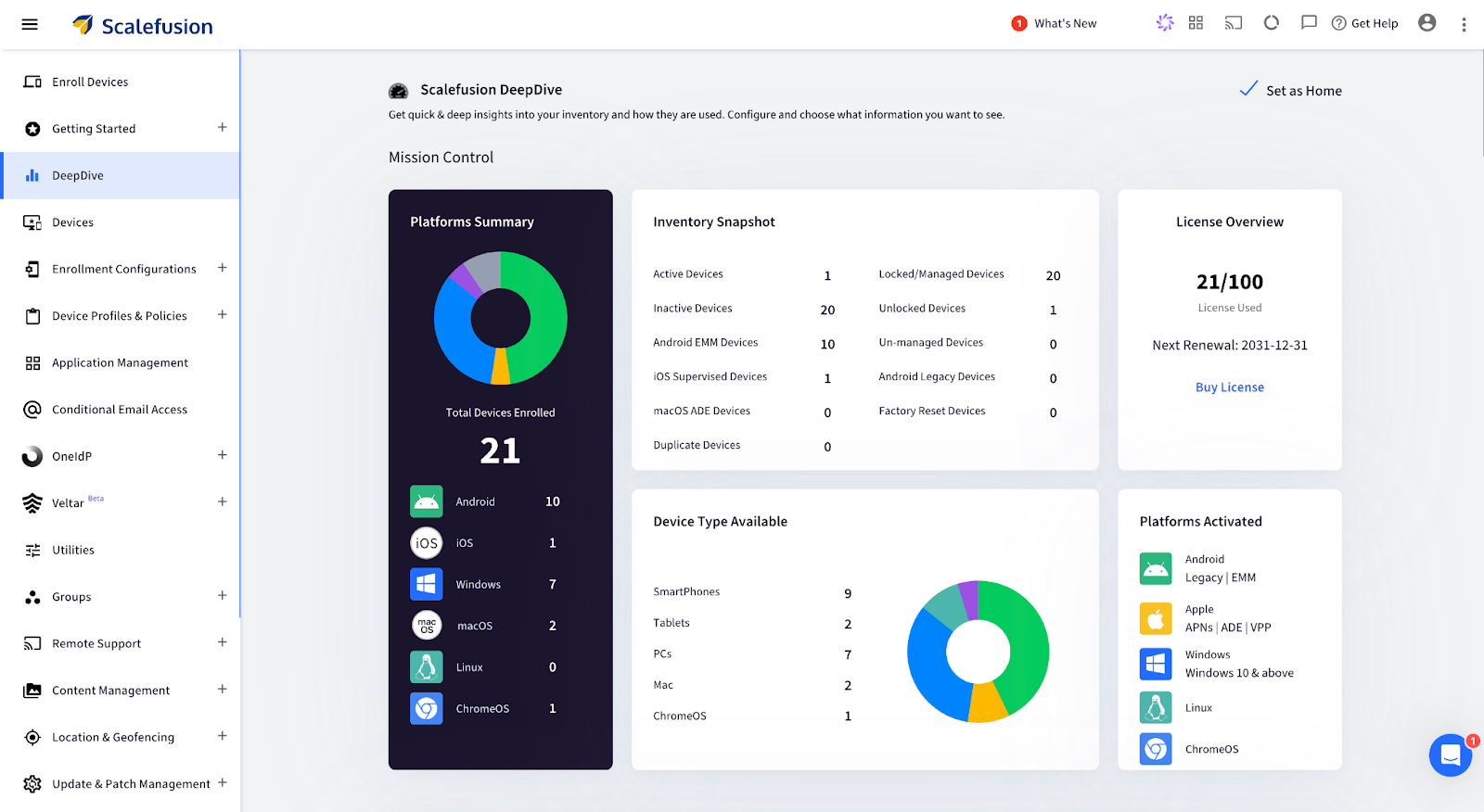
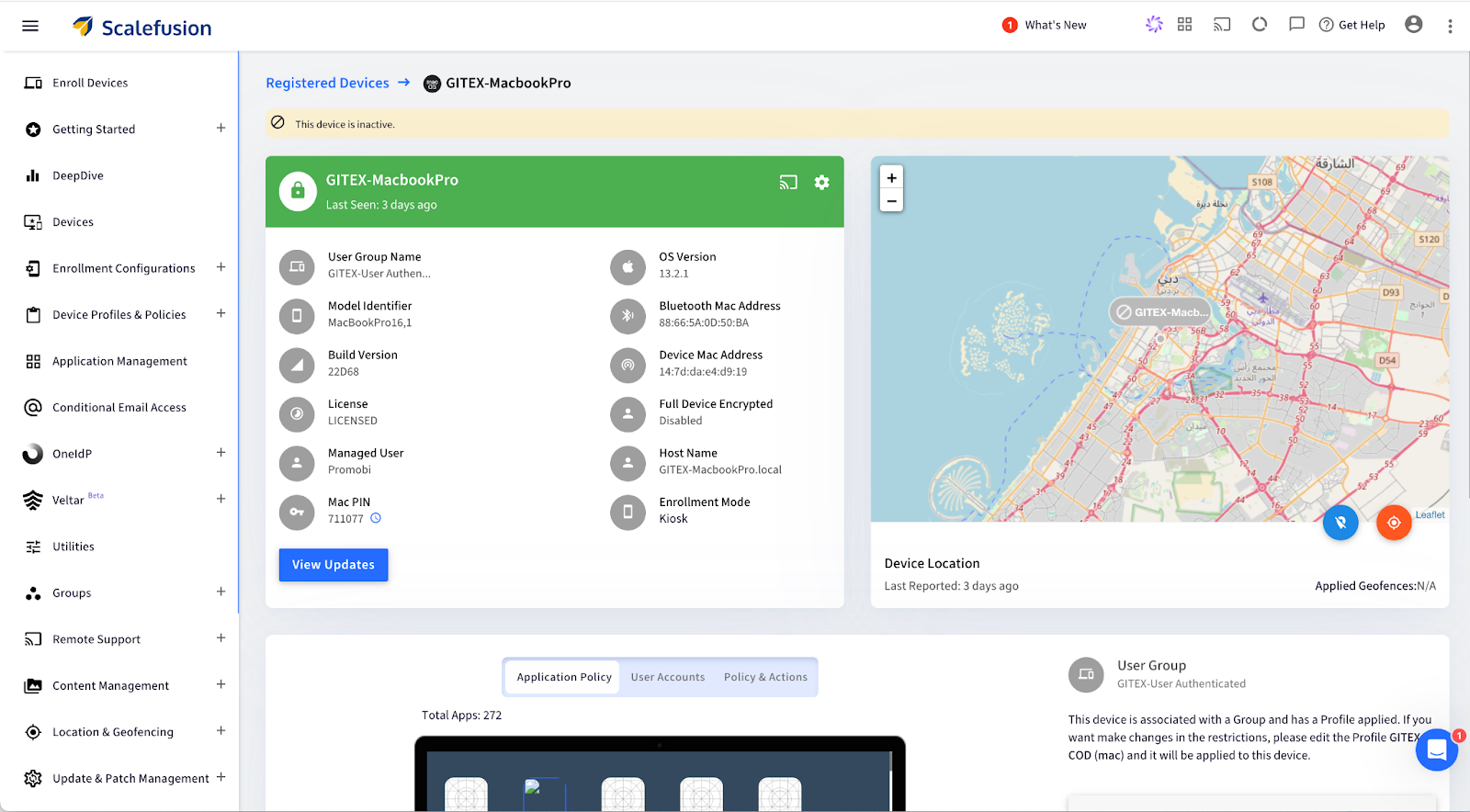
Step 1. Access the dashboard: Log in to the Scalefusion Dashboard and navigate to the Devices section.
Step 2. Select the device: Click on the specific macOS device to view its details.
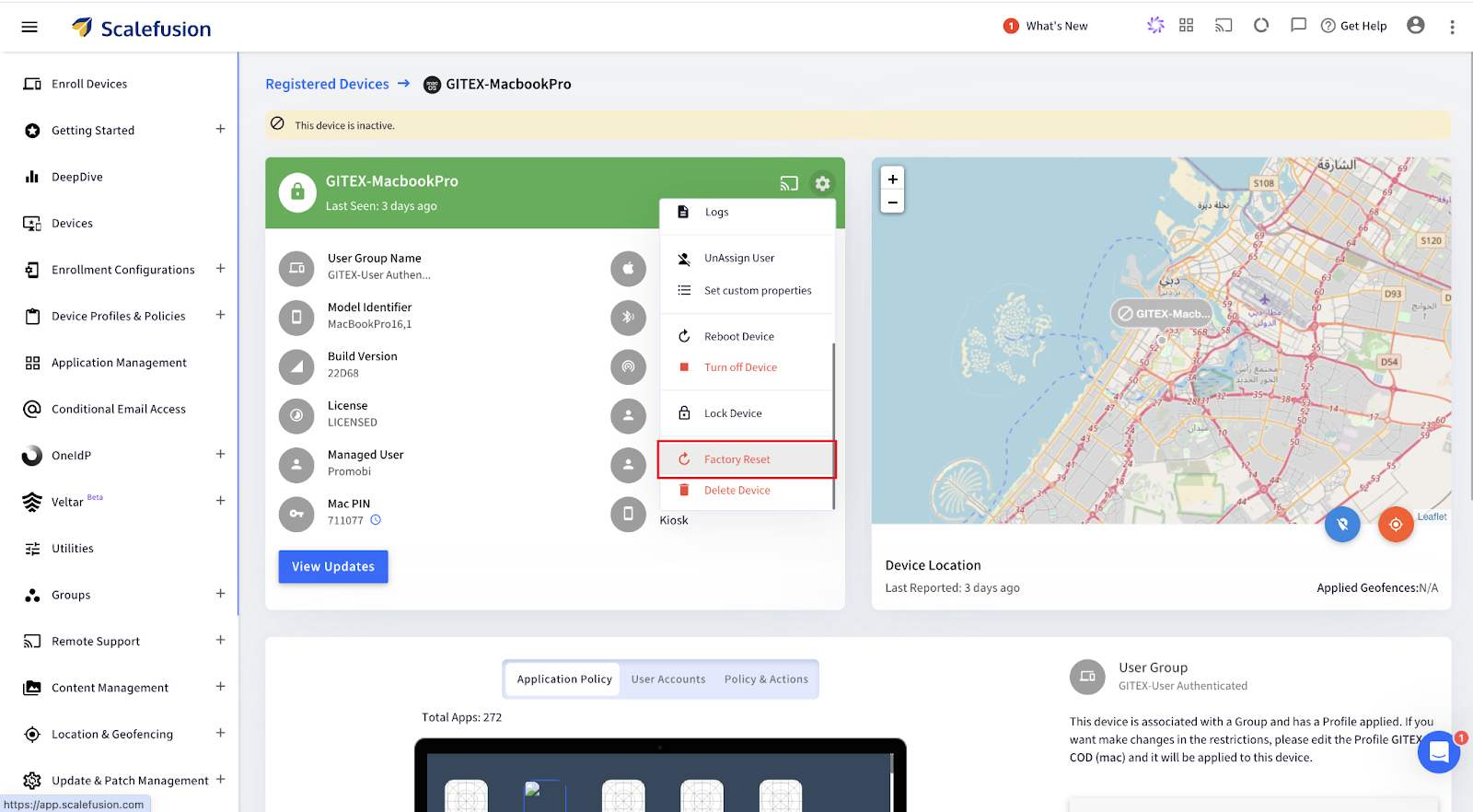
Step 3. Open Factory Reset Option: Click on the Settings icon, scroll down, and select Factory Reset from the menu options.
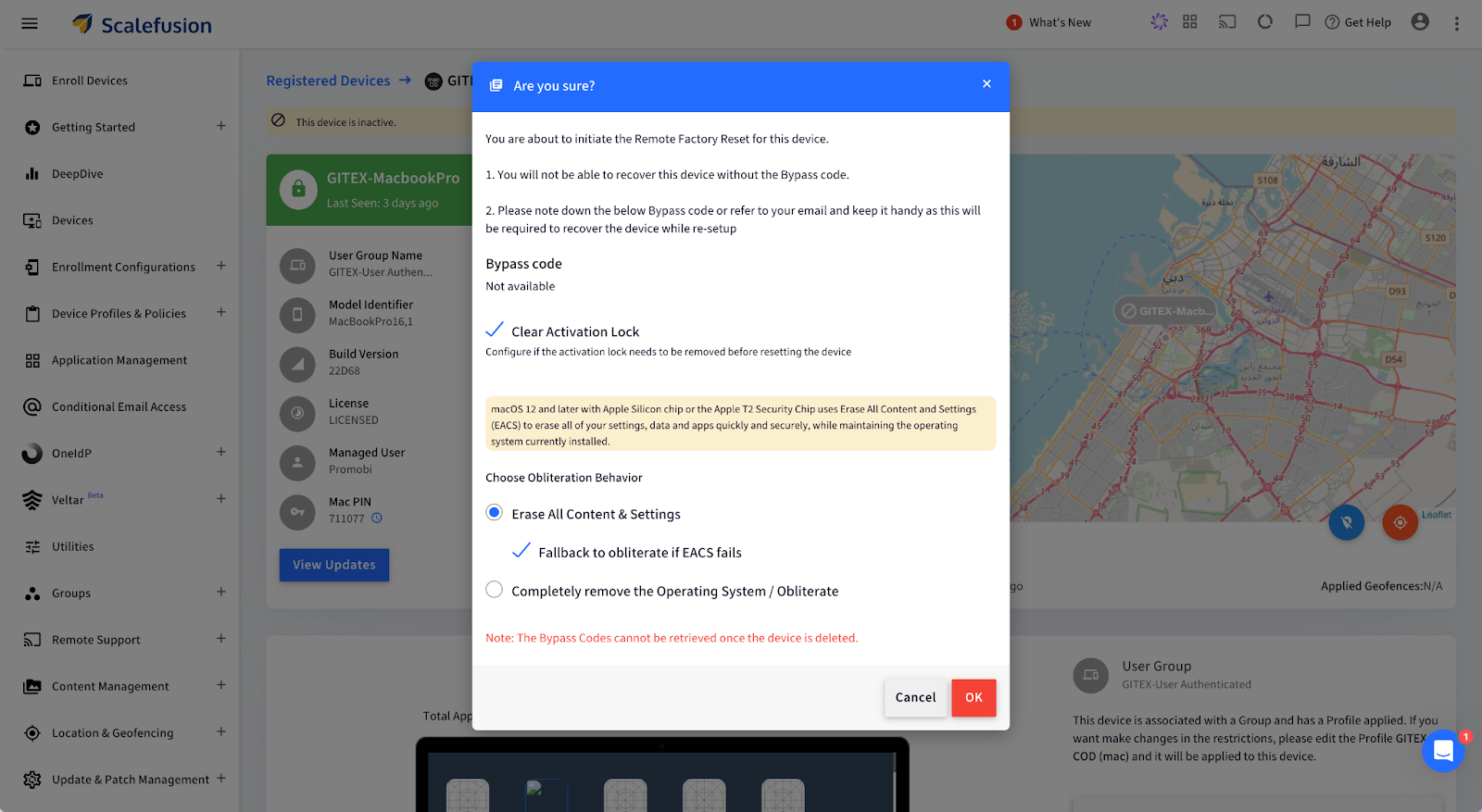
Step 4. For Apple Silicon/Intel (with T2 Security Chip):
Choose Obliteration Behavior: Select whether to erase all content, settings, and apps while retaining the operating system.
Alternatively, for Intel Mac (without T2 Security Chip):
Configure a new Mac PIN: Enter a 6-digit PIN, then confirm by clicking OK. The PIN is also emailed to the admin.
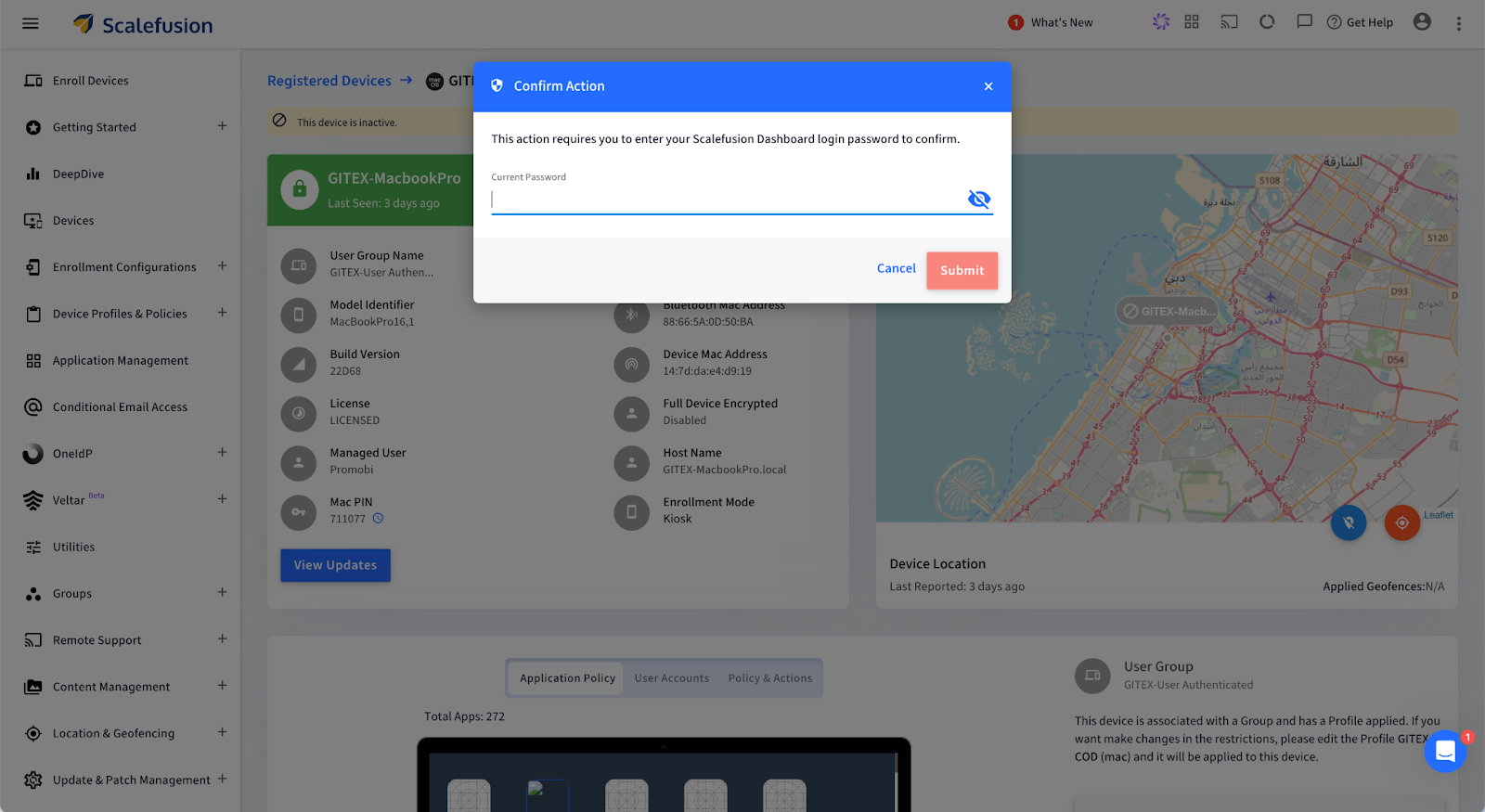
Step 5. Confirm and Submit: Enter your password and click Submit. A push notification will be sent to the device, confirming the factory reset.
Your macOS device will now be wiped remotely and restored to factory settings.
What Happens After You Remote Wipe a Mac?
Once the remote wipe is complete, the Mac device is reset to its factory state, making it fully secure and ready for its next phase. But what does that look like at an enterprise level?
Complete Data Erasure: Every piece of data, including user profiles, business applications, and sensitive information, is permanently deleted. This ensures that no traces of your company’s data remain, protecting you from potential data breaches or unauthorized access.
Operating System Reset: The macOS is restored to its original, unconfigured state, essentially taking the device back to square one. This provides a clean slate, removing all previous settings, and ensuring no configurations are left that could pose a security risk.
Ready for New User Setup: The device will display the macOS Setup Assistant, making it ready to be deployed for a new employee. This streamlines IT operations, enabling quick reassignment of devices without the hassle of manual resets.
Use Cases for Remote Wiping on Mac
Remote wiping proves invaluable in several business scenarios, helping IT teams maintain security and streamline device management. Here are some key use cases:
1. Employee Offboarding: When employees leave the company, ensuring their assigned Mac is cleared of any sensitive data is necessary. Remote wiping guarantees that no personal or business data remains on the device, allowing it to be securely redeployed to another team member without privacy risks or manual intervention.
2. Lost or Stolen Devices: Losing a company Mac can create a significant security threat, as it may contain confidential files, emails, or proprietary software. With Scalefusion’s remote wipe feature, IT admins can swiftly erase all data on the lost or stolen device, ensuring that sensitive information remains protected from unauthorized access.
3. Device Lifecycle Management: For businesses that frequently upgrade or redistribute devices, remote wiping helps maintain data security and device readiness. It ensures that each device is completely reset before being assigned to a new user, reducing risks associated with leftover data and simplifying the device management process.
Safeguard Your Mac Devices with Scalefusion UEM
Managing Mac devices in your business doesn’t have to be a headache. With Scalefusion UEM, you can handle everything from employee offboarding to lost devices with confidence. With just a few clicks, you can wipe your Mac remotely, ensuring that all sensitive data is securely erased and the device is ready for the next team member—all without breaking a sweat.
No more fretting about sensitive information lingering on devices after someone leaves or when a Mac goes missing. Scalefusion’s remote wipe feature ensures that all data is gone in an instant.
About Scalefusion Scalefusion’s company DNA is built on the foundation of providing world-class customer service and making endpoint management simple and effortless for businesses globally. We prioritize the needs and feedback of our customers, making sure that they are at the forefront of all decision-making processes. We are dedicated to providing comprehensive customer support services, and place emphasis on customer-centric thinking throughout the organization.
About Version 2 Digital
Version 2 Digital is one of the most dynamic IT companies in Asia. The company distributes a wide range of IT products across various areas including cyber security, cloud, data protection, end points, infrastructures, system monitoring, storage, networking, business productivity and communication products.
Through an extensive network of channels, point of sales, resellers, and partnership companies, Version 2 offers quality products and services which are highly acclaimed in the market. Its customers cover a wide spectrum which include Global 1000 enterprises, regional listed companies, different vertical industries, public utilities, Government, a vast number of successful SMEs, and consumers in various Asian cities.
Managing the lifecycle of industrial equipment is exhausting. Be it paperwork or keeping a log of maintenance schedules. Thankfully, with digitization, mobile devices have been replacing a lot of conventional devices on industrial floors. Rugged devices, custom devices, and modern lightweight tablets and laptops are quickly becoming popular choices to replace bulky computers or pen-paper-based operations.
Industrial Equipment Lifecycle Management with MDM
If your mobile devices are connected to your machines and sensors and if your machine overheats and is about to break down, the mobile device will quickly issue an alert and or even automatically schedule a repair!
That’s where Mobile Device Management (MDM) comes in. It’s a software that gives you complete control to manage and monitor all your critical mobile assets, remotely.
MDM provides real-time insights into all your mobile equipment for proactive monitoring.
Sounds amazing, right?
Let’s find out how you can use MDM to improve industrial equipment lifecycle management at every phase.
Phase 1: Equipment Acquisition and Integration with MDM
Acquisition is a crucial phase in the lifecycle of the equipment. Manual setup, integration hiccups, or even poor documentation can cost you big in the long run.
Mobile device management provides a streamlined and automated approach to mobile equipment onboarding. Let’s understand how:
Centralized Equipment Configuration
Let’s say you have hundreds of devices in your factory. Now, can you imagine configuring each of them manually?
No, right?
Thankfully, with MDM software, you can quickly adjust the settings of the newly acquired devices and configure them remotely from a single dashboard. Thus, you can instantly apply uniform protocols to each device.
In fact, some MDM vendors also allow you to enroll your devices using QR codes. All you have to do is scan the code and your preferred settings will be applied to them.
At the same time, you can integrate new and old devices under a unified management system so that they can communicate efficiently without any disruption in the operations.
So, if you’re adding new mobile devices to the production line, you can use MDM to ensure smooth interaction between the old and new mobile equipment.
Automated Asset Registration
MDM also automates asset registration by tagging every new device with important data like serial numbers, model types, warranty details, installation dates, etc. This eliminates inaccuracies and missed entries.
Phase 2: Equipment Usage and Operational Efficiency
Once you’ve set up your system and integrated it with MDM, it’s time to optimize it for day-to-day operations.
Here’s how MDM can help:
Streamlined Workflow Management
The biggest advantage of using MDM to manage equipment lifecycle is that it gives you centralized control over all the devices connected to your machines.
That means you can monitor how different devices interact (with machines and each other) and contribute to the overall performance, all from a single place.
Say, you run a chain of restaurants. Each outlet has order printers, inventory trackers, etc, that run on Windows, Android, iOS, macOS, ChromeOS or Linux. Now, you can’t be everywhere at once to make sure things run smoothly. But with an MDM, you get full access to monitor and adjust these devices remotely.
Be it lowering the threshold level across all devices or troubleshooting them. You can do all of that from anywhere in the world, thanks to MDM.
MDM can reduce this burden by automating monotonous and time-consuming operational tasks.
For example, instead of manually inspecting each device for faults, employees can receive instant, real-time alerts from the MDM system. As a result, they can resolve issues quickly and stay ahead of time.
Phase 3: Maintenance Management and Predictive Analytics
There’s no doubt that mobile device management helps extend the lifespan of your machines. You can it to track device performance and even stay on top of maintenance updates.
Below are three ways mobile device management helps you achieve this:
Real-time Equipment Monitoring
Monitoring the performance of your devices in real time is super important.
But we’re not just talking about whether a device is active or inactive. But if it’s giving accurate insights, communicating with other devices correctly, and so on.
With an MDM platform, you can get a 360° view of such performance metrics. As a result, you can take swift action when something goes off the track, like if there’s a battery issue or if the device’s been hacked.
Automated Maintenance Scheduling
Let’s say you have a large factory that houses at least 15 ELSCO Transformers to run everything smoothly, each connected to a mobile device. And this is besides other machines and their OS-based equipment.
So, how do you carry out routine maintenance for all such devices while staying on top of other operational tasks?
Answer: MDM software.
With MDM, you can automatically track operational hours and performance metrics for each device to decide when it needs servicing. The software also automatically schedules maintenance checks when set thresholds are crossed.
To make it easier, MDM also lets you manage and maintain different types of supported devices from a single platform. So, it doesn’t matter if you have 10 laptops, 25 mobiles, and 10+ PCs in your factory for your machines. With MDM, you can monitor each device without any hassle.
“Think of predictive analytics like your mobile device’s personal trainer. It recognizes the signs of fatigue and overexertion so that you can maintain peak performance without overworking your mobile equipment.”
[ — Vineet Gupta, Founder of 2xSaS ]
MDM runs on built-in algorithms that can predict potential issues in your equipment by considering factors like usage patterns, environmental conditions, etc.
Thus, you shift from a reactive maintenance strategy to a proactive one with enhanced safety and minimum unplanned downtimes.
Phase 4: Equipment Renewal or Disposal
As your mobile equipment reaches the end of its lifecycle, it’s time to make a tough call: Should you upgrade or replace it?
This decision can have a huge impact on the operations, costs, and sustainability of your business.
MDM equips you with all the necessary data to make the right choice. Here’s how:
Evaluating Equipment Longevity
MDM allows you to track how the mobile equipment is used, how often it needs repairs, and how well it’s performing. This information helps decide if it’s worth fixing or replacing.
For example, if a device consistently shows signs of declining precision, it’s time you replace it with a new piece.
Sustainability Considerations
If you decide to dispose of the equipment, MDM can help you find the best way to do it without costing the planet.
It can assist you in evaluating the environmental impact of the disposal and ensuring compliance with the necessary standards.
Implementation of Replacement Strategies
Additionally, you can also use MDM to make the switch to new equipment—whether that’s upgrading old devices or purchasing brand-new ones.
For example, say you wish to replace your rugged laptops with those that have a higher processing capacity. Using MDM software, you can not only start from the first phase (equipment acquisition) but also train employees regarding the change (new features).
MDM Best Practices for Improving Equipment Lifecycle Management
Besides the above four phases, you must keep the following ten tips in mind to get the most out of your mobile equipment lifecycle management with MDM:
Choose an MDM software that aligns with your industry’s needs and business objectives. Remember, customization is key. So, select a solution that offers flexibility and automation.
Customize alerts for predictive maintenance based on historical data. For example, if a mobile device tends to wear out after 30,000 hours, set an alert for 28,000 hours to stay ahead of issues.
Schedule automatic firmware and OS updates to ensure optimal device performance.
Establish feedback loops to gather suggestions from employees to interact directly with the mobile devices. This will help you configure MDM software the right way.
Regularly train your employees on how to use MDM software to reduce errors, improve workflow, and maximize benefits.
Monitor and analyze lifecycle trends consistently to make informed decisions about mobile equipment renewal, upgrades, etc.
Use digital twins to simulate various operational scenarios (like cyberattacks) and predict outcomes without putting your actual devices at risk.
Integrate MDM with your Enterprise Asset Management (EAM) system for seamless data flow between device monitoring and broader asset management activities.
Restrict device usage if it doesn’t meet the compliance criteria by setting up conditional access via the MDM software.
Conclusion
Managing industrial equipment might seem like a tough nut to crack, but it really isn’t if you have the right tools.
MDM can do wonders by automatically updating mobile equipment software, granting remote access, and even predicting repairs in mobile devices before they occur.
However, not all MDM software are equal.
Scalefusion brings the simplest yet most advanced MDM solution that can transform your industrial equipment lifecycle management.
With features like real-time location tracking, encrypted data transfer, 24/7 remote access, bulk device enrollment, etc., you can manage your mobile devices smartly.
About Scalefusion Scalefusion’s company DNA is built on the foundation of providing world-class customer service and making endpoint management simple and effortless for businesses globally. We prioritize the needs and feedback of our customers, making sure that they are at the forefront of all decision-making processes. We are dedicated to providing comprehensive customer support services, and place emphasis on customer-centric thinking throughout the organization.
About Version 2 Digital
Version 2 Digital is one of the most dynamic IT companies in Asia. The company distributes a wide range of IT products across various areas including cyber security, cloud, data protection, end points, infrastructures, system monitoring, storage, networking, business productivity and communication products.
Through an extensive network of channels, point of sales, resellers, and partnership companies, Version 2 offers quality products and services which are highly acclaimed in the market. Its customers cover a wide spectrum which include Global 1000 enterprises, regional listed companies, different vertical industries, public utilities, Government, a vast number of successful SMEs, and consumers in various Asian cities.
With a market share of 73.31%, Windows remains the leading desktop operating system worldwide[1]. Both small to medium businesses and large enterprises are increasingly choosing Windows devices to meet their work needs. As organizations strive to enhance security, streamline operations, and improve user experiences, the importance of deploying Windows devices in Kiosk Mode is evident.
Organizations can create a focused work environment with Windows kiosk mode and enhance their productivity and security. Kiosk mode restricts access to specific applications, websites, and settings, allowing businesses to deploy Windows devices in a secure manner. This setup enables users to concentrate on essential tasks without distractions or prevents the risks associated with unauthorized access.
This blog provides an overview of Windows Kiosk Mode and highlights its benefits. It offers a step-by-step guide for setting up Kiosk Mode on Windows devices, helping your organization maximize the advantages of this powerful feature.
What is Windows Kiosk Mode?
Windows kiosk mode is a security and efficiency enhancement feature. It transforms your devices running on 7, 8.1, 10, and 11 versions of Windows into dedicated, purpose-driven kiosk machines. Moreover, you can lock the Windows devices to run single or multiple applications, websites, or specific functions on full screen.
With Windows kiosk mode, you ensure that users cannot modify device settings, access other applications or features on Windows devices, or use the devices for unintended purposes. Due to its restrictive capabilities, organizations secure their Windows devices used for intended purposes such as self-check-in kiosks at airports, point-of-sale (POS) terminals in food courts, or digital signages.
Benefits of kiosk mode for Windows devices
Implementing kiosk Mode on Windows devices offers you a range of benefits:
1. Ensured security
Kiosk mode ensures Windows device security, allowing you to deploy them in public-facing environments. It secures point-of-sale systems, public access terminals, and other devices that need to be protected from unauthorized access.
Similarly, you can restrict users’ access to specific applications, websites, or device settings. This minimizes the risk of exposure to sensitive information while maintaining compliance with industry regulations such as HIPAA and GDPR.
2. User productivity
In business environments, Kiosk Mode can significantly enhance user productivity by offering streamlined access to essential tools and applications, eliminating the need to navigate the full Windows desktop.
This focused approach allows users to quickly engage with the specific applications they require, minimizing distractions and reducing the time spent on unnecessary tasks. As a result, employees can work more efficiently, leading to improved performance and a more productive workplace.
3. Increased operational efficiency
Applying kiosk mode to Windows devices increases efficiency by restricting access to specific applications or websites. Users can quickly navigate tasks without the confusion of unrelated options. This focused environment accelerates workflow, ensuring that users can complete their tasks with efficiency and consume less time.
Moreover, as you restrict access to the Windows desktop and other system settings, there is less chance of users unintentionally making changes or causing system errors. This reduces the need for device maintenance and troubleshooting.
4. Enhanced customer service
Deploying Windows devices in kiosk mode offers customers a smooth and focused user experience based on their needs. For instance, in a retail setting, kiosks can facilitate a self-service shopping experience, allowing customers to browse products and make purchases independently, without staff assistance.
With access to dedicated applications or websites, users can interact directly with the applications they need, free from distractions. This enhances customer engagement and streamlines the purchasing process.
5. Versatility
Windows Kiosk Mode is adaptable and applicable across various industries and settings. It is commonly utilized in retail for self-service kiosks, in museums for interactive displays, and in enterprises for dedicated task-specific workstations.
Organizations can enable kiosk mode on Windows 10 and 11 devices through the following two methods:
Method 1: Using Windows Assigned Access
Windows Assigned Access is a feature in Windows operating systems that allows administrators to restrict a device to run a single application. To configure Kiosk Mode on Windows 10 devices follow these steps:
To configure Kiosk Mode on Windows 10 or Windows 11, follow these steps:
Step 1: Begin by creating a local standard user account using an Administrator account.
Step 2: Open the Settings app by pressing the Windows Key + I combination.
Step 3: Navigate to Accounts > Other Users and then select Set up assigned access.
Step 4: Choose the Standard user account you created in Step 1 by selecting Choose an Account.
Step 5: Next, click Choose an App and pick the app you want to restrict access to from the list of supported applications for Windows 10 or Windows 11 Kiosk Mode (also called Assigned Access).
Step 6: Restart the device and sign in with the Standard user account credentials to activate Kiosk Mode.
While Windows Assigned Access provides a simple way to configure Kiosk Mode, it has notable limitations. It only supports a single app at a time, which can be restrictive for more complex use cases. Additionally, it lacks the advanced security features and customization options often required for larger deployments. For organizations with more demanding needs, it is advisable to utilize comprehensive Unified Endpoint Management (UEM) solutions like Scalefusion UEM.
Method 2: Using Scalefusion UEM
Scalefusion UEM offers a modern and secure way to apply Kiosk Mode to your Windows devices. Follow this step-by-step guide to set up Windows Kiosk Mode:
Kiosk Mode offered by Scalefusion UEM provides organizations with advanced capabilities, while Windows Assigned Access offers a more basic implementation. Organizations should consider an optimum method of applying Kiosk Mode to their Windows devices that best meets their needs.
Aspect
Scalefusion’s Windows kiosk mode
Windows Assigned Access
Purpose
To provide comprehensive control over Windows devices with customizable settings, multi-app support, and remote management.
To restrict a device to a single application for simplicity.
Features
Supports multiple apps, remote monitoring, advanced customization, and device management.
Limited to single-app mode, with basic restrictions.
Security
Enhanced security with advanced policies, remote control, and compliance management.
Basic security, limited to local settings and access restrictions.
Ease of Setup
Quick and centralized setup through a user-friendly interface with remote deployment options.
Simple, but manual and limited to local settings.
Configuration
Highly configurable with options for multiple apps, kiosk browser, and custom branding.
Minimal configuration, restricted to a single app selection.
Use Cases
Suitable for diverse industries like retail, healthcare, education, and enterprises needing multi-app or custom environments.
Ideal for basic setups like kiosks displaying one app or a single-purpose device.
Get Scalefusion UEM to configure Windows kiosk mode
Scalefusion UEM’s kiosk Mode for Windows offers a robust solution to the limitations of traditional Windows Assigned Access. It provides enhanced security, advanced customization, and multi-app support, making it ideal for businesses needing versatile, secure, and scalable device management.
With centralized control and the ability to configure Windows devices remotely, Scalefusion UEM is perfect for a variety of industries—from retail to education—ensuring that your public-facing and dedicated devices are secure and optimized.
Ready to transform your operations with Windows Kiosk Mode? Connect without product experts for a free demo and unlock Scalefusion’s Windows kiosk management features. Begin your 14-day free trial now!
About Version 2 Digital
Version 2 Digital is one of the most dynamic IT companies in Asia. The company distributes a wide range of IT products across various areas including cyber security, cloud, data protection, end points, infrastructures, system monitoring, storage, networking, business productivity and communication products.
Through an extensive network of channels, point of sales, resellers, and partnership companies, Version 2 offers quality products and services which are highly acclaimed in the market. Its customers cover a wide spectrum which include Global 1000 enterprises, regional listed companies, different vertical industries, public utilities, Government, a vast number of successful SMEs, and consumers in various Asian cities.
About Scalefusion Scalefusion’s company DNA is built on the foundation of providing world-class customer service and making endpoint management simple and effortless for businesses globally. We prioritize the needs and feedback of our customers, making sure that they are at the forefront of all decision-making processes. We are dedicated to providing comprehensive customer support services, and place emphasis on customer-centric thinking throughout the organization.