Skip to content

Unleash your inner demon slayer: Playing Diablo on a Mac with Parallels Desktop

Unleash your inner demon slayer: Playing Diablo on a Mac with Parallels Desktop 

Are you a Mac devotee who’s been longing to experience the dark and wicked world of Blizzard Entertainment’s Diablo?

Well, I’ve got some great news for you — Parallels Desktop makes it easy for you to explore Sanctuary on your beloved Mac.

No longer do you have to be limited by compatibility issues; instead, get ready to join the countless PC gamers in this action-packed adventure that they can’t stop talking about.

I’ll guide you every step of the way to use Parallels Desktop so that your venture into Diablo is triumphant.

Smoother graphics and faster performance are guaranteed as this extraordinary program ensures that nothing stands in between you and your epic adventures!

Ready to transform your Mac into a gaming powerhouse? Get Parallels Desktop for Mac Pro Edition now and unleash your inner demon slayer!

How to play Diablo on a Mac

Ready to save Sanctuary? With Parallels Desktop Pro, you can quickly and easily install Diablo onto your Mac. Here’s how.

1. Purchase and install Parallels Desktop Pro

Get started by heading over to the official website and grabbing a copy of Parallels Desktop for Mac Pro Edition. Download it and get to installing.

2. Install Windows on your Mac

Open Parallels Desktop for Mac Pro Edition, click through instructions, then grab a valid Windows license key or installation media to finish things off.

3. Adjust the virtual machine settings

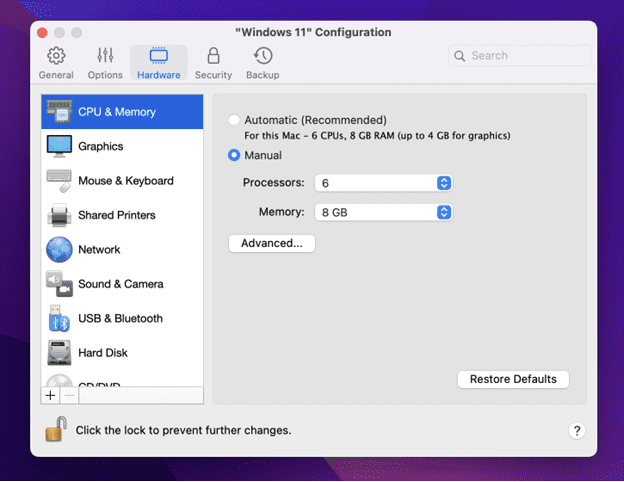
Once you’ve installed Windows, head into the Parallels Desktop Control Center under “Hardware” to allocate sufficient RAM, CPU, and GPU resources to ensure smooth gameplay.

screenshot: adjusting virtual machine settings to allocate sufficient RAM

4. Optimize Parallels Desktop for gaming

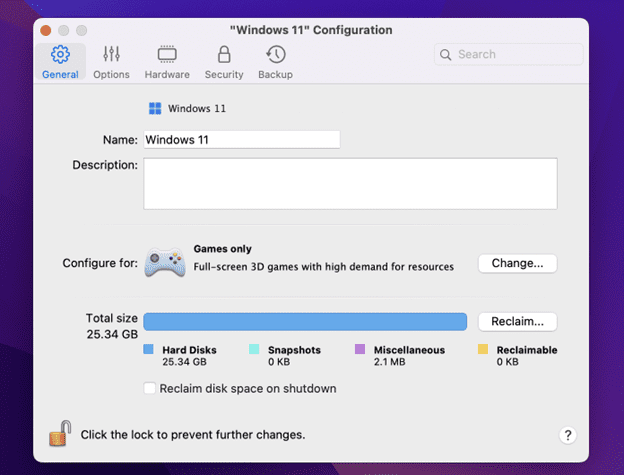
In the Control Center, select “Preferences” and choose the “Optimization” tab. Enable “Optimize for games” to further enhance your Diablo gaming experience.

screenshot: optimizing parallels desktop for gaming

5. Install Diablo

Now get your hands on the BattleNet client from Blizzard Entertainment’s website.

Follow some more instructions on-screen until you’ve downloaded and installed Diablo within your virtual machine environment

6. Configure game settings

Launch Diablo within your Windows virtual machine and head to the in-game settings menu.

Adjust the video and audio settings to your preferences and ensure that the game is running how you like.

7. Start playing Diablo on your Mac

You’re now ready to slay evil forces with ultimate precision using your favorite operating system.

Can Diablo 2: Resurrected be played on a Mac?

Diablo 2: Resurrected, similar to Diablo 3, is not natively compatible with Mac.

Simply follow the steps outlined in the section above to play the game on a Mac. You can also use these steps to play Diablo Immortal. You’ll be slaying monsters in no time!

Play Diablo on Mac with Parallels Desktop

Gearing up for an epic journey into Diablo or the vast world of PC gaming?

Parallels Desktop offers Mac users a powerful and versatile virtualization solution without compromising performance or user experience.

No more rebooting, no need to own multiple devices – this top-tier software ensures that graphics and gameplay remain smooth while you explore your favorite games.

So, if you’re ready to set out on a captivating adventure, equip yourself with the best tool available — Parallels Desktop — and get ready for full immersion!

Ready to transform your Mac into a gaming powerhouse? Get Parallels Desktop for Mac Pro Edition now and unleash your inner demon slayer!

About Version 2 Digital

Version 2 Digital is one of the most dynamic IT companies in Asia. The company distributes a wide range of IT products across various areas including cyber security, cloud, data protection, end points, infrastructures, system monitoring, storage, networking, business productivity and communication products.

Through an extensive network of channels, point of sales, resellers, and partnership companies, Version 2 offers quality products and services which are highly acclaimed in the market. Its customers cover a wide spectrum which include Global 1000 enterprises, regional listed companies, different vertical industries, public utilities, Government, a vast number of successful SMEs, and consumers in various Asian cities.

About Parallels 
Parallels® is a global leader in cross-platform solutions, enabling businesses and individuals to access and use the applications and files they need on any device or operating system. Parallels helps customers leverage the best technology available, whether it’s Windows, Linux, macOS, iOS, Android or the cloud.

Join us at the Penn Mac Admins event: Empower your educational IT and DevOps teams

Are you ready to streamline your workflows and boost productivity?

Look no further! Parallels® Desktop is thrilled to be part of the upcoming Penn MacAdmins event, the premier East Coast conference for anyone who deploys and manages devices in the Apple ecosystem.

We’ll showcase our innovative solutions tailored specifically for IT administrators in educational settings and DevOps professionals.

Why Parallels Desktop for IT admins and DevOps?

As IT admins and DevOps professionals, you face the challenge of managing diverse computing environments and ensuring seamless operation across platforms.

Parallels Desktop offers a comprehensive solution for integrating Windows applications into Mac environments, simplifying your tasks and enhancing your efficiency.

What to expect at the Penn MacAdmins event

Join us for an in-depth exploration of how Parallels Desktop can revolutionize your IT and DevOps management:

Live demos

Experience the power of Parallels Desktop firsthand with live demonstrations designed to showcase its robust features and seamless integration capabilities.

Expert insights

Gain valuable insights from our team of Parallels Desktop experts, who will share best practices, tips, and tricks for optimizing IT management in mixed-platform environments.

Parallels Desktop workshop session

Join us for the working session: “Virtual Machines: New in Deployment, Development, and Testing”.

Led by Aleksandr Sursiakov, Senior Director of Product Management for Parallels Desktop, this workshop will delve into the latest advancements in using virtual machines (VMs) on Apple Silicon Mac computers for deployment, development, and testing.

Key topics include the status and challenges of VM deployment, solutions for both Windows and macOS VMs, and practical insights for IT admins and DevOps professionals. Attendees will gain valuable knowledge on optimizing VM use to enhance efficiency and streamline workflows.

Why IT Admins and DevOps professionals should explore Parallels Desktop

  • Simplify management: Parallels Desktop simplifies IT management by enabling seamless integration of Windows applications into Mac environments, reducing complexity and streamlining workflows.
  • Increase efficiency: Efficiently deploy and manage Windows applications on Mac devices, saving time and resources.
  • Enhance security: Robust security features protect sensitive data and ensure compliance with industry regulations, providing peace of mind.

Event details

Don’t miss this opportunity to discover how Parallels Desktop can transform IT and DevOps management within your organization.

Join us at the Penn Mac Admins event and learn how to streamline workflows, increase efficiency, and enhance security with Parallels Desktop.

Learn more about Parallels Desktop today.  

About Version 2 Digital

Version 2 Digital is one of the most dynamic IT companies in Asia. The company distributes a wide range of IT products across various areas including cyber security, cloud, data protection, end points, infrastructures, system monitoring, storage, networking, business productivity and communication products.

Through an extensive network of channels, point of sales, resellers, and partnership companies, Version 2 offers quality products and services which are highly acclaimed in the market. Its customers cover a wide spectrum which include Global 1000 enterprises, regional listed companies, different vertical industries, public utilities, Government, a vast number of successful SMEs, and consumers in various Asian cities.

About Parallels 
Parallels® is a global leader in cross-platform solutions, enabling businesses and individuals to access and use the applications and files they need on any device or operating system. Parallels helps customers leverage the best technology available, whether it’s Windows, Linux, macOS, iOS, Android or the cloud.

Introducing Parallels Desktop 19.4.0!

Introducing Parallels Desktop 19.4.0!
 

Hello, Parallels Desktop community!

I’m thrilled to announce the release of our latest Parallels Desktop update, 19.4.0. It offers improvements and fixes based on your valuable feedback.

Our Product and Engineering teams have been closely monitoring your needs and working hard to ensure Parallels Desktop continues to deliver a seamless and powerful experience.

See what’s new in this 19.4.0 update

Enhanced compatibility with Windows apps on Apple silicon Macs

Compatibility with NinjaTrader, Mathematica, and other apps

We’ve received numerous requests from customers facing issues with apps that can’t properly work with network folders.

For example, the NinjaTrader app would not start by default if you had enabled “Mirror Mac and Windows user folders” feature in the virtual machine’s configuration.

We’ve reworked how Mac user folders (Documents, Desktop, Downloads, Music, Pictures, and Movies) are presented in Windows to address this issue.

Previously, Mac folders were available in Windows via a network share. For example, the NinjaTrader app would not start when installed from a network location in Windows. Other Windows apps may have errors when saving project files to a network location.

We’ve implemented a new approach using symbolic links in Parallels Desktop 19.4.0.

These symbolic links act like pointers that direct Windows applications to the actual location of your Mac’s shared folders while still appearing to be located on the local Windows C drive.

This new approach allows Windows applications to work with Mac user folders the same way as they do with native Windows folders, without encountering compatibility issues.

If you’re interested in running NinjaTrader, Mathematica, or other apps that didn’t work before, give them a try and share your feedback with us in our forums or in the comments of this post!

Compatibility with LabVIEW

Some of you have encountered serious issues installing LabVIEW in Windows 11 on Arm, particularly experiencing the crash (BSOD) after restarting Windows.

Our research indicated that this issue stemmed from Windows drivers compatibility issues between Intel x86_64 and Arm architectures. This compatibility problem prevented the OS from loading correctly and resulting in the dreaded BSOD.

Although we can’t modify the LabVIEW app directly, we have discovered that the underlying problem stems from the app loading its x86 drivers prior to the Windows drivers. This sequence disrupts the proper loading of Windows.

We previously released a KB article that provides a workaround, but customers have still reported challenges, resulting in roadblocks when working with LabVIEW in Windows 11 on Arm.

In response, we’ve implemented a fix to resolve this issue, ensuring that Windows will no longer boot into BSOD after a restart. For more details, refer to our updated KB article.

Running Microsoft SQL Server on Apple Silicon

Many customers, including students and developers, have requested the ability to run Microsoft SQL Server in Windows 11 on a Mac with Apple silicon, while the MS SQL Server is not fully compatible with Windows on Arm today.

The use cases are different. Examples include:

1. Developers who need to have an SQL database for application development, which is convenient because Visual Studio and Visual Studio Code work well in Windows 11 on Arm.

2. Students who want to work with SQL Server and connect to it from SQL Management Studio — which also works well in Windows 11.

3. People who want to install certain Windows software that requires an SQL database.

Given the current compatibility challenges, we’ve explored various solutions and are excited to introduce a new approach.

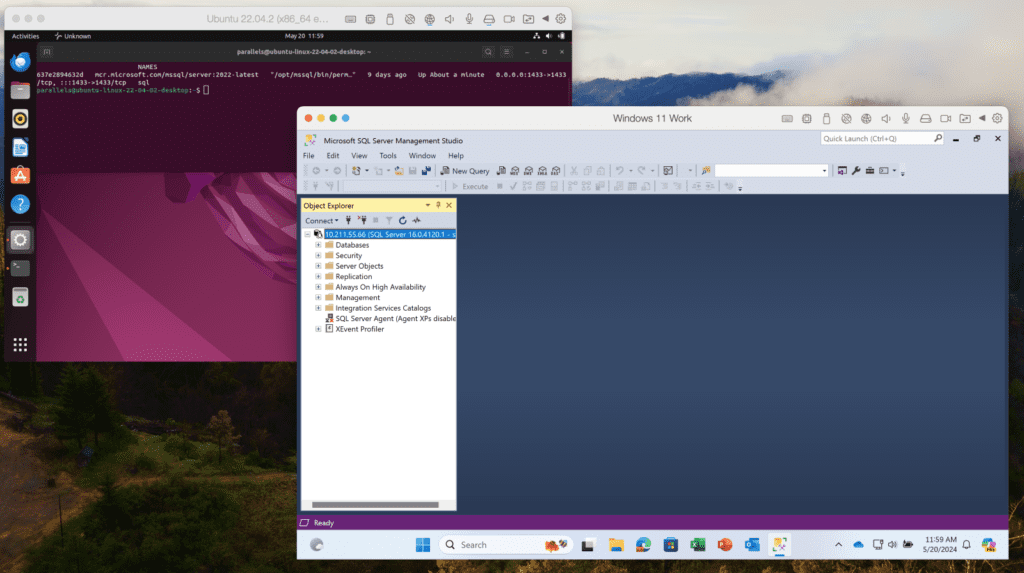
In the past, we used to offer our customers various solutions, but those didn’t work for many users. Today, we believe that one of the most useful solutions would be to create an Ubuntu VM with x86_64 emulation and a preinstalled Docker engine.

This setup allows you to get Microsoft SQL Server running with a single command, making it easy to connect from Visual Studio, VS Code, or SQL Server Management Studio within your Windows VM. Detailed instructions can be found in our KB article.

This update will guide you through this process if you attempt to install SQL Server 2019/2022 in a Windows VM.

install SQL Server 2019/2022 in a Windows VM screenshot example 

Improved integration with macOS

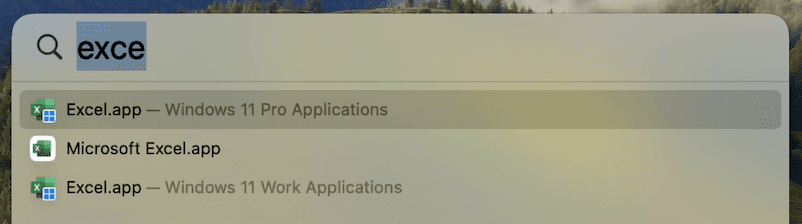
Many users enjoy using macOS Spotlight to search for applications. However, some have found it confusing when similar app names appear for their Mac and Windows/Linux apps.

To address this issue, we’ve added OS badge icons to the medium-sized icons of shared apps in Spotlight. This visual cue will help you quickly identify which OS the app belongs to without affecting your Dock icons.

os badge icons example

Command line utility improvements (only Pro and Business Editions)

We love our developer and tester community, and we are continually working to improve your experience with Parallels Desktop.

New reclaim-disk action

You can now reclaim disk space in a shutdown VM using the prlctl Command Line Utility. To reclaim free disk space, simply execute:

prlctl reclaim-disk <VM_name or VM_id>

Network conditioner control

The network conditioner is an excellent tool for users to test their applications under different network conditions and loads. We want to provide a way for this to be controlled in an automated way using prlctl.

There are two arguments supported for prlctl set now: –network conditioner and –network-conditioner-profile. For example, to run the network conditioner, execute the command below:

prlctl set <VM_name or VM_id> –network-conditioner on

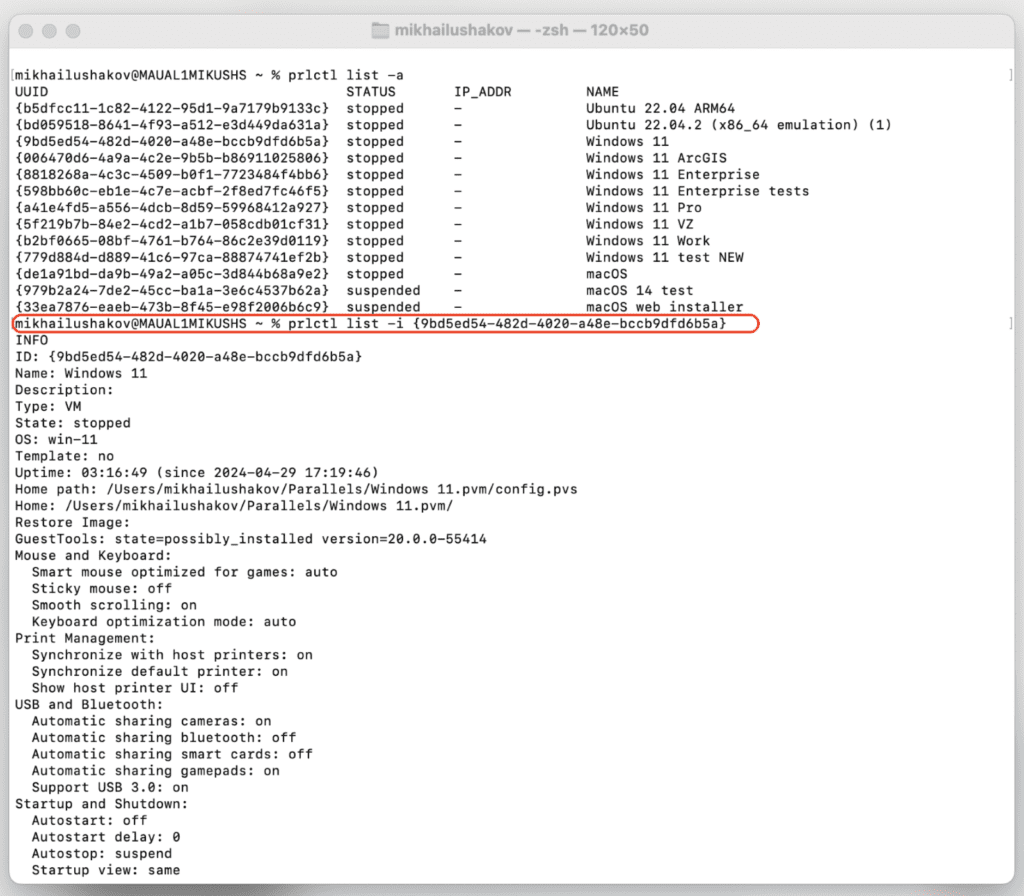
Extended output for prlctl list -i

We’ve extended the output information of the prlctl list -i command to include the IP address of running VMs, network throttling status, and whether the VM is a clone of another VM.

Here’s an example command:

prlctl list -i <VM_name or VM_id>

prlctl list -i command screenshot example

For more details, check out the Parallels Desktop developer’s guide.

Bug fixes

We’ve resolved an issue affecting our Business Edition customers. The download link in an invitation email from My Account would not activate the product with the assigned license.  We’ve restored this functionality, ensuring a smoother onboarding process for your team members.

We’ve successfully addressed an issue in which the app windows for SolidWorks, Delphi, Grammarly, and other Windows applications running in Coherence view mode were displayed as blank windows.

We’re committed to continuously improving Parallels Desktop and appreciate your feedback and support. We hope you enjoy these enhancements, and as always, we look forward to hearing your thoughts! You can post in our forums or make a comment on this post with your feedback.

New to Parallels Desktop for Mac? Get your 14-day free trial of Parallels Desktop 19.4.0 now.


About Version 2 Digital

Version 2 Digital is one of the most dynamic IT companies in Asia. The company distributes a wide range of IT products across various areas including cyber security, cloud, data protection, end points, infrastructures, system monitoring, storage, networking, business productivity and communication products.

Through an extensive network of channels, point of sales, resellers, and partnership companies, Version 2 offers quality products and services which are highly acclaimed in the market. Its customers cover a wide spectrum which include Global 1000 enterprises, regional listed companies, different vertical industries, public utilities, Government, a vast number of successful SMEs, and consumers in various Asian cities.

About Parallels 
Parallels® is a global leader in cross-platform solutions, enabling businesses and individuals to access and use the applications and files they need on any device or operating system. Parallels helps customers leverage the best technology available, whether it’s Windows, Linux, macOS, iOS, Android or the cloud.

Leveraging virtual machines for efficient and effective software testing

As we all know, software testing is vital in the software development lifecycle. It ensures that the software meets the requirements and is bug-free, and it allows developers to optimize performance and validate the functionality of their projects. 

However, testing can be time-consuming and resource-intensive, especially when testing software components on different operating systems and configurations. These use cases are where using virtual machines (VMs) to test software comes to the rescue.

A VM is a software-based emulation of a physical computer that allows multiple operating systems to run on a single physical computer.

VMs are indispensable tools for software testing, offering flexibility, scalability, and reproducibility in testing environments.

Virtual machines also make it easier to test different configurations without affecting the host operating system.

This guide will explore how to leverage virtual machines for efficient and effective software testing.

Understanding the benefits of virtual machines for software testing:

Virtual machines have become an indispensable tool for software testing. They provide a range of benefits, including isolation, reproducibility, scalability, and flexibility.

1. Isolation

VMs provide isolated environments for testing, allowing testers to create and test different software components and dependencies without any conflicts. This isolation is particularly important for complex software systems, where conflict between components can have severe consequences.

2. Reproducibility

VM snapshots allow testers to create and revert to specific states of the testing environment. This ease of replication ensures that test results are consistent and reproducible, which is essential for evaluating software quality.

3. Scalability

A critical aspect of software testing is the ability to easily clone and deploy testing environments to enable parallel testing of multiple software configurations. This scalability helps improve testing efficiency and reduce the time and resources required for testing. It’s especially useful for large-scale projects.

4. Flexibility

VMs like Parallels Desktop support multiple operating systems and configurations, allowing testers to simulate diverse environments and scenarios and ensure that you are testing software under a range of conditions. This flexibility is particularly important for identifying and addressing potential issues across different environments.

Creating reproducible testing environments

One of the significant challenges of software testing is creating a reproducible testing environment. A testing environment should be identical to the production environment, ensuring the software behaves in a similar fashion. VMs provide an easy way to create and manage reproducible testing environments.

To create reproducible testing environments using virtual machines, follow these steps:

1. Choose a hypervisor

To host your virtual machines, select a hypervisor such as Parallels Desktop.

2. Develop base images

Develop base images containing the desired operating system, configuration, and software dependencies as in the production environment.

3. Customize VM settings

You can customize VM settings such as CPU, memory, disk space, and network configuration to match testing requirements.

4. Install testing tools

Install testing frameworks, debuggers, and other tools necessary for VM tests.

5. Take snapshots

Take snapshots of the VM at various stages of the testing process to capture specific states for later reference or rollback.

Following these steps, you can install the software you want to test on the VM in a controlled environment. If the software behaves differently in the testing environment, you can identify and fix the issue before deploying it to the production environment.

Example: You’re testing a web application requiring specific web server versions, databases, and middleware. You can create a base VM image with the required software stack installed and configured. By taking snapshots before and after each iteration, you can quickly revert to a clean state and ensure consistent testing conditions.

Utilizing snapshots for testing scenarios

Another advantage of using VMs for software testing is the ability to take snapshots of the VM at different stages of testing.

Snapshots are invaluable for testing scenarios where you must revert to a known state, compare different test outcomes, test different configurations, or perform multiple iterations of the same test.

Here’s how to effectively utilize snapshots for software testing:

1. Before-test snapshots

Before running tests, take snapshots of the VM to capture the initial state of the testing environment. This snapshot lets you easily revert to a clean state if tests fail or produce unexpected results.

2. After-test snapshots

Take snapshots after completing tests to preserve the state of the environment and any changes made during testing. These post-test snapshots provide a reference point for analyzing test results and debugging issues.

3. Branching snapshots

Create branching snapshots to explore alternative test scenarios or configurations without affecting the primary testing environment. This step allows testers to experiment with different configurations or test cases while maintaining the integrity of the base environment.

4. Snapshot management

Maintain a structured approach to snapshot management, including naming conventions, documentation of snapshot purposes, and regular cleanup to avoid cluttering the VM environment with unnecessary snapshots.

Example: You’re testing a software update. Before applying the update, you can take a snapshot of the VM to capture the pre-update state.

If something goes wrong during the update, you can quickly revert to the pre-update snapshot and investigate the issue.

After you’ve applied the update and run your tests, you can take another snapshot to preserve the post-update state. This snapshot will help you identify any changes that occurred after the update and determine the root cause of any issues that may have arisen.

Taking snapshots is a great way to ensure you can quickly troubleshoot and investigate any issues that may arise during software testing. They also save you time and resources, as you don’t have to recreate the entire testing environment each time you want to run a test.

Optimizing VM configurations for testing different software components

When testing software, you may need to test different components on different operating systems and configurations. VMs allow you to create and manage different configurations to test software components expediently. You can create a VM for each configuration, install the required software, and test the software in an isolated environment.

To optimize VM configurations for testing different software components, you can allocate resources such as CPU, memory, and disk space based on the software’s requirements while testing against different real-world conditions with the network, such as slow clients, a drop in the internet connection, etc.

For example, if you are testing a memory-intensive application, you can allocate more memory to the VM. If you are testing a CPU-intensive application, you can allocate more CPU resources to the VM.

Consider the following factors when optimizing VM configurations for testing different software components:

1. Resource allocation

Allocate sufficient CPU, memory, and disk space to each VM to ensure optimal performance during testing. Adjust resource allocations based on the requirements of the software you’re testing and the complexity of test scenarios.

2. Networking setup

Configure virtual networks that simulate various network conditions, such as latency, packet loss, and bandwidth constraints. This setup allows testers to evaluate software’s performance and resilience under different network conditions.

3. Integration with testing tools

Integrate VMs with testing tools and automation frameworks to streamline the testing process. These integrations include configuring VMs to interact with testing scripts, reporting tools, and version control systems for efficient test execution and result analysis.

4. Environment configuration management

Implement version control and configuration management practices to track changes to VM configurations and ensure consistency across testing environments. This capability helps avoid discrepancies between testing environments and promotes reproducibility of test results.

Example: You’re testing a distributed system that spans multiple VMs. You can optimize VM configurations by allocating more resources to VMs hosting critical components and simulating network conditions to replicate real-world scenarios.

Integrating VMs with testing tools like Jenkins or Selenium allows you to automate test execution and streamline the testing workflow.

Examples of leveraging virtual machines for software testing

Let’s look at examples of using virtual machines for software testing.

Example 1: Testing web applications

Testing web applications often requires checking compatibility across various configurations and browsers. Here’s how virtual machines can facilitate this process:

Scenario: You’re developing a web application that needs to be compatible with different browsers, such as Chrome, Firefox, and Safari, as well as various operating systems, including Windows, macOS, and Linux.

1. Create VMs for each configuration

Using a hypervisor like Parallels Desktop, create separate VMs for each browser and operating system combination you need to test. For example, you might create VMs for Chrome on Windows, Firefox on macOS, and Safari on Linux.

2. Install the required browsers

Install the specific browser version you want to test within each VM. Ensure that you use the browser version your target users will likely use.

3. Isolate testing environments

You create isolated testing environments by running each browser in its own VM. This isolation prevents conflicts between browser settings, extensions, or plugins that could affect the test results.

4. Take snapshots for testing

Take snapshots of each VM to capture its initial state prior to running tests. As you perform tests, take additional snapshots at critical stages to facilitate rollback if needed.

5. Conduct testing

Run your tests on each VM, performing tasks such as navigating the website, filling out forms, and testing JavaScript functionality. Testing frameworks like Selenium can automate or manually perform tests to ensure compatibility.

6. Analyze results and debug

After testing, analyze the results to identify any issues or inconsistencies across different browsers or operating systems. If problems arise, use your snapshots to revert VMs to a known good state for further investigation and debugging.

7. Report and iterate

Document any issues found during testing and report them to the development team for resolution. Iterate on the testing process as needed, adjusting VM configurations or testing methodologies to improve coverage and reliability.

Example 2: Testing cross-platform applications

Testing mobile applications requires validation across various devices, platforms, and screen sizes. Here’s how virtual machines can facilitate mobile app testing:

Scenario: Imagine you’re developing an application that needs to run smoothly on iOS and Android devices with different screen resolutions and device models.

1. Create VMs for each device/OS combination

Using tools like Android Emulator for Android or Xcode Simulator for iOS, create separate VMs for each device and operating system combination you need to test. For example, you might create VMs for iPhone X running iOS 14 and Google Pixel 4 running Android 11.

It would look something like this:

Create VMs for each OS Combination: Using the development tools for each of the operating systems, create separate VMs to allow running the applications and debugging them.

2. Install the required software

Install the necessary software components, such as the mobile operating system, development tools, and the cross-platform app, within each VM. Ensure that you use the same app version that end users will get.

3. Simulate device environment

You simulate real-world device environments by running each device in its own VM. This simulation allows you to test the app’s behavior on different screen sizes, resolutions, and hardware configurations.

4. Take snapshots for testing

Before running tests, take snapshots of each VM to capture its initial state. As you perform tests, take additional snapshots at critical stages to facilitate rollback if needed.

5. Conduct testing

Perform a variety of tests on each VM, including functional, usability, and performance testing. Use emulators to simulate user interactions such as tapping, swiping, and rotating the device.

6. Analyze results and debug

Analyze the test results to identify any issues or inconsistencies across different devices or operating systems. If problems arise, use the snapshots to revert VMs to a known good state for further investigation and debugging.

7. Report and iterate

Document any issues found during testing and report them to the development team for resolution. Iterate on the testing process as needed, adjusting VM configurations or testing methodologies to improve coverage and reliability.

Example 3: Testing database applications

Testing database applications involves validating data integrity, performance, and scalability across different database systems and configurations. Here’s how virtual machines can support this type of testing:

Scenario: Consider you’re developing a database application that needs to support multiple database management systems (DBMS), such as MySQL, PostgreSQL, and Microsoft SQL Server, across different operating systems.

1. Create VMs for each DBMS

Using a hypervisor, create separate VMs for each DBMS and operating system combination you need to test. For example, you might create VMs for MySQL on Ubuntu, PostgreSQL on CentOS, and SQL Server on Windows Server.

2. Install the required database software

Within each VM, install the specific DBMS version you want to test and any additional tools or utilities required. Ensure you use the same database version and configurations as your production environment.

3. Configure test datasets

Populate each database with test data representing various use cases and scenarios. This example data allows you to evaluate data manipulation, querying performance, and transactional integrity.

4. Take snapshots for testing

Take snapshots of each VM to capture the initial state before running tests. As you perform tests, take additional snapshots at critical stages to facilitate rollback if needed.

5. Conduct testing

Perform a range of tests on each VM, including functional testing, performance testing, and scalability testing. Execute SQL queries, analyze query execution plans, and monitor database performance metrics.

6. Analyze results and debug

Analyze the test results to identify issues or performance bottlenecks across different DBMS or configurations. If problems arise, use the snapshots to revert VMs to a known good state for further investigation and debugging.

7. Report and iterate

Document any issues found during testing and report them to the development team for resolution. Iterate on the testing process as needed, adjusting VM configurations or testing methodologies to improve coverage and reliability.

See how testing on virtual machines can improve your organization’s processes

In conclusion, virtual machines provide a reproducible and isolated environment for testing software, making it easier to test different configurations without affecting the host operating system.

By following best practices such as creating reproducible testing environments, utilizing snapshots for testing scenarios, and optimizing VM configurations, organizations can streamline their testing processes, improve test coverage, and continuously improve software quality and reliability.

Ready to start testing? Sign up for a free 14-day trial of Parallels Desktop to see how it can help improve your testing workflow.

About Version 2 Digital

Version 2 Digital is one of the most dynamic IT companies in Asia. The company distributes a wide range of IT products across various areas including cyber security, cloud, data protection, end points, infrastructures, system monitoring, storage, networking, business productivity and communication products.

Through an extensive network of channels, point of sales, resellers, and partnership companies, Version 2 offers quality products and services which are highly acclaimed in the market. Its customers cover a wide spectrum which include Global 1000 enterprises, regional listed companies, different vertical industries, public utilities, Government, a vast number of successful SMEs, and consumers in various Asian cities.

About Parallels 
Parallels® is a global leader in cross-platform solutions, enabling businesses and individuals to access and use the applications and files they need on any device or operating system. Parallels helps customers leverage the best technology available, whether it’s Windows, Linux, macOS, iOS, Android or the cloud.

How to unzip files on a Mac quickly

A zipped file is a file that has been reduced in size using a file compression algorithm.  

The primary purpose of zipping files is to make them smaller, sending them via email or other file transfer methods faster and easier.  

By compressing the data, zip files save bandwidth and shorten download and upload times. 

Imagine the difference in size if you mail a box of books that are all jumbled versus a well-organized box where each book is stacked carefully and fitted to the books next to it.  

The books don’t lose pages or physically get smaller, but organizing them means they’ll fit in a smaller box.   

However, once a file has been zipped, it must be unzipped to see the contents. While that sounds complicated, it’s a simple process.  

Switch seamlessly between Mac and Windows with Parallels Desktop. Try it free for 14 days.   

How to unzip files on Mac with Parallels Desktop 

Unzipping files is a skill every modern internet user needs to master.  

Whether you’re sharing photos from a recent trip with friends or downloading anti-virus software, zipped files are part of everyday internet life.  

Luckily, unzipping files on a Mac is relatively simple:  

1. Double-click on the zip file folder 

When a zipped file arrives in your inbox or download folder, double-click the file.  

2. The file will automatically decompress   

The unzipped file will appear in the same folder where the zipped version was stored. You can choose to keep or delete the zipped version to save space.   

3. Click to view your files   

Once the files have been unzipped on your Mac, you can view and read each file as usual. If you need to rezip the file, right-click the folder and choose “Compress <folder name>” from the  

pop-up menu.  

Compressing and Uncompressing Files on a Mac 

While you might tend to think of the terms “zip” and “unzip” when you need to make files smaller, macOS uses the term “Compress”.  

If you have a Parallels Desktop Pro subscription, you have access to Parallels Toolbox, which offers the Archive and Unarchive tools for compressing and uncompressing files.  

FAQ: Having trouble unzipping files on a Mac? 

Zipping and unzipping files on a Mac is a relatively simple process once you get the hang of it. If you run into issues or have additional questions, these frequently asked questions may help.   

Does Mac automatically unzip files?  

No, your Mac will not automatically unzip files — unless you are running Safari. If you click on a zipped file in the Safari browser, the file is downloaded, and you’ll find it uncompressed in the download folder.  

If you are running other browsers (e.g., Chrome or Firefox), you must double-click the file to unzip a zip file. Select Preferences > General > then unselect the Open “safe” files after downloading option.   

Why can’t I unzip a file on my Mac? 

There can be several reasons why a file won’t unzip on your Mac. The most common cause is a lack of space on your computer, which can be fixed by using Finder to locate and delete large, old, and unused files from your computer.  

Another common issue is corrupted files. Try re-downloading the file and unzipping it again. If the issue persists, contact the sender and request a new file.  

Ensure your OS is the latest version (if not, make any necessary updates) and verify your permission to unzip files, especially if you’re using a shared or work device.  

Finally, make sure the zipped file does not require a password. Zipped files that are password protected will not unzip without the correct password.  

How do I unzip a corrupted zip file on a Mac? 

In most cases, you cannot unzip a corrupted file on a Mac. However, there are a few troubleshooting steps that may help:  

  • Try re-downloading the file. Sometimes, the file is corrupted during the download process.  
  • Ask the sender to rezip and resend the file. If corruption occurred during the zipping process, this may resolve the issue.  
  • Use a program like WinZip, which may allow you to extract some of the files.   

Unzip Mac files with ease!  

Learning how to unzip files is essential for accessing a wide range of digital content, from software downloads to large documents. The straightforward steps we shared will ensure you can unzip files in seconds.  

Switch seamlessly between Mac and Windows with Parallels Desktop. Try it free for 14 days.   

About Version 2 Digital

Version 2 Digital is one of the most dynamic IT companies in Asia. The company distributes a wide range of IT products across various areas including cyber security, cloud, data protection, end points, infrastructures, system monitoring, storage, networking, business productivity and communication products.

Through an extensive network of channels, point of sales, resellers, and partnership companies, Version 2 offers quality products and services which are highly acclaimed in the market. Its customers cover a wide spectrum which include Global 1000 enterprises, regional listed companies, different vertical industries, public utilities, Government, a vast number of successful SMEs, and consumers in various Asian cities.

About Parallels 
Parallels® is a global leader in cross-platform solutions, enabling businesses and individuals to access and use the applications and files they need on any device or operating system. Parallels helps customers leverage the best technology available, whether it’s Windows, Linux, macOS, iOS, Android or the cloud.