Intro
I talked for a bit about the Windows Registry and what are its main purposes, as well as what we can do with it; before delving further into that, I wanted to briefly mention a tool you might use for your forensic Analysis – Autopsy.
I will also just touch upon another tool you might use as well – FTK Imager.
Finally, I will also provide some useful links at the end of the article.
Data Acquisition
So, you have a disk to analyze, and want to access it so you can dig around for useful artifacts to uncover what has transpired on the said system. Remember that your disk needs cloning/imaging – this is best practice, and you should always try to copy the data you want to do some forensics on. This is also known as data acquisition.
By now, you know that you can look at the Windows Registry with the registry editor (regedit.exe), however the best way to do this is to acquire a copy of that data and analyze the copy.
Tooling
You can go to %WINDIR%\System32\Config and try to copy those files that are in fact our registry hives:

I selected the files here and tried to copy them to my Desktop:

After checking the box and clicking on continue, Windows won’t let me copy the files to the desktop:

This happens because the files are restricted.
Luckily, there are tools that can help us with acquisition of the registry hive files. One such tool is Autopsy, which lets you acquire data from both live system and disk images.
Once installed and ran, you need to create a new case:
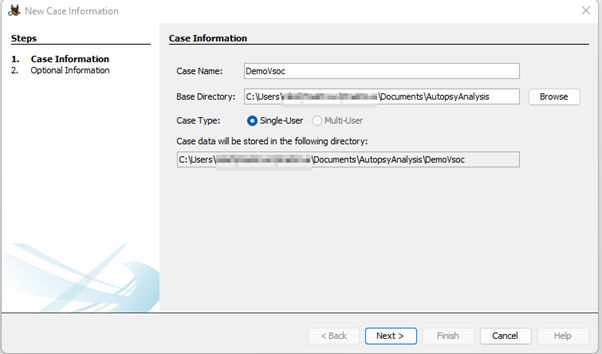
You then have some optional info to fill, to help you stay organized etc. (I won’t be doing that here – see the image below)

Further, you need to add a data source:

I am choosing Disk Image or VM file here which I previously downloaded from the Cfreds (Computer Forensics Reference DataSet portal) found here:

Note that if you download the dataset I linked, you should download all the files from .7z.001 to .7z.003 and place them in the same folder; afterward, just extract the .001 and 7z will know to merge the three files together, giving you the disk image I am using in the article here.

For the configure ingest step, you can do a lot of stuff here, but I am choosing just two options – Recent Activity and File Type Identification. If you were to choose all for let’s say a disk that’s slightly larger, you’d have to wait for a bit, before Autopsy did all its stuff.
Now, I just must wait for Autopsy to do its thing and see what I’ve got!


One more quick note: This can take some time and eat up your RAM – Autopsy 64bit recommends you have 16GB RAM. Also, when ran on Windows it will create a max heap size of 4GB, leaving the remaining memory to the OS, and Solr text indexing service. You can change this value by changing the value of Maximum JVM memory, found under Tools -> Options -> Application as shown in the image below:

Going back to our dataset, the situation is now looking something like this:

As you can see in the screenshot above, Autopsy has found a bunch of very interesting things! From Installed software to OS info, Web History, Bookmarks… so many artifacts!
But, since the topic here is the Registry, let’s investigate that specifically.
Before going further, I’d like to add that this image comes with 12 questions for you to try and answer. This is perfect for the scope of this article and the reason why I included it.
I will answer a couple of questions and leave you to try and solve the others yourself. With some Google-fu, you could probably find the answers online, but for the sake of learning do try to go for the questions yourself first. (There’s even a Youtube video, that I won’t link here, but if you get stuck search for it, or write in the comment section of this article and I will share it with you)
Practice Questions
The questions are:
- What operating system was used on the computer?
- When was the install date?
- Who is the registered owner?
- What is the computer name?
- Who was the last user to logon into PC?
- What is the account name of the user who mostly uses the computer?
- When was the last recorded computer shutdown date/time?
- What is the timezone settings?
- Explain the information of network interface(s) with an IP address assigned by DHCP.
- List all accounts in OS except the system accounts: Administrator, Guest, systemprofile, LocalService
- What applications were installed by the suspect after installing OS?
- List external storage devices attached to PC.
Q1: What operating system was used on the computer?
A: For this, we can look under the Operating System Information – which is the output for the ingest module:

On the righthand side we can see two source files for the Software hive, by clicking on one of those, we can see in the window below all that Autopsy knows about this image.

From the underlined part above, we can conclude that this is a backup of the Registry – because of the RegBack in the path.
When we look at the second Software Hive, we can see what OS is used on this computer:

We now know the answer to first question is – Windows 7 Ultimate SP 1.
Q2: When was the install date?
A: I will just drop a hint here! The answer is already visible… no need to even install Autopsy and load the image from this article.
Q3: Who is the registered owner?
A: See above.
Q4: What is the computer name?
A: Same as Q3.
Q5: Who was the last user to logon to the PC?
A:
Q6: What is the account name of the user who mostly uses the computer?
A:
Q7: When was the last recorded computer shutdown date/time?
A: We can look at the System Hive again, and click on the Application tab (remember to use the one that doesn’t have RegBack in its name)

Under application, we drill down to ControlSet001, expand the Control node, and go all the way down to the Windows node (notice the size of the scroll bar)

Highlighting the Windows node, we can see the ShutdownTime key, which we now just need to convert to something human readable

We go to our trusty Cyberchef and create our recipe to decode this value.
Step 1 – We change the Little Endian in our Cyberchef recipe – we used Swap Endianness recipe
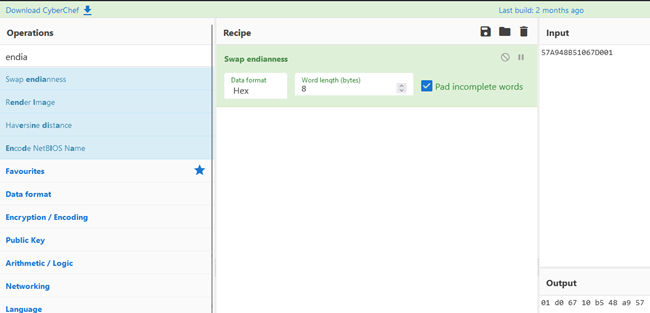
Note that I copied the value from Autopsy, but removed the whitespaces
We’re also converting from 8 byte words, so I changed the default 4 byte word length to 8 bytes.
Step 2 – We search for Remove Whitespace module and add it to our recipe
Step 3 – We add Windows Filetime to UNIX Timestamp to our recipe

The output above is what we’re after, we just need to convert the UNIX timestamp. Also, the default is Decimal, which I changed to Hex (Big Endian)
Step 4 – For our final step, we add one last ingredient to the recipe – From UNIX Timestamp
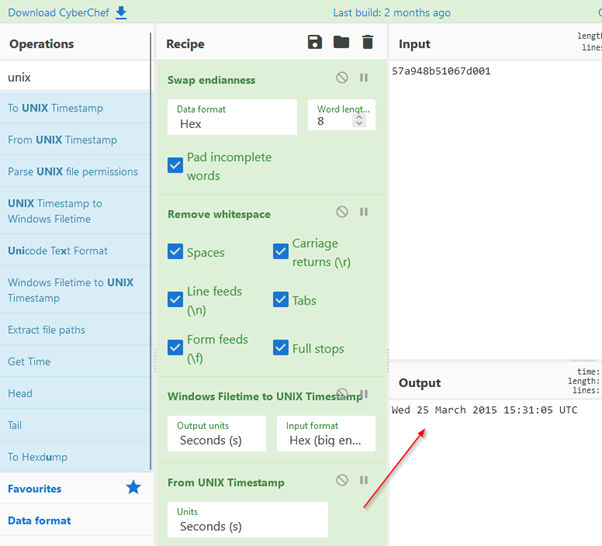
And that’s it! The answer to our question is – last recorded shutdown time was on Wednesday, 25th of March, 15:31:05 UTC, 2015
*Note that in the Windows Filetime to Unix Timestamp Hex (big endian) is selected. Change it to Little endian, and pay close attention to the output.
Questions 8 to 12 (and other unanswered questions) are left for you to try and solve. Feel free to share your experiences, results, or anything really, in the comment section!
FTK Imager
Before concluding, I wanted to mention another tool you might end up using in your analysis – FTK Imager.
This one can also extract files from a disk image (or a live system) through the mounting of the disk/drive in the program.
Below is one screenshot of my mounted C: drive.

You can also extract the Registry Hives with FTK Imager by clicking on the little yellow safe icon (image above) – called Obtain Protected Files.
This option is only there when a live system is being investigated. Also, I’d like to note that this option, even though it can extract all the hives to a path you chose, it isn’t able to copy the Amcache.hve (See 1st part of the series) which keeps information about executed applications, which are usually interesting (even necessary) to investigate when conducting a forensic analysis – specifically because it contains evidence about programs last executed.
Conclusion
I hope you liked my part 2 of the series! It was a blast for me, and I will continue with this topic in the future.
I purposefully chose to make a ‘demo’ by using a tool, but I will also write about some important artifacts/keys that you might want to keep in mind when investigating those hives!
Stay tuned.
Links/Resources
https://www.autopsy.com/
https://what-when-how.com/windows-forensic-analysis/registry-analysis-windows-forensic-analysis-part-1/
https://content-calpoly-edu.s3.amazonaws.com/cci/1/documents/ccic_forensics_manual/CCIC%20Chapter%204%20-%20Understanding%20the%20Registry.pdf
https://cfreds.nist.gov/
Cover image by Alexandre Debiève
#autopsy #registry #ftk_imager #windows #hives



 The Keepit Approach to the Five Quality Components of Usability
One prominent aspect of Keepit’s cloud backup and recovery solution that customers rave about most is its simplicity and ease of use. Where other similar solutions often require weeks of training, the Keepit solution is plug and play, capable of being implemented and fully operational within minutes – and by everyone on the team. No extensive courses and diplomas are required.
The intuitive ease with which Keepit locates and restores files also means our customers are actively incorporating it into their day-to-day internal support operations, rather than just using it for finding and recovering files that have simply gone astray. The ease of use comes from a dedicated design process, which puts usability up front and users in the driver’s seat.
There are many different opinions on what the word usability means, so here at Keepit — as with many other things — we are inspired by what we observe in the workplace and then have our take on it that fits our product.
The Keepit Design Hierarchy
Creating and following a design hierarchy goes to the heart of how we build and continue to improve Keepit’s backup solution.
For every design and feature we implement, Keepit follows a clear usability vision that strongly focuses on following a design code.
The hierarchy in which we make design and usability decisions is built around Principles, Pillars, and Patterns.
Starting with our Design Principles, everything we do is based on these principles: They are abstractions of how we design our products and help designers make the right decisions.
Design Pillars are more focused on how we implement designs and how the user should experience the Keepit solution. Pillar example: “The right functionality, at the right time, to the right person.” This Pillar is used rigorously for each feature we create throughout the entire user flow.
Is this the right functionality being presented to the user?
Is this the right time to show this functionality?
Will it work for the person who is going to use it?
Finally, we have Patterns.
Design Patterns are specific implementations of functionality. This could be how we implement breadcrumbs, how we handle truncation, checkboxes, dropdowns, and wizards, just to name a few.
Defining Usability
Usability is a quality attribute that assesses how easy user interfaces are to use. The word ‘usability’ also refers to methods for improving ease of use during the design process.
The most popular definition of Usability has five components, as explained by the
Learnability: How easy is it for users to accomplish basic tasks the first time they encounter the design?
Efficiency: Once users have learned the design, how quickly can they perform tasks?
Memorability: When users return to the design after a period of not using it, how easily can they re-establish proficiency?
Errors: How many errors do users make, how severe are these errors, and how easily can they recover from the errors?
Satisfaction: How enjoyable is it to use the design?
There are many other important quality attributes, one of which is utility, which refers to the design’s functionality. In other words, does it do what users need?
How Keepit Measures Usability
Learnability in Keepit:
Let us look at the first item: Learnability. The nature of a backup application is not something our users check in to merely to “get a dopamine kick” from watching cool facts about their running backups. Instead, backup is more “set it and forget it,” and usually, our users come to the platform for one of two reasons. One, is to make sure that everything is running as it should. Two, is to restore data that was lost.
For many of our users, the fact that the application is so easy to learn and understand saves them much time, money, and the frustration of being unable to find the data that needs to be restored.
Memorability in Keepit:
Our approach is not just that things should be easy to learn but also that they must be easy to get back into after being away for a period of time. We do this with a consistent system: most things work in a predictable, similar way, following the same ideas. This increases the chance that something is memorable and easy to re-learn. There are, of course, many things we do to improve the memorability of Keepit, with consistency and recognizability of the applications they are backing up being just some of them.
Efficiency in Keepit:
All of this leads to Keepit’s Efficiency. We like to look at efficiency from the point of view that you should “take the time to look before you jump.” This means we do not consider “few clicks” a success criterion in itself, but rather, we consider “carefully placed” clicks as a step in the right direction – i.e., solving the problem with just the right number of clicks.
Errors in Keepit:
Naturally, we do everything within our power to ensure the number of mistakes made in relation to the task being solved is at a minimum and that a tight correlation exists between the number of errors the user is making and the solution’s efficiency. Every time the user makes an error, it sends them back into the flow, and they will have to redo actions, which again leads to an ineffective solution. Learnability and memorability directly impact the user’s errors, so everything is connected, as you can see.
Satisfaction in Keepit:
Finally, there is one more thing to address: satisfaction. Satisfaction is a tricky topic to discuss when talking about a solution that’s practical in nature and does not contain any real incentive to be a pleasurable experience. In the Keepit design, we have gone to great lengths to fight against the tendency of “functional design” that flourishes in the world of IT management tools. Instead, we have moved toward the concept of “emotional design” because IT administrators also deserve good tools.
In functional design, where the idea that showing everything all at once means more control and empowered admins, Keepit believes showing the right thing, at the right time, to the right person offers the ultimate degree of control and empowerment. We also believe that creating a pleasurable and satisfying experience with administration tools like Keepit, where everything “just works,” frees up administrators to focus on other priorities.
Final Thoughts
Despite our mission to create the perfect solution that requires no previous knowledge to recover data, we are painfully aware that achieving perfect usability is a goal yet to be reached. But we strive every day to get there.
That said, we recommend that our users regularly make sure they understand the flows and the emergency training so that in the case of an emergency, they know exactly what to do and when to do it, which we’ll save for a future blog post.
At Keepit, we put a lot of effort into ensuring that the design leaves little room for mistakes and is easy to pick up again after a long vacation – even for an inexperienced administrator.
Help The Keepit Design Team
We are always looking for people who would like to provide feedback on our solution and help us create the best design in the world. Please if you are interested in becoming part of the user feedback forum.
The Keepit Approach to the Five Quality Components of Usability
One prominent aspect of Keepit’s cloud backup and recovery solution that customers rave about most is its simplicity and ease of use. Where other similar solutions often require weeks of training, the Keepit solution is plug and play, capable of being implemented and fully operational within minutes – and by everyone on the team. No extensive courses and diplomas are required.
The intuitive ease with which Keepit locates and restores files also means our customers are actively incorporating it into their day-to-day internal support operations, rather than just using it for finding and recovering files that have simply gone astray. The ease of use comes from a dedicated design process, which puts usability up front and users in the driver’s seat.
There are many different opinions on what the word usability means, so here at Keepit — as with many other things — we are inspired by what we observe in the workplace and then have our take on it that fits our product.
The Keepit Design Hierarchy
Creating and following a design hierarchy goes to the heart of how we build and continue to improve Keepit’s backup solution.
For every design and feature we implement, Keepit follows a clear usability vision that strongly focuses on following a design code.
The hierarchy in which we make design and usability decisions is built around Principles, Pillars, and Patterns.
Starting with our Design Principles, everything we do is based on these principles: They are abstractions of how we design our products and help designers make the right decisions.
Design Pillars are more focused on how we implement designs and how the user should experience the Keepit solution. Pillar example: “The right functionality, at the right time, to the right person.” This Pillar is used rigorously for each feature we create throughout the entire user flow.
Is this the right functionality being presented to the user?
Is this the right time to show this functionality?
Will it work for the person who is going to use it?
Finally, we have Patterns.
Design Patterns are specific implementations of functionality. This could be how we implement breadcrumbs, how we handle truncation, checkboxes, dropdowns, and wizards, just to name a few.
Defining Usability
Usability is a quality attribute that assesses how easy user interfaces are to use. The word ‘usability’ also refers to methods for improving ease of use during the design process.
The most popular definition of Usability has five components, as explained by the
Learnability: How easy is it for users to accomplish basic tasks the first time they encounter the design?
Efficiency: Once users have learned the design, how quickly can they perform tasks?
Memorability: When users return to the design after a period of not using it, how easily can they re-establish proficiency?
Errors: How many errors do users make, how severe are these errors, and how easily can they recover from the errors?
Satisfaction: How enjoyable is it to use the design?
There are many other important quality attributes, one of which is utility, which refers to the design’s functionality. In other words, does it do what users need?
How Keepit Measures Usability
Learnability in Keepit:
Let us look at the first item: Learnability. The nature of a backup application is not something our users check in to merely to “get a dopamine kick” from watching cool facts about their running backups. Instead, backup is more “set it and forget it,” and usually, our users come to the platform for one of two reasons. One, is to make sure that everything is running as it should. Two, is to restore data that was lost.
For many of our users, the fact that the application is so easy to learn and understand saves them much time, money, and the frustration of being unable to find the data that needs to be restored.
Memorability in Keepit:
Our approach is not just that things should be easy to learn but also that they must be easy to get back into after being away for a period of time. We do this with a consistent system: most things work in a predictable, similar way, following the same ideas. This increases the chance that something is memorable and easy to re-learn. There are, of course, many things we do to improve the memorability of Keepit, with consistency and recognizability of the applications they are backing up being just some of them.
Efficiency in Keepit:
All of this leads to Keepit’s Efficiency. We like to look at efficiency from the point of view that you should “take the time to look before you jump.” This means we do not consider “few clicks” a success criterion in itself, but rather, we consider “carefully placed” clicks as a step in the right direction – i.e., solving the problem with just the right number of clicks.
Errors in Keepit:
Naturally, we do everything within our power to ensure the number of mistakes made in relation to the task being solved is at a minimum and that a tight correlation exists between the number of errors the user is making and the solution’s efficiency. Every time the user makes an error, it sends them back into the flow, and they will have to redo actions, which again leads to an ineffective solution. Learnability and memorability directly impact the user’s errors, so everything is connected, as you can see.
Satisfaction in Keepit:
Finally, there is one more thing to address: satisfaction. Satisfaction is a tricky topic to discuss when talking about a solution that’s practical in nature and does not contain any real incentive to be a pleasurable experience. In the Keepit design, we have gone to great lengths to fight against the tendency of “functional design” that flourishes in the world of IT management tools. Instead, we have moved toward the concept of “emotional design” because IT administrators also deserve good tools.
In functional design, where the idea that showing everything all at once means more control and empowered admins, Keepit believes showing the right thing, at the right time, to the right person offers the ultimate degree of control and empowerment. We also believe that creating a pleasurable and satisfying experience with administration tools like Keepit, where everything “just works,” frees up administrators to focus on other priorities.
Final Thoughts
Despite our mission to create the perfect solution that requires no previous knowledge to recover data, we are painfully aware that achieving perfect usability is a goal yet to be reached. But we strive every day to get there.
That said, we recommend that our users regularly make sure they understand the flows and the emergency training so that in the case of an emergency, they know exactly what to do and when to do it, which we’ll save for a future blog post.
At Keepit, we put a lot of effort into ensuring that the design leaves little room for mistakes and is easy to pick up again after a long vacation – even for an inexperienced administrator.
Help The Keepit Design Team
We are always looking for people who would like to provide feedback on our solution and help us create the best design in the world. Please if you are interested in becoming part of the user feedback forum.