Skip to content

SOLIDWORKS on Mac: Performance & Hardware Guide

For the modern engineer, the question isn’t just “Can it run?” but “Will it perform under pressure?” Understanding the intersection of Apple hardware and Windows-native CAD is the key to a seamless workflow.

The Configuration Culprit

Most performance lag in SOLIDWORKS on Mac is caused by resource allocation rather than hardware limitations. By optimizing your Virtual Machine (VM) settings, you can achieve Windows-level stability on macOS.

Comparative Architecture

Workflow NeedVirtualized (Parallels)Dedicated Windows PC
Context SwitchingInstant (Coherence Mode)High (Physical machine swap)
Resource ControlDynamic AllocationNative/Fixed
PortabilitySingle Device (High)Dual Devices (Low)

Hardware Benchmarks for Engineers

  • Processor: Apple Silicon (M1/M2/M3) is the gold standard for authorized Windows 11 virtualization.
  • RAM: 16GB minimum; 24GB+ recommended for complex assemblies.
  • Graphics: Prioritize GPU acceleration settings within the VM to enable RealView graphics.
Pro Tip: Use Parallels Desktop Pro or Business Edition to unlock the necessary vRAM required for high-end 3D rendering in SOLIDWORKS.

About Parallels 
Parallels® is a global leader in cross-platform solutions, enabling businesses and individuals to access and use the applications and files they need on any device or operating system. Parallels helps customers leverage the best technology available, whether it’s Windows, Linux, macOS, iOS, Android or the cloud.

About Version 2 Digital

Version 2 Digital is one of the most dynamic IT companies in Asia. The company distributes a wide range of IT products across various areas including cyber security, cloud, data protection, end points, infrastructures, system monitoring, storage, networking, business productivity and communication products.

Through an extensive network of channels, point of sales, resellers, and partnership companies, Version 2 offers quality products and services which are highly acclaimed in the market. Its customers cover a wide spectrum which include Global 1000 enterprises, regional listed companies, different vertical industries, public utilities, Government, a vast number of successful SMEs, and consumers in various Asian cities.

Parallels Desktop 26: Ready for macOS Tahoe

A look at the new features and improvements in the latest version of Parallels Desktop.

Parallels Desktop 26 has been launched with full support for the new macOS Tahoe 26 and Windows 11 version 25H2. This release focuses on providing a more seamless, stable, and secure experience for users who need to run multiple operating systems on their Mac.

Key Features for Individual Users

Seamless macOS Tahoe 26 Support

Parallels Desktop 26 is built to handle the new background process changes and restrictions in macOS Tahoe, ensuring that key features like **Coherence Mode** and setup routines continue to work smoothly. The new version also includes visual updates to match the new “Liquid Glass” aesthetic of macOS Tahoe.

Accurate Disk Space Visibility

Windows virtual machines can now accurately see the available disk space on your Mac’s hard drive. This helps you better manage storage, preventing slowdowns, freezes, and crashes that can occur during large installations or disk-intensive tasks.

Key Features for Businesses & IT Teams

Simplified Single-App Deployment

Parallels Desktop 26 includes new documentation and tools that allow IT administrators to easily deploy and manage a single Windows application on a Mac without giving end-users the full Windows or Parallels interface. This is ideal for specialized workflows and legacy applications.

Jamf Pro Integration

IT teams can now monitor and manage Windows OS updates within virtual machines using Jamf Pro and other mobile device management (MDM) platforms. This gives administrators better control over their virtual environments.

SOC 2 Type II Compliance

The new release has successfully completed a SOC 2 Type II audit, demonstrating Parallels’ strong commitment to security, availability, and privacy. This helps enterprise IT teams meet their internal and external compliance standards.

About Parallels 
Parallels® is a global leader in cross-platform solutions, enabling businesses and individuals to access and use the applications and files they need on any device or operating system. Parallels helps customers leverage the best technology available, whether it’s Windows, Linux, macOS, iOS, Android or the cloud.

About Version 2 Digital

Version 2 Digital is one of the most dynamic IT companies in Asia. The company distributes a wide range of IT products across various areas including cyber security, cloud, data protection, end points, infrastructures, system monitoring, storage, networking, business productivity and communication products.

Through an extensive network of channels, point of sales, resellers, and partnership companies, Version 2 offers quality products and services which are highly acclaimed in the market. Its customers cover a wide spectrum which include Global 1000 enterprises, regional listed companies, different vertical industries, public utilities, Government, a vast number of successful SMEs, and consumers in various Asian cities.

Get started with Parallels Desktop: Beginner’s guide and tips and tricks for all

Learning new software can feel like you’re facing a mountain—a steep incline you’ve got to climb but aren’t necessarily looking forward to.

Especially when it’s for an operating system you aren’t as familiar with.

Running Windows on Mac doesn’t have to be a monumental effort.

Whether you’re just starting to look into options or have been using one for a while, let’s explore tips and tricks to help you start strong with Parallels Desktop—how to use it, how to get the most from it, and what it helps you do.

Want to test Parallels Desktop for yourself? Start a 14-day free trial to run Windows on your Mac today.

Getting started: 3 keys for working with Parallels Desktop

Getting Parallels Desktop set up so you can run multiple operating systems on your Mac is straightforward—and there are a couple of tricks you can use to make your experience easier.

1. Pin Windows apps to your Dock

When you open Windows apps using Parallels Desktop on your Mac, their icons will appear in your Dock—and you can pin them there as you would pin a Mac app for easy access.

Learn how to pin Windows apps to your Dock in this guide.

2. Drag and drop files between OSs

With Parallels Desktop, you can drag and drop files from Windows to Mac and vice versa. It works nearly the same as if you were going to move files between regular folders—select, drag, drop, and use the pop-up to “Save as…” to the new location.

You can learn more about drag-and-drop functionality in this guide.

3. Blend OSs with Coherence mode

Coherence mode is a neat feature in Parallels Desktop that lets you combine your Windows virtual machine (VM) with your Mac.

Normally, a Windows VM would live within a Mac window, so you could move it around and minimize it like any other application. With Coherence mode, the two OSs work side by side for one combined experience.

You can enter Coherence mode by:

  1. Clicking on View > Enter Coherence
  2. Click the blue Coherence icon at the top of your VM’s window

Take a closer look at Coherence mode and how it works in this guide.

How to use Microsoft Office apps on your Mac

One of the particularly useful aspects of running Windows on your Mac is that you can access the full versions of apps like Microsoft Excel and Word.

When you install Windows, it may include a trial version of Microsoft Office. If not, you’ll need to download Office from Microsoft.

Once opened, Office will ask you to input a registration key (which you’ll need to buy from Microsoft).

Entering your registration key gives you full access to the apps in your plan.

You can learn more about installing other Windows applications on your VM in this guide.

All your favorite Windows games—on your Mac

Windows is still the most popular OS for gaming—and with built-in clients like Microsoft’s PC Game Pass starting to publish nostalgic games like Diablo, early Call of Duty titles, and more, you might be looking to relive the classics.

Parallels Desktop gives you a Windows machine on your Mac, so you don’t have to limit yourself. Childhood classic games, here you come.

Just start your Windows VM, install any clients like Steam or GOG Galaxy that you might need and your games, and you’re ready to play.

If you need to modify your Mac’s settings, Parallels Desktop lets you customize CPU and RAM resources used by your Windows VM(s)—something that definitely comes in handy for peak gaming performance.

You can adjust these settings by opening your VM’s configuration menu, then going to Hardware > CPU & Memory. You can choose to leave it on default settings, or you can specify resources using the manual option.

Run graphics-intensive Windows apps on Mac with Parallels Desktop

From classwork and development to gaming breaks, Parallels Desktop can help with myriad aspects of your digital life—including running intensive software for school or development.

Heads up: By default, Parallels Desktop will have hardware acceleration enabled. If you need to, you can adjust this in your graphics settings.

Here are some of the ways Parallels Desktop helps:

Accessing Windows apps for school on your Mac

Some of your classes might require you to use Windows-only or graphics-intensive software—especially if you’re taking engineering, architecture, or design courses.

Parallels Desktop lets you access your essential class software from your Mac quickly and easily.

Testing apps, software, or websites on multiple OSs

Developing means testing—and that means numerous OSs on hand.

Rather than keeping multiple devices or switching your OS in the BIOS, Parallels Desktop allows you to keep different OSs open at all times. This makes it easy to iterate, test on another OS, and refine without rebooting.

Run multiple operating systems on your Mac

Fun fact: Parallels Desktop doesn’t just let you run Windows. You can choose to install other OSs, as well—including Linux or another macOS instance alongside Windows.

All you need to do is open Parallels Desktop and set up your virtual machine. From there,

navigate to File > New to create a new virtual machine. This will prompt you to install an operating system using the delivery method of your choice.

You can choose to start your VM with a Linux distribution or macOS version instead of Windows. Make sure you have any necessary license details on hand!

Learn more about working with other operating systems in Parallels Desktop in this guide.

Does Parallels Desktop require Microsoft Edge?

Some Windows applications will work best in Microsoft Edge—and some will only work if they have access to the default Windows browser. Make sure you have and keep it installed in your VM.

This will help you access advanced features for tools like Microsoft Defender, Azure, and Windows 365—which will be especially helpful in school and work scenarios.

It will also allow you to run WebView2-based apps and enterprise apps that require Edge to function. Without Edge, these solutions will not open and may cause crash reports.

Edge also gives you access to Microsoft Copilot, so you can use Windows’ AI assistant on your Mac.

Go forth and conquer (or just run multiple OSs on Mac) with Parallels Desktop

No matter your mountain, Parallels Desktop can help you climb it. Get the most out of your experience with these tips—and the most out of your investment with savings on your plan.

Ready to dive into the world of Windows on Mac? Buy Parallels Desktop today.


About Parallels 
Parallels® is a global leader in cross-platform solutions, enabling businesses and individuals to access and use the applications and files they need on any device or operating system. Parallels helps customers leverage the best technology available, whether it’s Windows, Linux, macOS, iOS, Android or the cloud.

About Version 2 Digital

Version 2 Digital is one of the most dynamic IT companies in Asia. The company distributes a wide range of IT products across various areas including cyber security, cloud, data protection, end points, infrastructures, system monitoring, storage, networking, business productivity and communication products.

Through an extensive network of channels, point of sales, resellers, and partnership companies, Version 2 offers quality products and services which are highly acclaimed in the market. Its customers cover a wide spectrum which include Global 1000 enterprises, regional listed companies, different vertical industries, public utilities, Government, a vast number of successful SMEs, and consumers in various Asian cities.

Reaching peak performance: The ultimate guide to Mac optimization

Sluggish system performance? Running out of storage space? It’s frustrating when a device doesn’t run as expected, particularly when the device in question is your beloved Mac.

The good news is that it can be simple to get your Mac to achieve its peak performance—and the solution might be closer than you think.

Let’s explore methods for optimizing your Mac in a range of different ways—from improving performance to reducing storage bloat and everything in between.

Did you know? Parallels Desktop is designed to run Windows and other OSs in virtual machines on Mac but that’s not the only benefit—Parallels Toolbox (included with Parallels Desktop Pro) can improve your Mac’s performance even more. Get your free trial of Parallels Desktop today!

5 ways to optimize your Mac’s memory (RAM)

Your Mac’s random access memory (RAM) affects its ability to multitask and handle software requirements. When it’s overloaded, you’ll see issues with loading times, slower multitasking, and lag.

If you’re encountering RAM issues on your Mac—or if you’re looking to avoid them proactively—try these tips.

1. Monitor your memory usage

Your Mac’s Activity Monitor (found in Applications > Utilities > Activity Monitor) can help you identify any apps that might be consuming too much memory and bogging down your device.

2. Quit unnecessary apps or processes

Along with memory-hogging apps, your Mac may have background processes or programs running that don’t need to be open. Use your Mac’s Activity Monitor to find and close them down.

3. Assign resources for your Mac and virtual machine

One of the neat things Parallels Desktop can do when you’re running a virtual machine (VM) on your Mac is assign resource usage.

Before startup, Parallels Desktop will check your system to see how many resources like RAM it can reasonably assign.

You can check on your assigned resources by opening your VM’s configuration menu and then going to Hardware > CPU & Memory.

In that menu, you can choose to leave your settings at default or use the allocation slider to specify resources like RAM manually and control your virtual machine optimization on Mac.

4. Consider a RAM upgrade

If your Mac often struggles with the same programs and issues, consider upgrading its RAM. Macs do allow you to do this, and it can help improve performance.

Heads up: You can learn more about troubleshooting and hardware improvements for your Mac on our knowledge base.

5. Use Parallels Toolbox to free up memory

Parallels Toolbox is included with the purchase of Parallels Desktop Pro. It offers over 50 tools that give you quick access to hidden, difficult-to-remember, or nonexistent functions on your Mac and your Windows VM.

One of these resources is the Free Memory tool, which helps you reclaim inactive RAM and improve your system’s responsiveness.

Tips and tricks for disk space management on your Mac

Much like a room that’s too cluttered to move around in, an overloaded storage drive can prevent your Mac from being able to do its best work.

When your Mac is struggling with clutter like random files, duplicates, and unnecessary downloads, try these tips to keep it under control.

1. Use your storage management tool

Macs come with a built-in storage management tool (found in Apple Menu > About This Mac > Storage > Storage Settings). This tool helps you clean up large files quickly and effectively.

2. Tidy your folders regularly

Your Downloads and Desktop folders can both become full quickly. Make sure you clean them out regularly to keep your Mac clutter-free.

3. Use the Clean Drive tool in Parallels Toolbox to clear space

Another popular utility in Parallels Toolbox is the Clean Drive tool, which scans your device to locate and clean up free space on your Mac, including running temporary file cleanup. You can learn more about how the Clean Drive tool works in our knowledge base.

You can also try out the Find Duplicates tool in Parallels Toolbox, which does something similar but specifically looks for duplicate files.

4. Uninstall any unused apps

Apps and programs can take up a surprising amount of space. If you have any you haven’t used in a while—or won’t need to use in the near future—consider uninstalling them to save space.

5. Archive your large files externally

Have big files that don’t need to live on your Mac’s internal drive? Archiving them to an external hard drive frees up internal space while keeping those files handy for when you need them.

6. Let your Mac optimize its own storage

Macs have a built-in storage optimization feature that can help you keep clutter under control. By turning on Optimize Storage (found in Apple Menu > About This Mac > Storage > Storage Settings), you can let macOS automatically remove unnecessary files.

How to optimize your Mac’s battery

Looking to extend your Mac’s battery life? Try these battery optimization tips to improve your Mac device’s performance.

1. Monitor your apps’ power usage

Your Mac’s Activity Monitor can help you identify and manage apps that consume too much energy.

2. Switch out power-hungry apps

If you do find apps using too much power, try replacing them with more energy-efficient alternatives.

3. Use Parallels Toolbox’s Energy Saver tool to save energy

Parallels Toolbox includes an Energy Saver tool that can help you extend battery life and simplify battery management for your Mac.

4. Adjust any battery-heavy system settings

Some Mac settings—like display brightness, keyboard backlight, and even some visual effects and animations—can drain your battery faster. Adjusting them can extend your battery life.

5. Switch to the Safari browser

Safari is specially designed to use less power on Macs, so using it instead of other browsers can help your battery last longer. Don’t forget to do some cache cleanup every now and then, too, to keep your browser light.

6 tips and tricks for network optimization on Mac

Your network is as much a part of your experience as your device is. If you’re running into issues loading web-based pages and resources, it could mean you’re experiencing network issues.

To tune up your network, try these tips.

1. Keep your router’s firmware updated

If your Mac is struggling with the network, the problem isn’t always your Mac. Making sure your Wi-Fi router’s firmware is up to date keeps your network in good shape.

2. Use the right Wi-Fi channels

The Wi-Fi channel you use can impact network performance. For example, while a 5-GHz channel will have higher speeds than a 2.4-GHz channel, it has a shorter range—so if you’re too far from a router or pod, you’ll need to switch channels.

3. Use Parallels Toolbox’s Network Usage tool to monitor networks

Parallels Toolbox has a handy Network Usage tool to help you monitor your network usage and identify usage patterns and spikes.

4. Disconnect from your Wi-Fi

Not using your Wi-Fi right away? Disconnecting from it can save your battery and reduce security risks for your Mac.

5. Set up device prioritization

Most routers will allow you to define priority levels for devices connected to your network through your router interface. You can tell it to prioritize essential devices, which should improve bandwidth allocation.

6. Turn on content caching

Content caching is a nifty feature for macOS devices that stores copies of files you access frequently in a temporary storage area. This way, when you open those files, they load much more quickly.

Other ways to keep your Mac current and optimized

Hungry for more ways to keep your Mac in tip-top shape? We’ve got a few extra tips and tricks that may help out.

1. Stay ahead on your updates

Software updates often include fixes and tweaks to improve performance. Making sure you have the latest versions of your OS and apps can keep your Mac running smoothly—and as a bonus, it’s good for your device’s cybersecurity, too.

2. Monitor your CPU usage

Your Mac’s CPU is its brain, and when it’s operating at capacity, the rest of your processes will slow down.

If you’re running Windows or another OS in a VM, Parallels Desktop has a CPU usage monitor in the virtual machine’s window tray that tracks how much of your Mac’s power is being taken up by Windows processes and helps you shut down unnecessary ones.

3. Declutter your dock

Remove any unnecessary items from your dock and menu bar to clear up clutter and keep your device organized.

Maximize the potential of your Mac equipped with Parallels Desktop

With your Mac running at its best, there’s only one thing that can take its performance farther—the right tools. Make the most of your Mac’s potential with Parallels Desktop and enjoy the best of both the Mac and Windows worlds on one device.

Opt for Parallels Desktop Pro and you get Parallels Toolbox included with your purchase.

Start your free trial of Parallels Desktop today.


About Parallels 
Parallels® is a global leader in cross-platform solutions, enabling businesses and individuals to access and use the applications and files they need on any device or operating system. Parallels helps customers leverage the best technology available, whether it’s Windows, Linux, macOS, iOS, Android or the cloud.

About Version 2 Digital

Version 2 Digital is one of the most dynamic IT companies in Asia. The company distributes a wide range of IT products across various areas including cyber security, cloud, data protection, end points, infrastructures, system monitoring, storage, networking, business productivity and communication products.

Through an extensive network of channels, point of sales, resellers, and partnership companies, Version 2 offers quality products and services which are highly acclaimed in the market. Its customers cover a wide spectrum which include Global 1000 enterprises, regional listed companies, different vertical industries, public utilities, Government, a vast number of successful SMEs, and consumers in various Asian cities.

Introducing Parallels Desktop 20.3: x86_64 emulation, OBS virtual camera support, USB device support, and more


As part of the Parallels team, I’m always listening to our users and working to make your experience better.

With the latest update (20.3.0), Parallels Desktop introduces several powerful new enhancements for users—from video creators and streamers who need more flexibility for their broadcasts to IT admins and developers who need more control over their devices.

Let’s dive in!

Ready for a closer look at everything that’s new in Parallels Desktop 20.3.0? Start your free trial today.

New x86_64 emulation capabilities

First up, I’d like to say thank you to the talented folks at FEX, an open-source emulator that runs x86 games and other apps on ARM64 hardware. Their product is the basis for the new emulation engine in Parallels Desktop.

Let me also say thank you to every one of you who used the emulation engine and shared your feedback.

We released the 20.2.1 update earlier this year, addressing a popular issue related to the inability to create x86_64 machines on Apple silicon Macs with M4 chips.

We included a preview in our 20.2 update for early adopters, and now, the 20.3.0 update delivers a fix for x86_64 Linux virtual machines that can be imported without serious issues like freezes or crashes.

Support for macOS OBS virtual camera in Windows

Most of you are familiar with OBS (Open Broadcaster Software), the popular open-source broadcasting software.

Many users have expressed that they’d like to use an OBS virtual camera setup on their Mac inside a Windows virtual machine for apps like Zoom or Microsoft Teams—but until now, that wasn’t possible.

With Parallels Desktop 20.3.0, the OBS virtual camera feature in macOS is available inside your Windows virtual machine (VM).

This means you can now select your OBS feed in Windows apps—giving you more control over how your livestreams look and function.

Watch the video below for a quick look at how you can use and customize the OBS virtual camera in software like Microsoft Teams.

USB device support for macOS VMs on Apple silicon Macs

Imagine you’re a developer testing an app, an IT admin configuring security keys, or a tech enthusiast experimenting with macOS in a virtual environment.

You boot up your macOS VM on an Apple silicon Mac, plug in your USB device—and nothing happens.

Not the best experience, right?

For the longest time, macOS VMs on Apple silicon Macs simply couldn’t recognize USB devices.

This meant security professionals couldn’t test authentication keys, developers couldn’t debug hardware-dependent software, and testers couldn’t validate device compatibility.

That changes with Parallels Desktop 20.3.0!

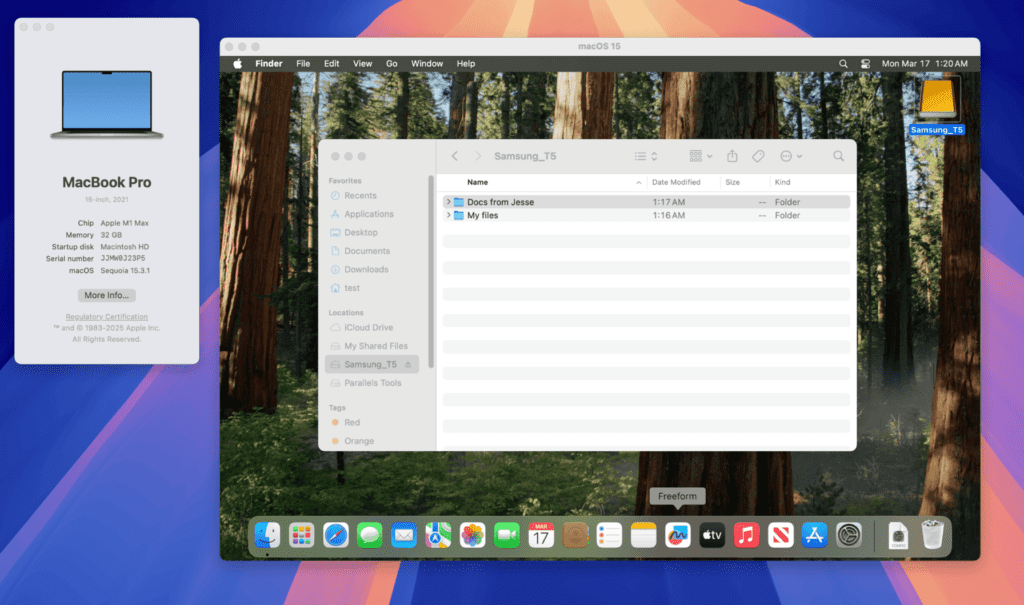
Thanks to the adjustments introduced in Apple’s framework with macOS 15, USB passthrough is now a reality for macOS VMs on Apple silicon.

With 20.3.0, you can connect a range of external USB devices directly to your macOS VM, unlocking new workflows for development, security testing, and beyond.

View of accessing USB devices on a Mac through Parallels Desktop 20.3

Heads up: While many USB devices are now supported, audio devices and iPhones are not at the moment. Additionally, this feature is only available on Macs running macOS 15 or higher.

Enhanced Mac integration for the Dragon Medical One app

Many Parallels Desktop customers working in the healthcare industry rely on the Dragon Medical One app to create voice-enabled clinical documentation on their Windows virtual machines.

Previously, dictated text from Dragon Medical One was limited to the Windows environment, creating workflow limitations for clinicians who work across both Windows and macOS.

In May 2025, that limitation will be gone.

Healthcare specialists can now dictate using Dragon Medical One in their Windows VM running in Coherence view mode and have the text appear directly in a designated macOS app.

This cross-platform text input is triggered by a defined action—such as pressing a specific button on a Nuance PowerMic Microphone—offering a more efficient documentation process that connects Windows and macOS.

Enhanced activation control for managed Macs

In Parallels Desktop 20.2, we introduced new activation management features to help IT admins speed up software deployment on managed Macs.

By using MDM configuration profiles, admins could define whether users activate Parallels Desktop with SSO or a license key, reducing confusion and support requests.

Now, we’re taking it a step further.

With this update, IT admins can enforce SSO activation as the only method for managed Macs.

Once admins deploy this configuration profile, users will no longer be able to activate Parallels Desktop with a license key or trial—ensuring strict compliance with organizational policies.

Even if a user uninstalls and reinstalls the software, the system will continue to require SSO activation from the start.

This added level of control means fewer activation-related tickets for IT teams and a smoother onboarding process for end users.

Touch ID to authenticate Parallels Desktop installation

We know that manually entering your Mac admin password can be a hassle.

That was something we all had to do when installing and managing Parallels Desktop settings locked with a Mac admin password on Macs with macOS 15.

Now, you can simply use Touch ID to authenticate, making installation and settings management more convenient in Parallels Desktop.

New to Parallels Desktop for Mac? Get your 14-day free trial of Parallels Desktop Pro Edition now. 

Updates for Parallels Desktop Enterprise customers

If you’re an Enterprise user, look out for future updates about the new Lock VM feature and the Parallels Desktop configuration profile in the Jamf library, along with much more!


About Parallels 
Parallels® is a global leader in cross-platform solutions, enabling businesses and individuals to access and use the applications and files they need on any device or operating system. Parallels helps customers leverage the best technology available, whether it’s Windows, Linux, macOS, iOS, Android or the cloud.

About Version 2 Digital

Version 2 Digital is one of the most dynamic IT companies in Asia. The company distributes a wide range of IT products across various areas including cyber security, cloud, data protection, end points, infrastructures, system monitoring, storage, networking, business productivity and communication products.

Through an extensive network of channels, point of sales, resellers, and partnership companies, Version 2 offers quality products and services which are highly acclaimed in the market. Its customers cover a wide spectrum which include Global 1000 enterprises, regional listed companies, different vertical industries, public utilities, Government, a vast number of successful SMEs, and consumers in various Asian cities.

×

Hello!

Click one of our contacts below to chat on WhatsApp

×