


1. 請開啟網頁瀏覽器,於地址欄輸入https://home.eset.com/ 來登入您的 ESET Home 帳戶。若您尚未擁有 ESET Home 帳戶,請點選「建立帳戶」選項進行註冊。

2. 建立帳戶並成功登入後,請點選「使用啟動金鑰」選項。

3. 若您的 ESET Home 帳戶內已擁有授權,請點選左側的「訂閱」選項,再點選右側的「+新增或購買」。

4. 請輸入啟動金鑰 (可在產品包裝盒內的卡片上找到),然後點擊「新增訂閱」。

5. 請填寫登記資料,包含「姓名」、「姓氏」及「電子郵件地址」。
6. 在「國家/地區」選項中,請使用滑鼠滾動條向下尋找並選擇「香港」。
(請務必選擇「香港」,避免選取其他國家或地區)

7. 點擊「新增訂閱」完成登記程序。同時,客戶將於十五分鐘內透過登記電郵收到授權登記資訊。產品一經註冊,使用期限將立即開始計算。

8. 完成登記後,您可在左側的「訂閱」選項中找到剛登記的授權。
- 請開始瀏覽器,輸入 https://home.eset.com/ 來登入到ESET Home帳戶 (如你沒有ESET Home 帳戶,可點擊「建立帳戶」來建立。
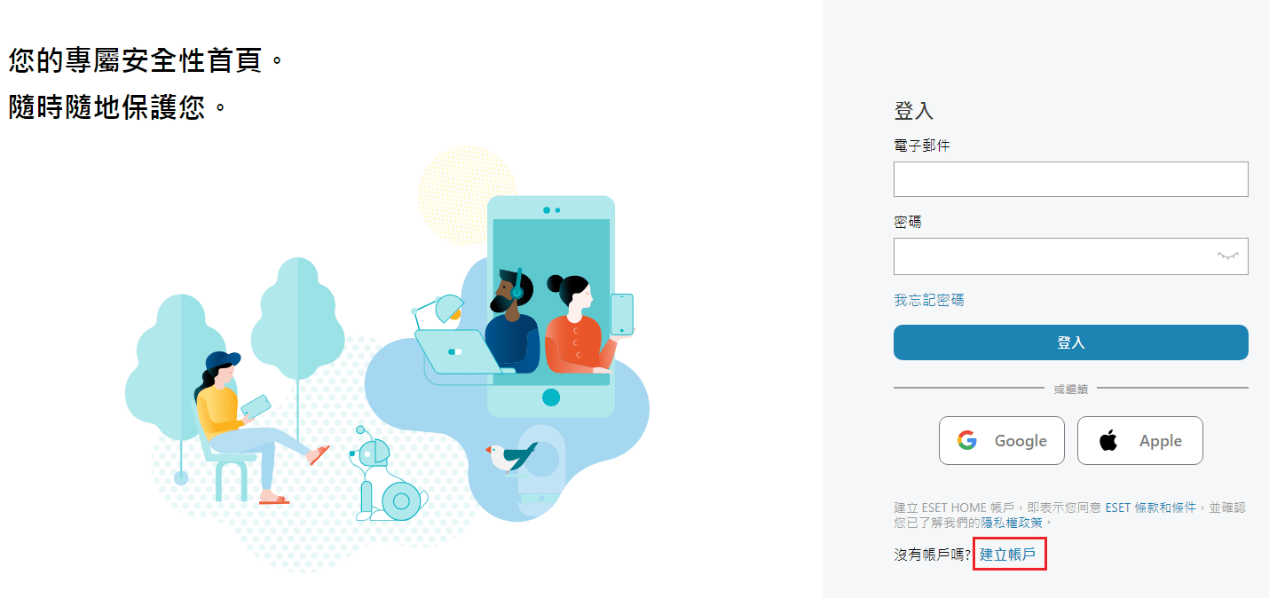
- 如你的ESET Home 帳戶登入電郵與ESET授權序號的登記電郵相同,當你成功登入ESET Home 帳戶後,便會看到你的授權。否則需要點擊「+新增授權」來加入並驗證授權。
- 點擊訂閱
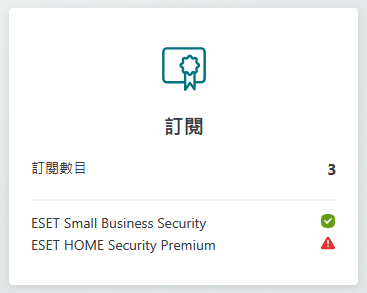
- 點擊「開啟授權」

- 點擊「新增防護」

- 選擇成員「我」

- 選擇您的訂閱並點擊繼續

- 點擊「保護此裝置」/ 「保護其他裝置」後按繼續。

- 點擊「下載病毒防護」下載安裝檔。

- 下載完成後,請點擊安裝檔進行安裝。
1. 從ESET Home下載安裝檔後,點擊該安裝檔進行安裝。
以ESET Internet Security為例,檔案預設名稱為eset_internet_security_live_installer.exe
2. 選擇安裝語言,然後按左下方「繼續」開始安裝

3. 安裝檔會下載最新版本的ESET

4. 啟用「啟用ESET LiveGrid」和「啟用潛在不需要應用程式偵測」。用戶可自行選擇是否「參與客戶經驗改進計畫」然後按「繼續」

5. 輸入「裝置名稱」,然後按「繼續」

6. 點擊「繼續」

7. 安裝檔便會進行安裝
1. 從ESET Home下載安裝檔後,點擊該安裝檔進行安裝。
以ESET Cybersecurity Pro為例,檔案預設名稱為eset_cybersecurity_pro_zh_tw.dmg

2. 點擊「安裝ESET Cyber Security Pro」開始安裝

3. 按「允許」

4. 按「繼續」

5. 按「同意」

6. 選擇「典型(建議)」,然後按「繼續」

7. 選擇「啟用ESET LiveGrid意見系統(建議)」,然後按「繼續」

8. 選擇「啟用潛在不需要應用程式偵測」,然後按「繼續」

9. 點擊「安裝」

10. 輸入你MacOS的系統密碼,然後按「安裝軟件」

11. 安裝檔便會進行安裝

12. 安裝完成後,系統會有以下提示,請點擊「開啟保安偏好設定」

13. 在「私隱」一項,請點擊下方的「按一下鎖來進行更改。」

14. 在左方選擇「完整磁碟取用」,右邊勾選「ESET Device Control」,「ESET Cyber Security Pro」及「ESET Real-time System Protection」三項

15. 在左方選擇「檔案與資料夾」,檢查右方「ESET Device Control」,「ESET Cyber Security Pro」及「ESET Real-time System Protection」三項是否已加入。

16. 在「一般」一頁,點擊下方的「詳細資料…」,然後勾選所有「ESET Cyber Security Pro」後按「好」。新版本的MacOS 沒有「詳細資料…」這一項,可以略過這個設定。

17. 做完以上設定後,請重新啟動電腦。然後打開ESET Cybersecurity Pro。
點擊左方的「首頁」,右邊點擊「啟動產品」。

18. 輸入授權金鑰 (可在紙盒內的卡找到),然後按「啟動」。

19. 能成功啟動,便代表安裝完成。
1. 在您的 Android 裝置上,開啟 Google Play 應用程式並搜尋「ESET Mobile Security」。
您也可以使用電腦瀏覽 Google Play 商店,並將應用程式遙距安裝到您的裝置上。另外,您也可以使用 Android 裝置的相機或 QR 碼掃描應用程式,掃描下方的 QR 碼,畫面將會自動轉跳至 Google Play 應用程式。

2. 點擊「安裝」。

3. 等待安裝完成,然後點擊「開啟」。

4. 點擊「全部接受並繼續」。
此操作即表示您接受《使用者授權合約》並確認《隱私權政策》,且允許 ESET LiveGrid、特別優惠、分析以及用於行銷用途的資料使用。您亦可點擊「自訂來更改您的偏好設定。

5. 選擇「香港」(請不要選其他的國家或地區) 。

6. 點擊「我已經擁有訂閱」。

7. 點擊「使用 ESET HOME 帳戶」。
您必須建立一個 ESET HOME 帳戶,才能啟用 Android 版的 ESET Mobile Security。如果您已有 ESET HOME 帳戶,請依照螢幕上的指示登入。或者,您也可以點擊「使用啟動金鑰」並輸入已完成登記的ESET 授權。

8. 點擊「查看更多選項」。

9. 點擊「電子郵件」。
10. 請輸入您的 ESET HOME 帳戶電郵地址和密碼,然後點擊「登入」。
如果您還沒有 ESET HOME 帳戶,請點擊「建立帳戶」。
您必須擁有 ESET HOME 帳戶才能啟用 Android 版的 ESET Mobile Security。
11. 如果您已將 ESET Mobile Security for Android 的訂閱連結至您的 ESET HOME 帳戶,請直接點擊該訂閱,然後點擊「選取並繼續」。
您也可以點擊「我有啟動金鑰」,輸入您的啟動金鑰,然後點擊「選取並繼續」。

12. 點擊「啟動防護」。
13. 點擊「開始掃描」。
14. 點擊「允許掃描檔案」。
15. 點擊「允許存取以管理所有檔案」。
16. 安裝完成,您將會看到「您已受到保護」的狀態訊息。
1. Please open your web browser and enter https://home.eset.com/ in the address bar to log in to your ESET Home account. If you do not yet have an account, please click the “Create Account” option to register.

2. After creating your account and successfully logging in, click the “Use an activation Key” option.

3. If your ESET Home account already contains a license, click the “Subscription” option on the left-hand menu, then click “+Add or buy” on the right.

4. Enter your activation key (located on the card inside the product packaging), then click “Add subscription”.

5. Complete the registration form, providing your “First Name,” “Last Name,” and “Email Address.”
6. In the “Country / Region” field, use the scroll bar to scroll down and select “Hong Kong.” (Please ensure “Hong Kong” is selected and avoid choosing any other country or region.)

7. Click “Add subscription” to complete the registration process. You will receive your license registration details via email within fifteen minutes. The subscription period will begin immediately upon successful registration.

8. After completion, the newly registered license will be visible under the “Subscription” option on the left-hand side of your account.
- Open a web browser and go to https://home.eset.com/ to log in to your ESET Home account. If you don’t have an ESET Home account, you can click “Create Account” to set one up.

- If your ESET Home account login email matches the email registered with your ESET license, when you successfully log in to your ESET Home account, you will see your license. Otherwise, you will need to click “+ Add License” to add and verify the license.
- Click on “Subscriptions”

- Click “Open subscription”

- Click “Add protection”

- Choose the member “Me”, then click “Continue”

- Choose the subscription you need and click “Continue”

- Click “Protect this device” or “Protect another device”, then click “Continue”.

- Click “Download antivirus” to download the installation file.

- After the download is complete, click on the installation file to proceed with the installation.
The steps for Windows users to install ESET are as follows:
1. After downloading the installation file from ESET Home, click on the installation file to begin the installation. Using ESET Internet Security as an example, the default file name is eset_internet_security_live_installer.exe.
2. Select the installation language and then click “Continue” in the lower left corner to start the installation.

3. The installation file will download the latest version of ESET.

4. Enable “Enable ESET LiveGrid feedback system” and “Enable detection of potentially unwanted applications.” Users can choose whether to “Participate in Customer Experience Improvement Program” and then click “Continue.”

5. Enter the “Device Name” and then click “Continue.”

6. Click “Continue.”

7. The installation file will proceed with the installation.

MacOs Users Installation Steps are as follows:
1. After downloading the installation file from ESET Home, click on the installation file to begin the installation. Using ESET Cybersecurity Pro as an example, the default file name is eset_cybersecurity_pro_en.dmg.

2. Click “Install ESET Cyber Security Pro” to start the installation.

3. Click “Allow.”

4. Click “Continue.”

5. Click “Agree.”

6. Choose “Typical (Recommended),” and then click “Continue.”

7. Choose “Enable ESET LiveGrid Feedback System (Recommended),” and then click “Continue.”

8. Choose “Enable detection of potentially unwanted applications,” and then click “Continue.”

9. Click “Install.”

10. Enter your MacOS system password, and then click “Install Software.”

11. The installation file will proceed with the installation.

12. After the installation is complete, the system will display the following prompt. Please click “Open Security & Privacy Preferences.”

13. In the “Privacy” section, click “Click the lock to make changes.”

14. On the left hand side, select “Full Disk Access,” and on the right hand side, check “ESET Device Control,” “ESET Cyber Security Pro,” and “ESET Real-time System Protection.”

15. In the “Files and Folders” section, verify that “ESET Device Control,” “ESET Cyber Security Pro,” and “ESET Real-time System Protection” have been added on the right side.

16. In the “General” section, check all “ESET Cyber Security Pro,” and then click “OK.” New Version MacOS does not have this item, you can skip this steps.

17. After completing the above settings, please restart your computer and then open ESET. Click “Home” on the left hand side and click “Activate product” on the right hand side.

18. Enter the license key (found on the card inside the box), and then click “Activate.”

19. If the activation is successful, it means the installation is complete.
1. On your Android device, open the Google Play app and search for ESET Mobile Security.
You can also use your computer to visit the Google Play store and trigger your product to download to your device remotely. Alternatively, use your Android device to scan the QR code below using a camera or QR-scanning app. You will be redirected to the Google Play app.

2. Tap Install.

3. Wait for the installation to finish and tap Open.

4. Tap Accept all and continue to agree to the End User License Agreement and acknowledge Privacy Policy, and to allow ESET LiveGrid, special offers, analytics, and data usage for marketing purposes. Tap Customize to customize your preferences.

5. Select Hong Kong (Please don’t select other country or region).

6. Tap I already have a subscription.

7. Tap Use an ESET HOME account. You must create an ESET HOME account to activate ESET Mobile Security for Android. If you have an ESET HOME account, follow the on-screen instructions to log in. Alternatively, tap Use an activation key.

8. Tap See more options.

9. Tap Email.

10. Type in your email and password for your ESET HOME account and tap Log in. Alternatively, if you do not have an ESET HOME account, tap Create account.
You must have an ESET HOME account to activate ESET Mobile Security for Android. 
11. If you have already connected your ESET Mobile Security for Android subscription to your ESET HOME account, tap the subscription, and tap Select and continue.
Alternatively, select I have an activation key, type the Activation key and tap Select and continue.

12. Tap Activate protection.
13. Tap Start scanning.
14. Tap Allow to scan files.
15. Tap Continue and tap the toggle next to Allow access to manage all files to enable it.

16. When the installation is complete, you will see the “You are protected” status. 
