Skip to content

How to change or reset your PayPal password

It goes without saying that you should protect all your online accounts with strong passwords. Data breaches, phishing attacks, and misplaced Post-it notes could all lead to stolen accounts. But when it comes to financial services, it’s particularly important to be careful.

How to change your PayPal password

PayPal is a quick and easy way to send and receive money. But since it is usually linked to your credit card, it’s important to change your password regularly and always use a strong one.

Please note that you can’t change the password through the PayPal app — you’ll have to log in through a browser.

Here’s how to change your PayPal password in four easy steps:

  1. Log into your PayPal account and click the little gear icon in the upper right corner.

  2. Click on “Security” in the top banner.

  3. Click “Update” in the “Password” field.

  4. Enter your current and new passwords and click “Change password.” All done!

How to reset your PayPal password

If you forgot your PayPal password, you can reset it through the browser and the PayPal app.

  1. Go to PayPal, click “Log in,” and select “Forgot password?”

  2. Enter the email address you used to create your account and click “Next.”

  3. Follow the instructions in the email you receive.

How to change your PayPal security questions

Please note that you can’t change the security questions through the PayPal app — you’ll have to log in through a browser.

Here’s how to change your security questions on PayPal:

  1. Log into your PayPal account and click the little gear icon in the upper right corner.

  2. Click on “Security” in the top banner.

  3. Click “Update” in the “Security questions” field.

  4. Select new security questions and write your answers. Click “Save” and you’re done!

How to set up a passkey for your PayPal account

Passkeys are a new and secure authentication standard introduced by the FIDO Alliance. Think of passkeys as a replacement for passwords that use your fingerprint, face, or a device PIN to sign in to apps and websites across the internet. Designed for supreme security and convenience, passkeys facilitate a seamless login process.

If you are interested in setting up a passkey for your PayPal account, here’s a quick rundown of how to do it:

  • Access your PayPal account using your existing username and passwords.

  • Once you access your account you will see an option “Create a passkey.”

  • Now you will need to authenticate via biometrics.

  • Once you’re authenticated, the passkey will be automatically created, and the next time you log in to your PayPal account, you will not need your username or passwords. The passkey will do the trick.

How to use PayPal safely

Using financial services online is convenient, but it can also be risky — there are many malicious actors lurking on the internet, trying to steal your money. Follow these simple tips to increase your security while making payments online:

Avoid making transactions when connected to public Wi-Fi. Hackers can set up fake hotspots and then monitor your actions online. Using a VPN will encrypt your connection, making it impossible for anyone to see the data you send and receive. You only need to be aware of snoopers looking over your shoulder as you type in your passwords!

Keep the PayPal app up to date. Apps can have vulnerabilities and bugs that are not discovered for months. But once they are brought to light, your account could be in danger. Set up automatic updates on your PayPal app to make sure you have the latest security patch installed.

Be cautious with links and attachments in emails. If you get an alarming email from PayPal claiming that your account is in danger and you must change your password immediately, don’t click any links. Open a new tab, enter the address manually, and check to see if your account is really in danger.

Enable two-factor authentication. Passwords are your first line of defense, but using 2FA will take your account security to another level. You can choose to receive a code via text or use an authenticator app or a security key for your PayPal account’s 2FA.

Set up passkeys. Passkeys are a new, passwordless authentication method that offer a more secure and convenient way to access websites and apps using only your fingerprint, face scan, or a device PIN. Because passkeys leverage public key cryptography, they are resistant to phishing attacks, making them even more secure than most multi-factor authentication methods.

Use a unique and strong password. When you change your password, pick one that is impossible to guess. That means using at least 12 characters that include upper- and lowercase letters, numbers, and special symbols. Need help? Try our password generator.

Keep your PayPal password safe with NordPass. Let’s be frank. All of us have way too many passwords on our hands. Remembering each one — well, that’s just an illusion. But with the NordPass password manager you can have all of your passwords securely stored in a single place, and you can autofill them with just a click. The same goes for passkeys — the NordPass Passkey Holder is designed as a secure storage for all of your passkeys. Tidy mess of online life with NordPass today.

Make using financial services online stress free with NordPass!

About Version 2 Digital

Version 2 Digital is one of the most dynamic IT companies in Asia. The company distributes a wide range of IT products across various areas including cyber security, cloud, data protection, end points, infrastructures, system monitoring, storage, networking, business productivity and communication products.

Through an extensive network of channels, point of sales, resellers, and partnership companies, Version 2 offers quality products and services which are highly acclaimed in the market. Its customers cover a wide spectrum which include Global 1000 enterprises, regional listed companies, different vertical industries, public utilities, Government, a vast number of successful SMEs, and consumers in various Asian cities.

About NordPass
NordPass is developed by Nord Security, a company leading the global market of cybersecurity products.

The web has become a chaotic space where safety and trust have been compromised by cybercrime and data protection issues. Therefore, our team has a global mission to shape a more trusted and peaceful online future for people everywhere.

Decrypting the common misconceptions about encryption

In cybersecurity, encryption is one of the key tools to secure sensitive information against unauthorized access. Nowadays, it’s one of the major components of digital data privacy. It’s also a word often encountered, yet frequently misunderstood. This leads to the proliferation of misconceptions that cause confusion and steer individuals toward poorly-informed security choices.

Therefore, in this article, we aim to raise awareness about potential encryption misconceptions that could expose organizations to cyber threats and data breaches. We’ll decode the risks of inconsistent encryption practices and highlight the best practices for adopting encryption in daily operations. By learning how to distinguish between myths and facts, you can effectively fortify your online security and avoid costly errors in safeguarding confidential data.

Understanding encryption

To understand how encryption works, it’s essential to grasp the principles of cryptography. This is the science and practice of designing secure communication and information systems. It provides the theoretical foundation and mathematical tools for creating encryption algorithms that protect sensitive information from unauthorized access.

Cryptography follows the four main principles:

  1. Confidentiality. Refers to rules and guidelines, ensuring the information is restricted to specific senders and recipients.

  2. Data integrity. Maintains that a message cannot be modified during the transit between the sender and the intended recipient.

  3. Authentication. Verifying that the data claimed by the user rightfully belongs to them.

  4. Non-repudiation. Assurance that associated parties cannot deny the authenticity or the act of sending a message.

Therefore, encryption is a specific technique within the field of cryptography. It converts plain, readable data into a scrambled, unintelligible form (ciphertext) using an encryption algorithm and key. It can only be decoded to the original form with a decryption key. The primary purpose of encryption is to ensure the confidentiality of data, preventing unauthorized users from accessing the original content.

Encryption involves hashing an arbitrary length value to obtain a fixed-length ciphertext that depends on the algorithm used. Some examples of cryptographic algorithms include Advanced Encryption Standard, Triple DES, Blowfish, and ChaCha20.

The misconception explained

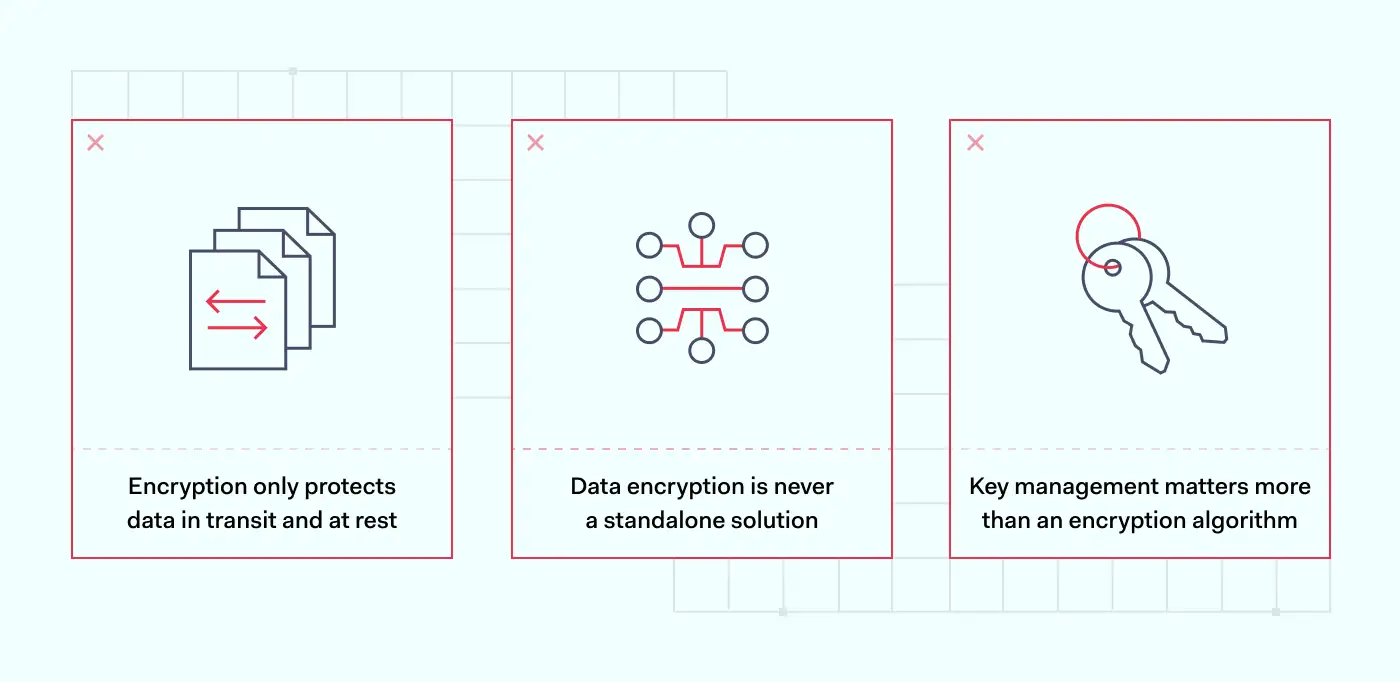
One common misconception about encryption is that it’s an ultimate defense against all cybersecurity threats. While encryption does help against various threats, even if the data is stolen, it’s not a standalone solution. Here are some things that you should consider:

Encryption only protects data in transit and at rest. Encryption is effective in cases when the data is stored or transmitted. This makes it unreadable to anyone without the decryption key. However, it is vulnerable if the end-point device has been compromised and the data is decrypted for use.

Data encryption is never a standalone solution. Encryption should be combined with other cybersecurity measures like multi-factor authentication, firewalls, regular system updates, and more to create a robust defense against cyber threats. This means using multiple layers of security to protect valuable data and assets, with each layer providing more challenges for attackers to breach the system.

Key management may matter more than an encryption algorithm. It’s easy to pick the most complex encryption algorithm for sensitive data and assume it is now protected under nine locks. The problem is that the strength of encryption also depends on the secrecy and security of the keys used to encrypt and decrypt the data. Therefore, proper key management is as important as technological security measures.

The risks of inconsistent encryption practices

Our previous examples show that encryption isn’t enough to guarantee data security. What sometimes matters more than cipher algorithm strength is encryption practices.

Inadequate protection of sensitive information

At its core, encryption transforms understandable information, or plaintext, into unintelligible text, or ciphertext. If an organization inconsistently applies encryption, there’s a chance that some data will not be adequately protected. This inconsistent protection could be due to only encrypting certain data types, failing to encrypt data in transit, or neglecting to encrypt backup files.

As a result, sensitive information such as intellectual property, customer data, or financial records may be exposed. Malicious actors can exploit this information, leading to financial losses and damage to a company’s reputation.

Regulatory non-compliance

Regulations such as the General Data Protection Regulation (GDPR) in the European Union, the California Consumer Privacy Act (CCPA) in the U.S., and many others, require businesses to take specific steps to protect consumer data, often including encryption. Inconsistent encryption practices can lead to regulatory non-compliance, resulting in potential fines and penalties and further damaging an organization’s reputation.

Interoperability issues

Inconsistency in encryption can lead to compatibility problems. For example, if different encryption algorithms or key lengths are used across different systems or departments within the same organization, it can cause difficulty in data sharing and management. This can lead to inefficiency, potential data loss, or the need for resource-intensive data translation.

Best practices for adoption of encryption practices

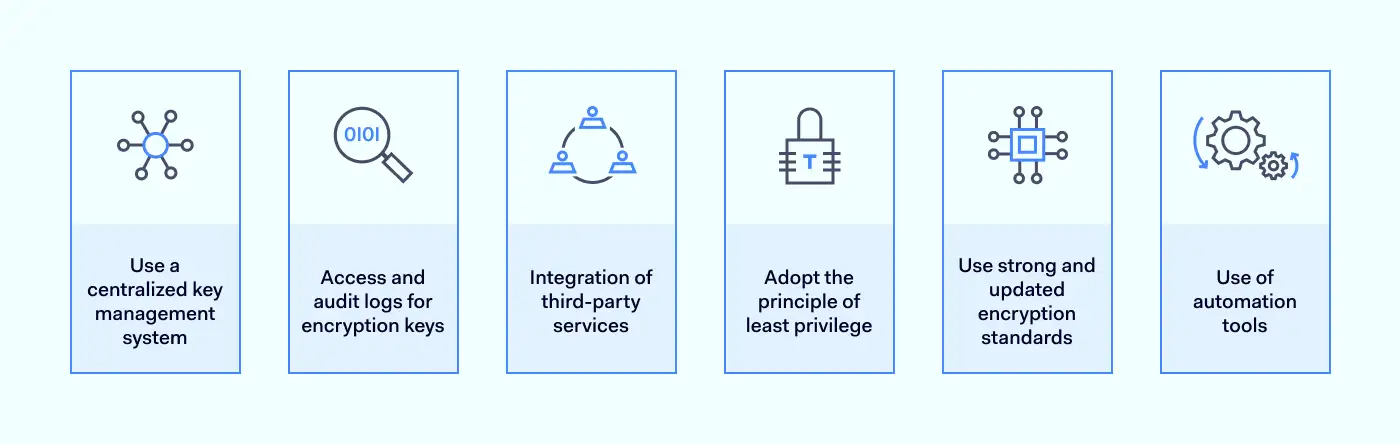
Encryption is vital to any cybersecurity strategy as it adds an essential layer of protection for data at rest and in transit. Here are some of the best practices for adopting encryption.

Centralized key management system

Different encryption keys used can present a significant challenge regarding storage accessibility. A centralized key management system allows storing encryption keys separately from the encrypted data, providing an additional layer of security in case of a data breach, and minimizing the risk of compromise.

The centralization of the key management process offers further advantages in terms of processing. While the encryption and decryption operations occur locally where the data resides, activities like storage, rotation, and generation of keys are performed away from the actual data location. This separation streamlines the encryption-decryption process and enhances overall security.

Access and audit logs for encryption keys

Access to encryption keys should be limited only to those individuals who genuinely need them. This control can be established through a centralized key management process, ensuring only authorized users are granted access. Avoid cases when a single user holds exclusive access to the key, as this could lead to problems if the user loses their credentials or if data corruption occurs.

Additionally, comprehensive audit logs maintenance is critical to encryption key management. These logs must meticulously document the complete interaction logs of each key, encompassing its creation, deletion, and usage patterns. Every operation related to these keys should be recorded, including details about who accessed the key and the timestamp of access. This facilitates compliance requirements and enables efficient investigation during a key compromise.

Integration of third-party services

Organizations frequently rely on external devices distributed across their network to perform various functions. Still, these devices often lack seamless interaction with databases. Consequently, choosing encryption methods compatible with the third-party applications they interact with is essential.

Incorporation of third-party APIs entails significant risks like SQL injection, cross-site scripting, denial of service, spoofing, malware code, and others. This makes API security a major concern. To address this issue, it’s necessary to use API Management Platforms, providing a range of features like monitoring, analytics, alerting, and life-cycle management.

The principle of least privilege

The principle of least privilege advocates that organizations should grant administrative rights based solely on user roles. This restricts the assignment of such rights to applications and minimizes exposure to internal and external threats. As access is limited through role-based control mechanisms, the potential for harm is reduced.

It’s important to note that this principle is not limited to human users. The principle encompasses all interconnected software applications, systems, and devices. For successful implementation, a centralized control system is necessary. It mitigates the risk of “privilege creep” and minimal access levels to human and non-human entities.

Use strong and updated encryption standards

Outdated encryption algorithms are easier to crack because the processing power of computers has dramatically increased. Using robust and up-to-date encryption standards like AES-256 can provide better security. Complex algorithms make it nearly impossible for unauthorized individuals to access the data. This protects sensitive customer information, financial data, trade secrets, and intellectual property.

Use of automation tools

Manual key management not only consumes a significant amount of time but also introduces the risk of errors. This is especially the case when dealing with the scale of large organizations. A more intelligent approach to address this challenge is by implementing automation. For instance, automation can create, rotate and renew keys at specified intervals, proving an effective and prudent practice.

How can NordLayer help?

Encryption is an essential tool in our digital world, providing a robust line of defence against cyber threats. That said, various misconceptions surrounding encryption can undermine its effectiveness. Strong and consistent encryption practices can provide the necessary shield in our interconnected world.

This is also where NordLayer can help. NordLayer establishes connections to a Virtual Private Gateway using OpenVPN, IKEv2/IPsec, and NordLynx protocols that are encrypted with Advanced Encryption Standard (AES) 256-bit or ChaCha20 algorithms. Meanwhile, our single extension for different browsers uses Transport Layer Security encryption for web traffic.

The connections and online browsing can be further secured by enabling features like two-factor authentication, single sign-on, device posture monitoring, ThreatBlock, and DNS filtering.

Most importantly, NordLayer can be set to auto-connect to a Virtual Private Gateway server as soon as an internet connection is detected. This enforces the consistent usage of security tools, as each time an employee turns on a computer, it automatically connects to a Virtual Private Gateway.

Get in touch with the NordLayer team directly to explore innovative data security solutions that make damaging data breaches much less likely.

About Version 2 Digital

Version 2 Digital is one of the most dynamic IT companies in Asia. The company distributes a wide range of IT products across various areas including cyber security, cloud, data protection, end points, infrastructures, system monitoring, storage, networking, business productivity and communication products.

Through an extensive network of channels, point of sales, resellers, and partnership companies, Version 2 offers quality products and services which are highly acclaimed in the market. Its customers cover a wide spectrum which include Global 1000 enterprises, regional listed companies, different vertical industries, public utilities, Government, a vast number of successful SMEs, and consumers in various Asian cities.

About NordLayer
NordLayer is an adaptive network access security solution for modern businesses – from the world’s most trusted cybersecurity brand, Nord Security.

The web has become a chaotic space where safety and trust have been compromised by cybercrime and data protection issues. Therefore, our team has a global mission to shape a more trusted and peaceful online future for people everywhere.

Recoveries and backups

NOTE: This blogpost is a revised version of an article requested from the author by Lenovo. This version has been updated with additional information specific to ESET software, as well as more general information about other computer manufacturers.
Click here to view the original article.

What is the most valuable part of your computer? Many people might say the hardware itself, while for others it may be the cost of the software that’s installed on it. But the truth of the matter is, these are things that can always be replaced. Maybe not very easily – or inexpensively, for that matter – but it is doable. Now, let me rephrase that question and ask it in a slightly different fashion:

     What’s the most irreplaceable part of your computer?

If you think about it in that sense, then it is probably all of the data stored on your computer that would be the hardest to replace, and that’s if any of it could be replaced at all.

So, with all of that in mind, let’s conduct a little thought experiment:

     What would happen if the drive inside your computer suddenly vanished into thin air?

And by vanished, I don’t mean it stopped working; I mean the drive was no longer physically in the computer. However this may have happened doesn’t really matter, since this is a thought experiment: let’s just say it was there one day, and then all of a sudden, the next day it wasn’t. The machine is otherwise intact.

Now, if you work for an enterprise, hopefully the IT department has been backing up your files, and can send you a replacement drive with the operating system, the applications you use, and some (or even all) of your files on it – although, perhaps the help desk might first try to troubleshoot the issue with you over the phone.

If you work for a much smaller organization, or are a home user, perhaps you are using a service like Microsoft OneDrive or Google Drive to back up all of your data to the cloud. In that case, your data is probably still there. Hopefully in a secure fashion, and also hopefully in a way that you can regain access to it without too much trouble. It may still take some time to get a new drive installed and the computer configured for you to use, though, especially if you have to download the operating system, device drivers, and computer-specific software all over again.

Recovery media and more

It used to be that if you had a problem like this you would have to order recovery media from the computer manufacturer. Sometimes for free, but sometimes paying for shipping and handling, in order to get a handful of CDs or DVDs. As deployment tools and technology for Windows improved, manufacturers got better about letting you make your own recovery media. And as hard drive capacities increased, a section of the drive could be reserved to hold a special recovery partition for restoring the system. Eventually, Microsoft added the capability to make recovery media directly from within Windows, as well as to download installation media, although the latter would not have any of the machine-specific drivers, software, or customizations the computer manufacturer made to the system.

Of course, if recovery media was never made or the drive went missing, you would still need to order recovery media from the manufacturer. With improvements to internet speeds, the latest evolution is to allow people to download and create recovery media at their leisure.

Top-tier computer manufacturers like Dell, Hewlett-Packard, Lenovo, and Microsoft provide tools that allow you to download and create recovery media at any time from any device. Here is a listing of these tools, as well as their respective web pages:


Manufacturer

Service or tool

Dell

Dell OS Recovery Tool / Dell SupportAssist OS Recovery(depends on Windows version)

Hewlett-Packard

HP Cloud Recovery Tool

Lenovo

Digital Download Recovery Service

Microsoft

Surface Recovery Image Download


Other computer manufacturers offer programs that come with the computer that can be used to make its recovery media. Here is a list of some of those manufacturers as well as the instruction pages for using their tools.


1Toshiba rebranded its PC business as Dynabook in 2018.

While listing all computer manufacturers and their means of obtaining recovery media is beyond the scope of this article, the links above cover ten of the largest vendors. If none of these are options for you, you may still be able to contact your computer manufacturer to order recovery media or, failing that, download generic installation media from Microsoft here.

Over the years, I have used the tools to download and create recovery media from most of the manufacturers mentioned above and can attest they all pretty much work as intended. In case you are wondering how I know this, it is because creating recovery media is the first thing I have done for every ThinkPad I’ve owned over the past decade or so, even before the computer has arrived. That way, when it does arrive, I use the recovery media to wipe its drive(s) and restore the operating system. Now, this may sound a little counterintuitive at first; however, there’s a very good reason for doing this:

Normally, you would never use the recovery media unless there was some kind of catastrophic failure, or you were giving the computer away and needed to restore it to its original state to remove any personally identifiable information (PII) from it. Doing so is outside the scope of this blog post, but see How to get rid of your old devices safely for information on how to wipe a computer. In the case of failures, though, they often seem to happen at the worst times possible, and getting the computer back up and running is urgent and time sensitive. Over the years, there have been a couple of times where I had to rebuild my computer in a hotel room before a conference. It is certainly not a frequent occurrence, but it caused me to think about what steps I would need to take if it happened in the future.

What I learned from the experience was that it was best to verify that the recovery media worked perfectly before I ever had an emergency. That way, if I ever did need to use it in that emergency situation, I could be confident that the whole process worked. What I found was it was far better to test the recovery media’s ability to wipe and restore the operating system before I invested any of my time in updating, configuring, or otherwise making changes to the laptop.

For me, that small investment of time up front would have saved me a lot of time in the future if I had been stuck with recovery media that didn’t work.

As far as the capacity of USB flash drive to use, some of the latest preinstalls of Windows are just over 16 GB, so a 32 GB drive is best. A USB 3.0 (or faster) USB flash drive will certainly speed the process. My preference is for USB flash drives from reputable brand-name companies. If you are unsure of what size USB flash drive you might need, ask your computer manufacturer’s technical support. Remember, your recovery media is a kind of insurance for recovering your computer when something catastrophic happens; you should not try to skimp on it when a few dollars might make the difference between a successful and a failed recovery.

You may also want to consider carrying a second USB flash drive that just contains installation programs for any “mission critical” productivity software. While the software you need may be available online for download you may be in a situation where there is no internet access, or it may be very slow or expensive to access, such as a hotel Wi-Fi connection. Having the full “offline” installers for essential productivity software might be the difference between getting up and running over the course of an evening, rather than taking up much of the next day as well. Storing these programs on a separate USB flash drive allows you to keep them updated without having to worry about accidentally deleting an important file on your recovery media, corrupting it, or running out of space.

If you ever do make use of your recovery media, be sure to run the manufacturer’s update tool after Windows has finished installing. These tools download model-specific drivers and software for your computer that may work better or contain additional customizations beyond what is available through Microsoft’s Windows Update service. Typically, these programs are installed when the manufacturer’s recovery media is used. If they weren’t, or you used Microsoft’s generic media, here is a list of where you can download or go to get more information about your manufacturer’s update tool:


Vendor

Update Tool

Acer

Acer Control Center S

ASRock

ASRock APP Shop

ASUS

MyASUS

Dell

SupportAssist for Home PCs / Dell Command Update(for businesses)

Fujitsu

DeskUpdate

GIGABYTE

GIGABYTE Control Center

Hewlett-Packard

HP Support Assistant

Lenovo

Lenovo Vantage(for consumers) / Lenovo Commercial Vantage(for businesses)

MSI

MSI Center  (for consumers) / MSI Center Pro(for businesses)

Samsung

Samsung Update


Note that some of the update tools offered by vendors are Windows Store apps. If you have a Long-Term Servicing Channel (LTSC, and formerly known as Long-Term Servicing Branch, or LTSB for short) edition of Windows, then these tools may not work for you. Check with your vendor to see if they offer a version of their tool that can be side-loaded or used without needing to access the Windows Store.

Data backup strategies

With the operating system portion of your computer’s backup in place, it’s now time to talk about strategies for backing up your data. These days, there are lots of options available for doing this, but they all fall into two broad categories: In the cloud, or locally stored on your premises. I will note that this is not an either-or proposition. You can use both methods in whatever combination you prefer. Regardless of which option(s) you choose, though, it is crucial to remember that having only a single backup of your files does not provide a great margin of safety in the event you lose access to that backup.

In 2012, US-CERT released a paper suggesting the adoption of a 3-2-1 backup strategy. This strategy states that you should have three (3) copies of important data, that those backups should be on two (2) different types of media, and that one (1) of those backups should be stored offsite. While that is a good starting point, it can be extended. You could consider using multiple cloud providers, and/or having your backups stored in a different geographic region. For physical backups, it may make sense to store a copy not just offsite, but off-region as well. If a disaster, natural or otherwise, happens in your local region, you would be able to travel far enough away and have access to your backups. From a practical point of view, the distance is up to you; it could be a day of travel by plane, half a day’s travel by car, or however far enough that your backups (and you) won’t be affected by a significant local disaster. Earlier in 2023, Cameron Camp and I discussed what could happen if you were caught in such a digital vacuum, and what impact this might have on backups and business continuity.

Backups to the cloud

Cloud backup services are available from a variety of companies, whether it be the Microsoft OneDrive space you got with your Microsoft account, Google Drive with your Gmail address, or from a company that specializes in storing your data in the cloud like Box, Dropbox, MediaFire, SugarSync and so forth. These services are useful because they allow you to access your data from anywhere that has an internet connection. And, as they are stored across many servers connected to the internet, a single point of failure should not impact the integrity of your backed-up data at all, although it may be inaccessible if the service has an outage.

Cloud backups are file-based, and can store multiple versions of the same file, which can be handy if you need to recover an older version of a file. However, cloud backups are also limited by the speed of your internet connection. When a cloud outage occurs, it may take hours before service is restored. Similarly, if you are in a location with poor internet connectivity, it could take a very long time to upload or to restore your data from the backup provider’s cloud.

Another consideration is cost: While some cloud storage providers may provide an initial amount of storage for free, larger amounts of storage can require purchasing more capacity on a monthly or yearly basis, and over time that can add up.

Staying grounded with local backups

Local (aka on-premises) backups can take several forms and use different types of media, but they come in two basic forms: image backups, which store an exact copy of a drive’s file system; and file backups, which store copies of individual files.

There are variations of these local backup technologies that combine the two approaches, and both have ways to perform incremental or differential backups, which backup only files that are either new or have changed since the last backup was performed.

Local backups can be performed to all sorts of media: The most popular today are external USB drives, which includes hard disk drives, solid-state drives, and thumb drives. Optical media such as DVD±R or Blu-ray discs are another option. Although less commonly used today, some people prefer optical discs due to concerns about media longevity.

The speed at which local backups can be performed (and restored) can make them more attractive than cloud backups; however, they can also represent a single point of failure: What happens if only one local backup is made, and that backup gets lost or destroyed? And, of course, in the event that you need to vacate your home or office in an emergency, grabbing your backups should have the same priority as important documents such as passports, birth certificates, tax records, and the like.

If you would like to know more about local backup options, a paper I wrote, Options for backing up your computer, may be of interest. Although it is a little dated in terms of prices and capacities, since it was published in 2011, the points it brings up and suggestions it makes are still quite valid.

Choosing an approach

Cloud and on-premises backups are not an either-or solution. Ideally, you can choose a methodology that lets you use both types of systems for backups. That way, in the event of an emergency, you will have multiple opportunities for retaining access to your data. The trick is in figuring out what works best for your data. Since everyone’s data is different, though, there’s no single type of backup that works for everyone.

For your more critical and irreplaceable data, multiple backups are key. Whether that’s using multiple cloud providers, having multiple external drives, or mixing cloud and local storage, choose an approach that works best for you and your budget.

If you have any questions or comments about backing up or restoring your data, feel free to ask in the ESET Security Forum.  Your local ESET reseller, distributor, or office may be able to provide some tips as well.

Aryeh Goretsky
Distinguished Researcher, ESET

Related reading

This blog is a part of a series of blogs. For the previous entry about the topic of reinstalling ESET products for peak performance, please click here.

About Version 2 Digital

Version 2 Digital is one of the most dynamic IT companies in Asia. The company distributes a wide range of IT products across various areas including cyber security, cloud, data protection, end points, infrastructures, system monitoring, storage, networking, business productivity and communication products.

Through an extensive network of channels, point of sales, resellers, and partnership companies, Version 2 offers quality products and services which are highly acclaimed in the market. Its customers cover a wide spectrum which include Global 1000 enterprises, regional listed companies, different vertical industries, public utilities, Government, a vast number of successful SMEs, and consumers in various Asian cities.

About ESET
For 30 years, ESET® has been developing industry-leading IT security software and services for businesses and consumers worldwide. With solutions ranging from endpoint security to encryption and two-factor authentication, ESET’s high-performing, easy-to-use products give individuals and businesses the peace of mind to enjoy the full potential of their technology. ESET unobtrusively protects and monitors 24/7, updating defenses in real time to keep users safe and businesses running without interruption. Evolving threats require an evolving IT security company. Backed by R&D facilities worldwide, ESET became the first IT security company to earn 100 Virus Bulletin VB100 awards, identifying every single “in-the-wild” malware without interruption since 2003.

×

Hello!

Click one of our contacts below to chat on WhatsApp

×